DiGiCo S21
1-22
1.5.10 Diagnostics ...........................................................................
Touching the Main Menu > Diagnostics button will display various console settings such as software and rmware versions.
This information may be required in the event of troubleshooting procedures
1.5.11 Restart or Shutdown ............................................................
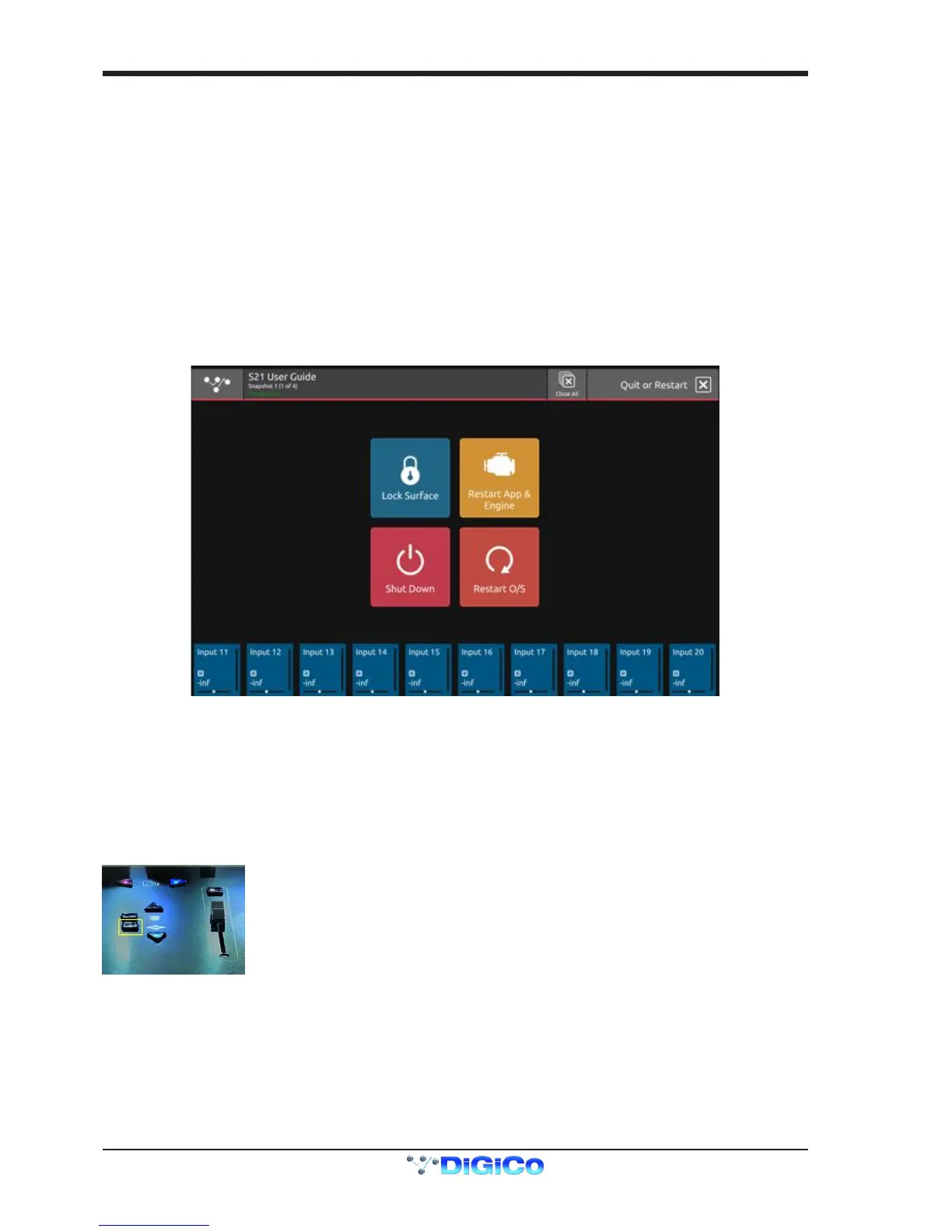
Touching the Main Menu > Restart or Shutdown button displays a number of options for restarting, closing down and temporarily lock-
ing the console.
To Shut Down the console, rst touch the Shut Down button and then when a power icon appears on screen, power off using the switch
on the rear panel.
The console surface can be locked by touching the Lock Surface button and a padlock will be displayed on the screen with an instruc-
tion on how to unlock it again.
This function is simply intended to avoid accidental changes being made to worksurface and screen controls.
In the event of an issue with the console that requires a reset there are 3 options for restarting without a power cycle.
Restart App and Engine - this will interrupt the audio briey
Restart O/S - this will interrupt the audio
Warm boot - there is a small red reset button recessed on the console rear panel which will reset the console computer and will also
cause a brief interruption in audio
1.5.12 Upgrading Software .............................................................
S21 Software can be upgraded by downloading a le as advised by support@digiconsoles.com, copying this to a USB key and proceed-
ing as follows:
1. Copy the downloaded le to the root folder of a USB key – ensure that it is called update.dcu
2. Switch the console off
3. Insert the USB key in the console USB port
4. Hold down the “Overview” button on the console worksurface
5. Switch the console on and keep the overview button held for about 5 seconds and then release it
6. You should then see a series of icons on the screen starting with a clock icon
7. Wait for the console application to boot
8. Open the main menu and check the version number at the bottom of the screen
9. Upgrade complete


 To Next Page