DiGiCo S21
1-16
1.5.2 Snapshots ...............................................................................
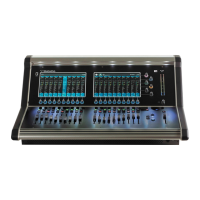
The S21 always has at least one Snapshot in its list and more can be added using the Insert New button in the bottom right corner of
the screen. The Current Snapshot is highlighted in red.
We recommend that the rst snapshot is used as a "Setup" Snapshot where all of your "session wide" settings like routing, Control
Group membership and Buss Modes (whether Busses are Groups or Auxes) are rst stored.
Because these types of setting can be changed with Snapshot recall, it is advisable to save them all into this rst snapshot before creat-
ing any further Snapshots. In this way, the settings for all subsequent Snapshots will contain the same data and there should be less
requirement to adjust the Safe settings in the channels.
When a Snapshot is created it will always save all of the current console settings and it will be placed in the Snapshot list after the Se-
lected (highlighted in light grey) Snapshot.
Subsequently, certain console parameters can be isolated or made "Safe" from Snapshot Recall as required.
To recall (Fire) a different Snapshot, it must rst be selected on the list, highlighting it in light grey, and then the Fire button should be
touched.
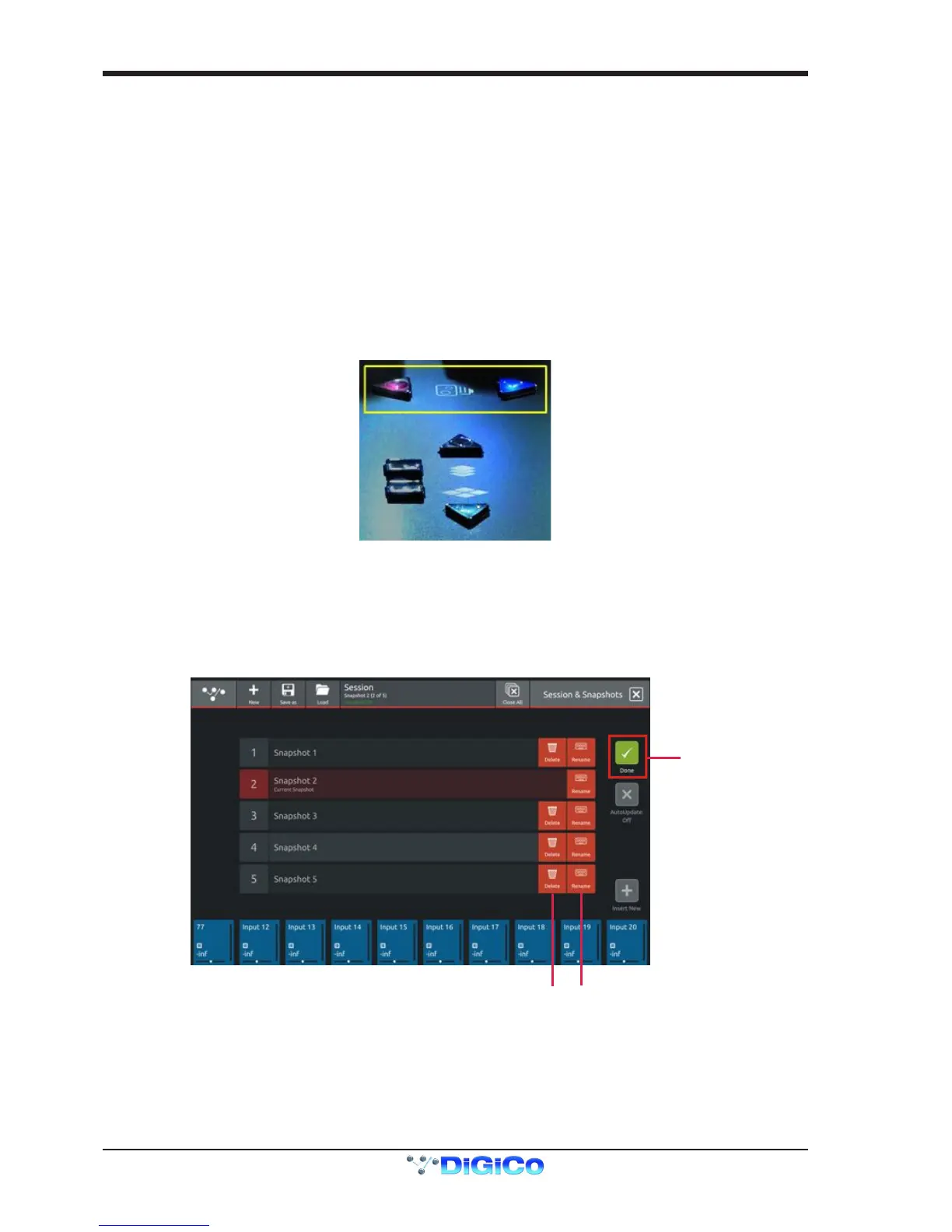
The Previous and Next Snapshots in the list can also be red by pressing the Prev/Next buttons on the worksurface.
When the console state has changed but the current Snapshot has not been updated, the Snapshot will be marked as having "Unused
changes". Pressing the update button on the current Snapshot will store these unused changes.
To change a Snapshot name touch the Edit button at the top of the list, touch the Snapshot name and type using the on-screen key-
board.
To delete a Snapshot, touch the Edit button (if not already active) and then touch the Delete button (dustbin icon) next to the required
Snapshot. You will then be required to conrm the action by touching the Yes button.
To rename a Snapshot, touch the Edit button (if not already active) and then touch the Rename button next to the required Snapshot.
You will then be required to enter a new name and conrm


 To Next Page