UTM-00339 | Rev 19
Page 113 of 253
DetNet South Africa Copyright © 2021
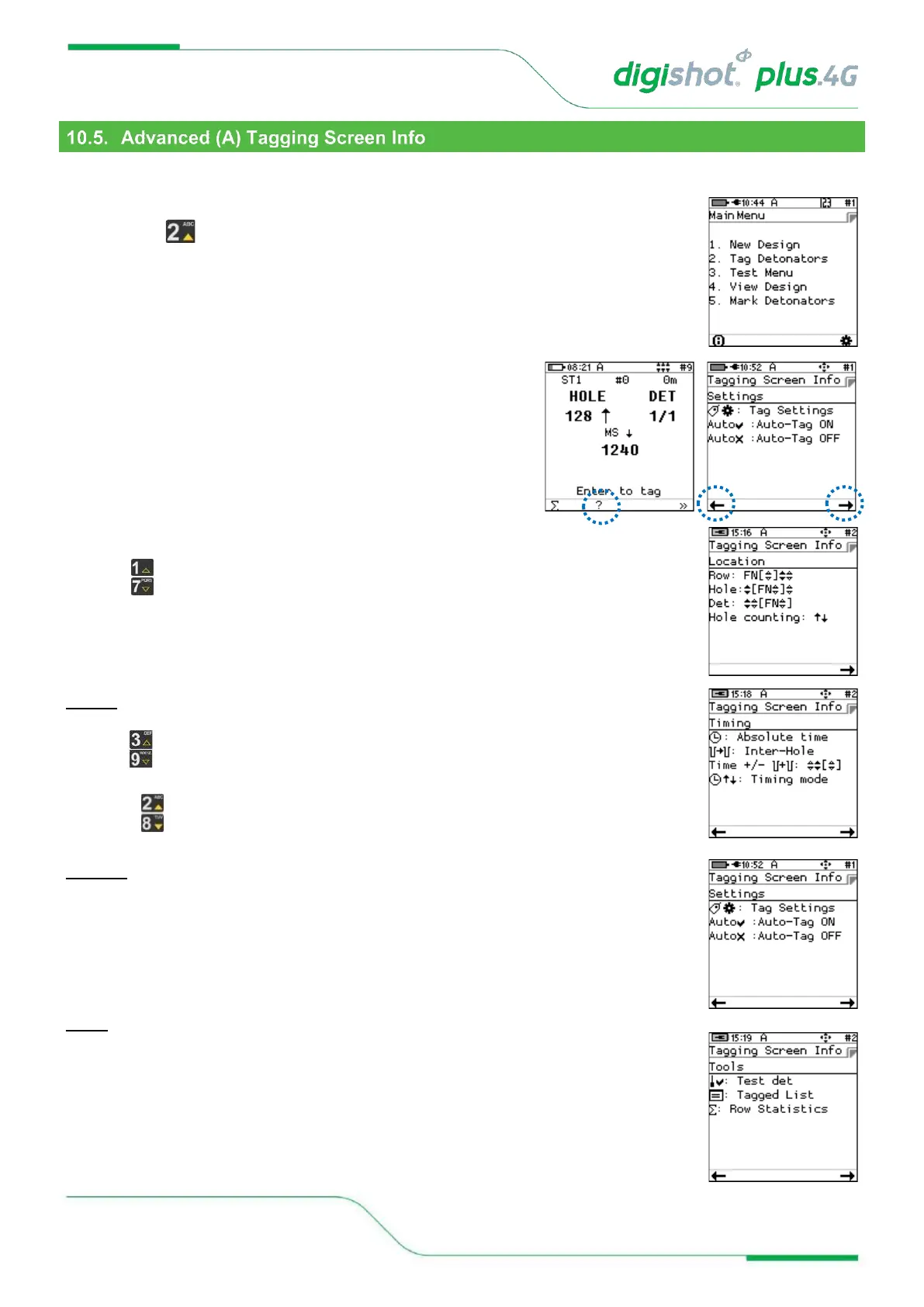
The User may check the “Tagging Screen Info” to browse through a brief description of the active keys in the
tagging screen.
1. From the Main Menu
• Press to select Tag Detonators
2. From Advanced Tagging Screen
• Press ? SoftKey to select Tagging Screen Info
• Press or ➔ SoftKeys to navigate to Previous/Next
screens to display the following Information:
Location
The sequence tracked as location may be adjusted in real time by using the first set of
up/down arrow keys.
Timing
The time can be adjusted with the increment value in real time by using the last set of
up/down arrow keys.
The row increment may be applied to the absolute time using the second set of up/down
arrow keys .
Settings
The user can navigate to the configuration from the tagging screen.
Should Autotag be allowed, this function may be switched off when a detonator has to be
re-tagged
Tools
Users can test any detonator without leaving the tagging screen
The “tagged detonators” list may be checked from the tagging screen
Statistical data is accumulated as tagging is performed.



 To Next Page