Chapter 3
Page 20
Using the Monitor’s Features
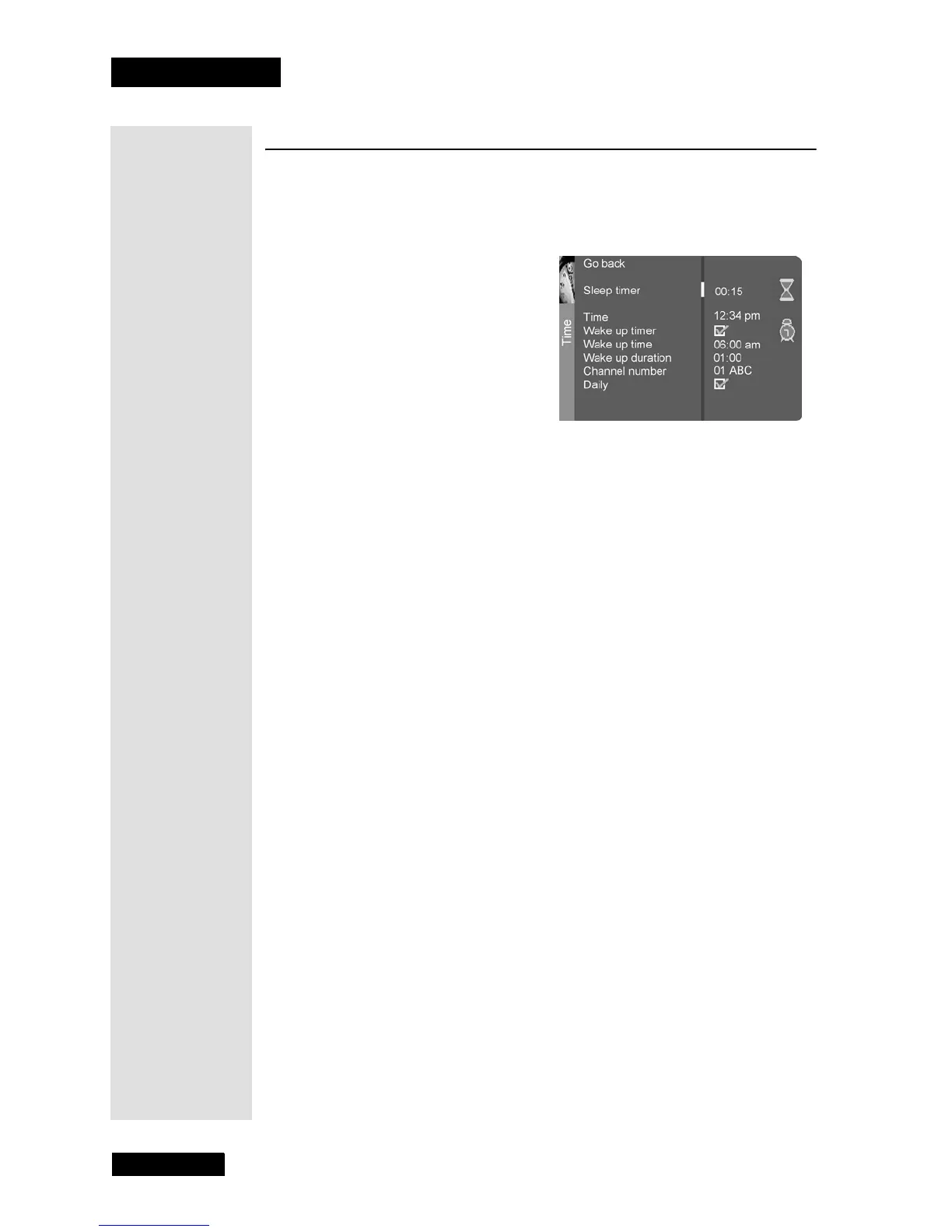
Time Menu
The Time Menu allows you to set up the monitor to turn itself on or off using
Sleep and Wake timers. To open the Time Menu, press MENU, and then
select
Time.
•
Sleep Timer - Use the LEFT and RIGHT ARROWS to set the TV
to turn off after a given time. You can also press the STAR (*) button
on the remote control to open this screen.
•
Time - Use the NUMBER PAD buttons to enter the current time. If
it is eight o’clock, for example, you must first enter the number zero,
then number eight. Use the SELECT/OK button to choose between
AM and PM.
•
Wake up timer - Lets you set the TV to turn itself on. When you
press SELECT to turn on
Wake up timer, the following options
appear:
•
Wake up time - Use the NUMBER PAD buttons to set the time
you want the TV to turn itself on. Use the SELECT/OK button
to choose between AM and PM.
•
Wake up duration - Use the LEFT and RIGHT ARROWS to
set how long you want the TV to stay on when it turns on.
•
Channel number - Use the LEFT and RIGHT ARROWS to
select a specific channel the TV tunes to when the wake up
timer is set.
•
Daily - Use the SELECT/OK button to choose if you want the
wake up timer to turn on daily.
Tip: The Wake
Up Timer only
works when the
time is set
correctly on the
TV.



 To Next Page