Chapter 2
Page 4
Monitor Description
Front Panel Connections
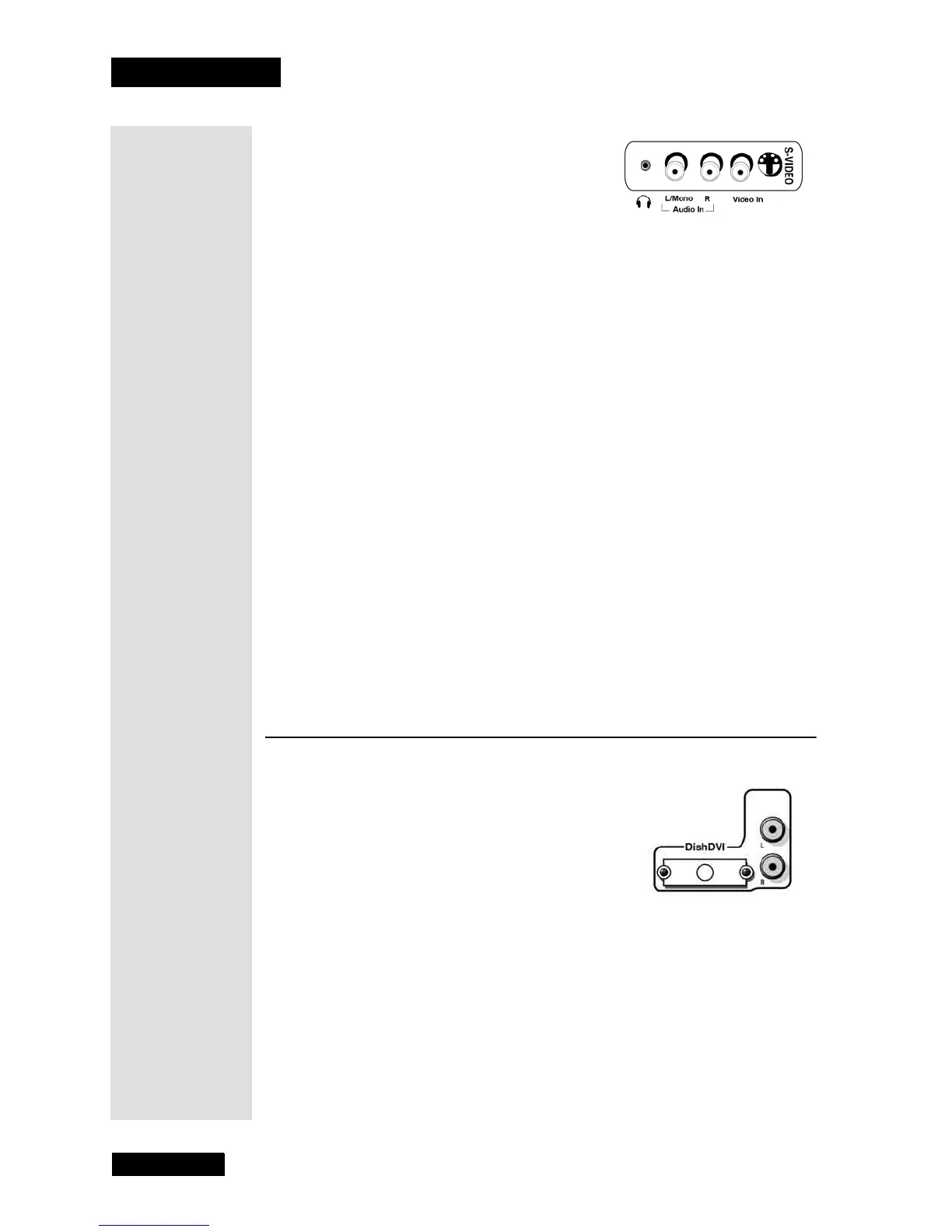
The monitor has front panel connections for
convenience: one set of audio/video inputs,
an S-video input, and a headphone jack.
Note: These connections may be on the side
of the monitor.
Headphones
Connect headphones to listen to the sound coming from the monitor. For
instructions on how to adjust the headphone audio settings, see page 9.
L/Mono and R Audio In
The L/MONO (white) and R (red) connectors receive audio from another
device such as a VCR, camcorder, or video game console.
Video In
The VIDEO IN (yellow) connector receives video from another device such as
a VCR, camcorder, or video game console. For information on how to
display video from this input, see page 9.
S-Video
The S-VIDEO receives video from another device. Make sure you also
connect audio cables from the device to the monitor’s RCA-type audio
connectors. For information on how to display video from this input, see
page 9.
Note: Do not try to use the S-VIDEO and VIDEO IN at the same time because
the two signals interfere with each other.
Monitor Back Panel
DISH DVI Input
Connect an activated DISH DVI-equipped
DISH Network HD receiver to watch high
definition programming. For information on
how to display video from this input, see page
9.
•
DISH DVI - Provides a high-quality digital
video interface.
•
L/MONO and R (RCA-type audio) - Provides left (white) and right (red)
audio connections when using the
DISH DVI video input.
Tip: Remember
to connect the
left and right
audio cables
because the
DISH DVI cable
carries the pic-
ture signal, not
the sound.



 To Next Page