Page 27
PIP Menu
Front Panel Block
Selecting this option lets you block (disable) or unblock (enable) the TV’s
front panel. The remote will still control the monitor. When using this as a
Parental Control method, remove access to any remote that is capable of
operating the television while you have the front panel blocked.
Don’t forget to lock
Parental Controls after you change the status. If you
don’t, the front panel block will not take effect.
PIP Menu
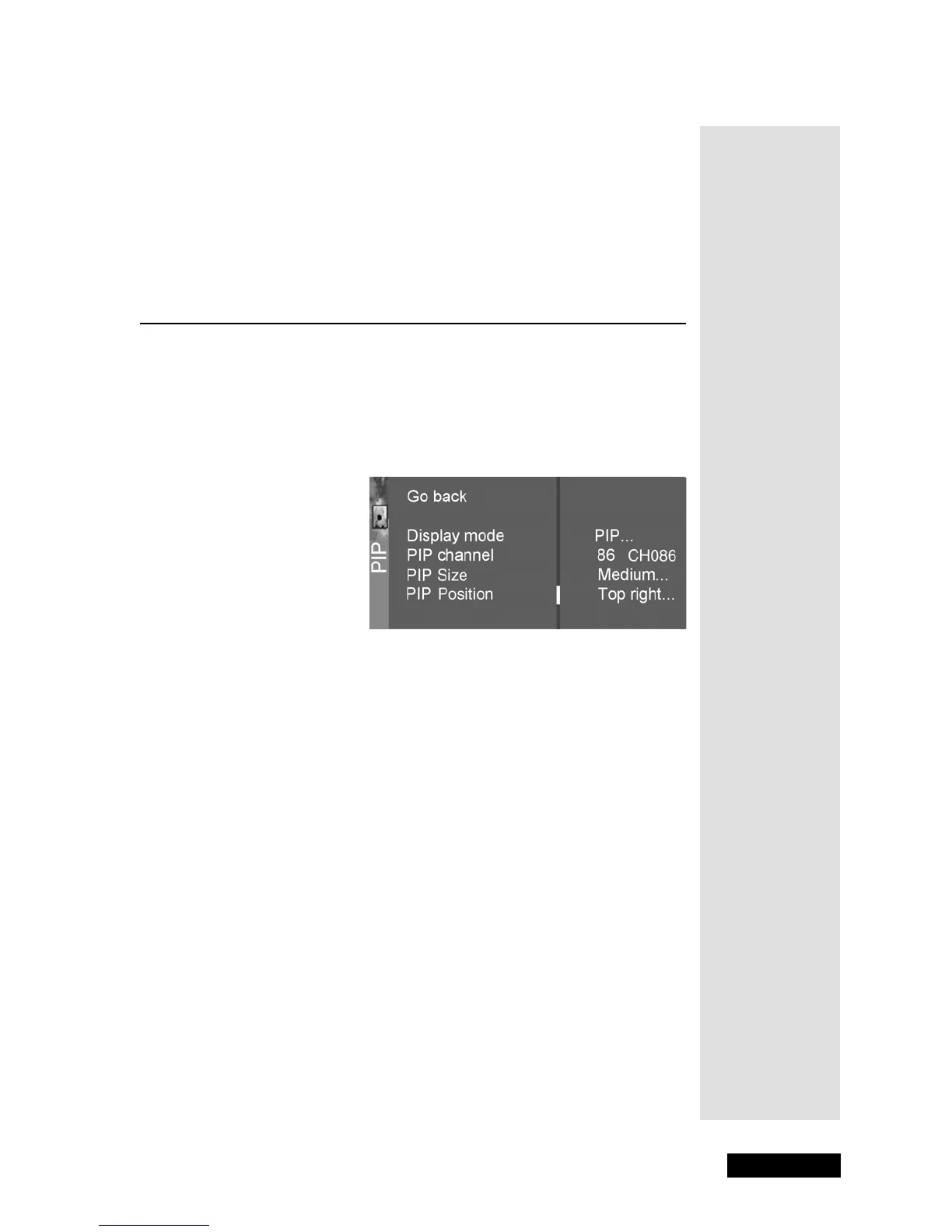
The PIP menu allows you to change your PIP settings. To open the PIP menu,
press MENU and then select
PIP.
Note: PIP through the monitor is not supported on DISH DVI, CMP1, and
CMP2. However, your DISH DVI-equipped DISH Network receiver may have
PIP capabilities which will allow PIP on the DISH DVI input. See your User’s
Guide for your satellite receiver.
Display Mode
Use the LEFT and RIGHT ARROWS to choose the Display Mode:
•
Off - No window is displayed.
•
PIP - The PIP window is displayed.
•
POP - The POP window is displayed.
PIP Channel
Use the LEFT and RIGHT ARROWS to choose the channel displayed in
the
PIP or main POP window. Scroll through channel list as well as the
VID1, VID2 and FRNT input channels.
PIP Size
Use the LEFT and RIGHT ARROWS to choose having a Small, Medium
or
Large PIP window.
Note: PIP size is not available for POP.
Tip: Remember
to keep the
remote control in
TV mode to use
these buttons.
Tip: You can also
change the PIP
window’s
position without
having to use
menus by
pressing the
POSITION
button on the
remote control.



 To Next Page