Chapter 4
Page 38
Installation and Setup
Auto Convergence (Projection TV Models Only)
Your monitor’s picture tubes might have been disturbed during delivery or
after you moved the monitor, causing the color in your monitor to be out of
alignment. The colors can be adjusted by starting auto convergence.
Note: Auto Convergence is available only on projection TV models.
Note: To converge the monitor’s DISH DVI picture, you must have the
monitor switched to the DISH DVI input during convergence. To converge
on standard definition inputs, repeat auto convergence on one of those
inputs.
After you have installed and connected your monitor, turn on your monitor
and satellite receiver using the SAT button on the remote control. Leave the
monitor on for about one hour and then complete the auto convergence steps
below while on the
DISH DVI input.
1. Press SAT to switch the monitor display to the
DISH DVI input.
2. Press TV to put the remote control in TV mode.
3. Press MENU and select
Convergence.
4. Select
Auto Convergence.
5. When the auto convergence is complete, the
Red center convergence
menu appears. The cross in the middle of the screen should be
completely yellow. If it is not, use the ARROW buttons to move the red
cross to overlap the green cross. Press SELECT/OK when the cross is
completely yellow.
6. The
Blue center convergence menu appears with a completely cyan
(blue-green) cross in the middle of the screen. If it is not, use the
ARROW buttons to move the blue cross to overlap the green cross.
Press SELECT/OK when the cross is completely cyan (the monitor
tunes to the last available channel in the channel list).
Restoring Your Remote Control’s Factory Settings for
Monitor Control
Your remote control provided with your DISH DVI-equipped DISH
Network satellite receiver comes from the factory ready to work with your
DISH Network HDTV monitor. However, the TV mode button can be
programmed to operate other TVs. If the remote control has been
programmed to operate a different TV, you can restore the remote control
factory settings to control your DISH Network HDTV monitor by
performing the following:
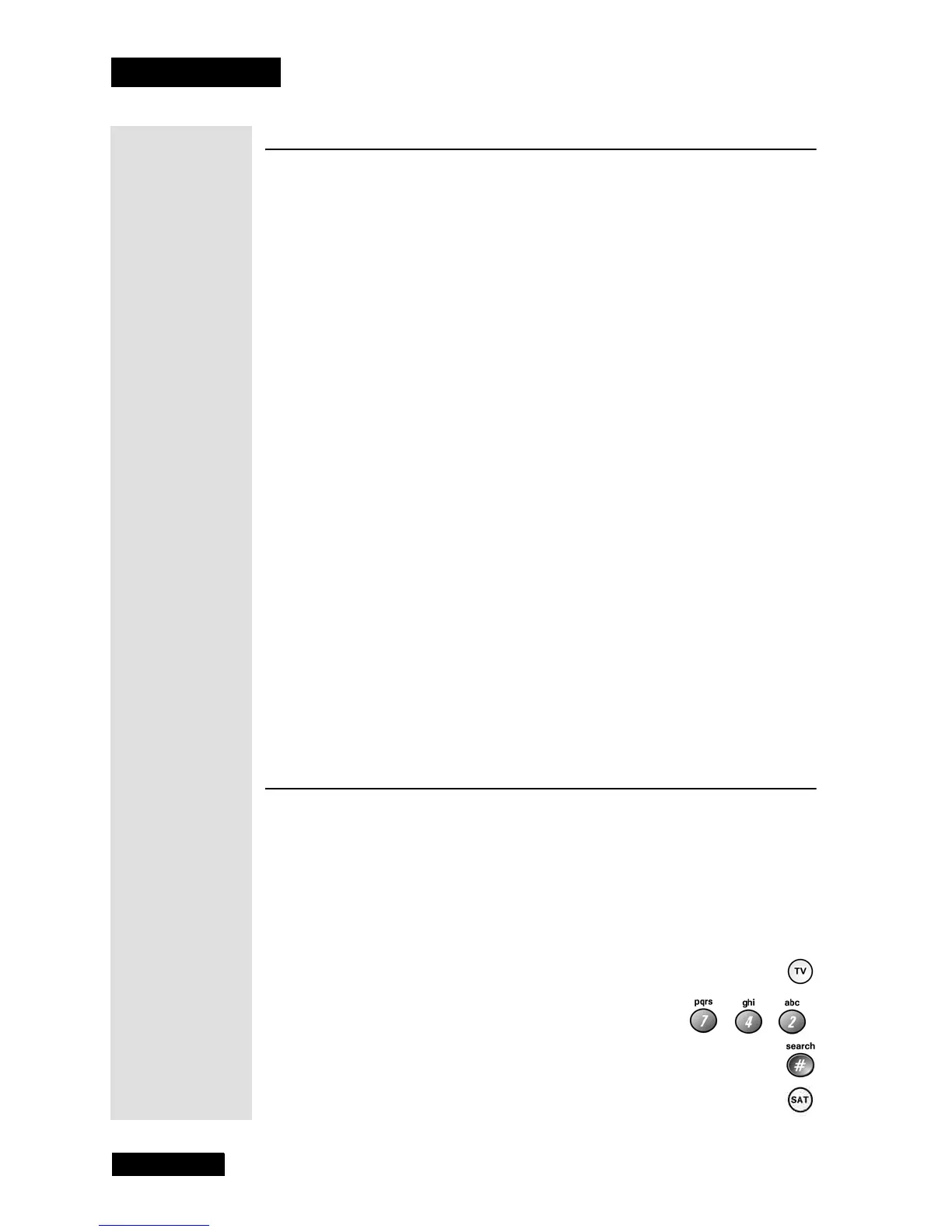
1. Press and hold the TV button until all four mode buttons light.
Release the button.
2. Use the NUMBER PAD buttons to enter 7-4-2.
3. Press the POUND (#) button. If you entered the
code correctly, the TV mode button will flash three times.
4. Press the SAT button and the monitor should turn on. If it doesn’t
turn on, repeat steps 1 through 4.



 To Next Page