Page 13
Chapter 3
Using the Monitor’s Features
One-Touch Satellite Viewing
Once your HDTV monitor and DISH Network satellite TV receiver are connected
with a
DISH DVI cable, press the SAT button and the monitor and satellite receiver
will begin displaying satellite programming. After the monitor is on, pressing the
SAT button will always switch the display to satellite programming.
PIP and POP
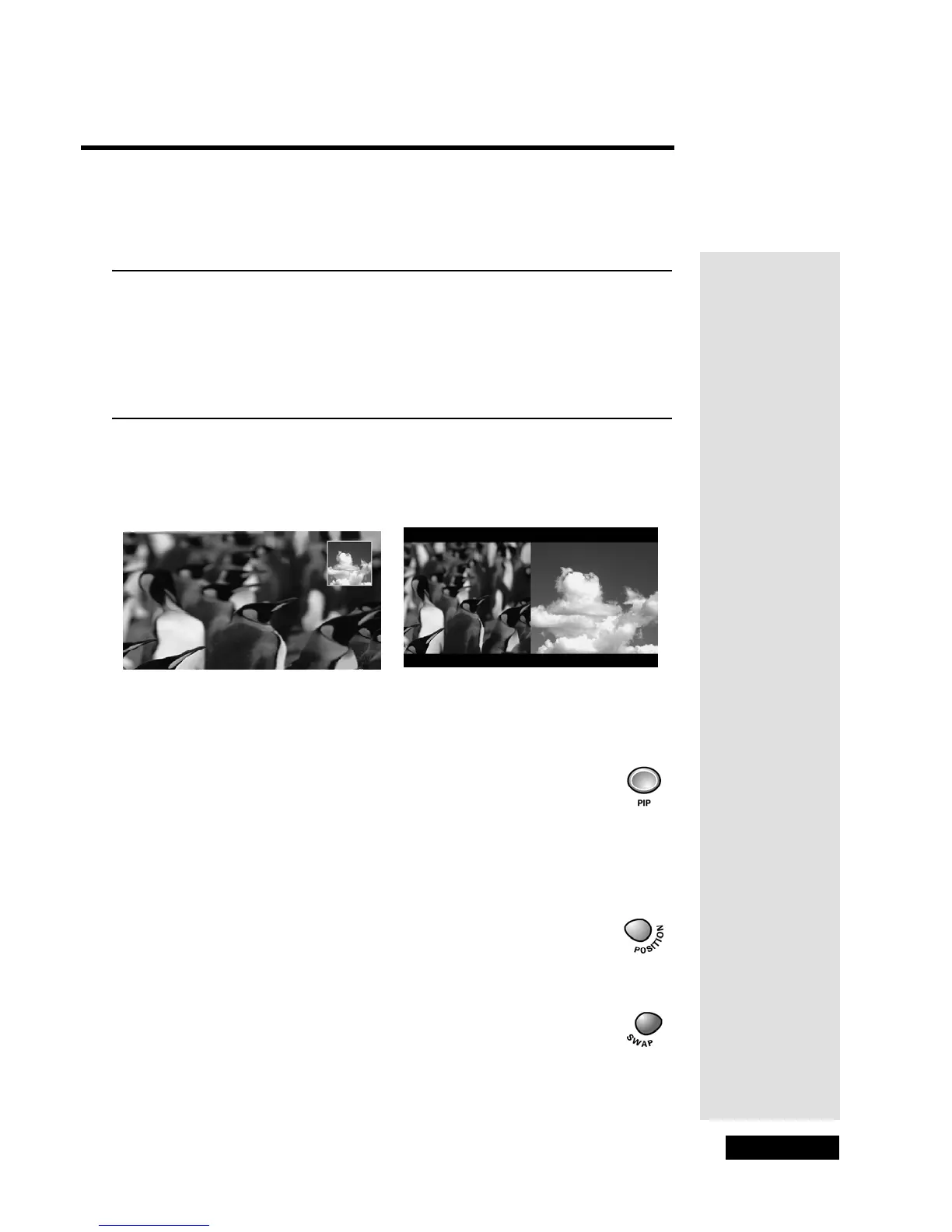
The PIP feature lets you display a second, smaller picture on top of the main
picture. The POP feature lets you display two windows side by side. The main
picture is on the left and the POP window is on the right.
There are several remote buttons that control the way the PIP window works:
• PIP - Press this button to open the PIP window. Press the
button a second time to open the POP window. When you
press the PIP button a third time, the POP window will
close. Press the CANCEL button at any time to close the
PIP or POP window. See PIP Menu on page 27.
Note: When in POP, the picture on the left is the one that remains
when you close the POP window.
•POSITION - Press this button to move the PIP window to
different positions on the monitor screen.
Note: The UP and DOWN ARROW buttons also move the
PIP window.
• SWAP - Press this button to swap the video in the main
display with the video in the PIP or POP window.
Note: The LEFT and RIGHT ARROW buttons also swap
windows in POP mode.
PIP Example
POP Example
Tip: PIP and POP
are only available
on the VID1,
VID2, FRNT,
and monitor
internal off-air
tuner inputs.
DISH DVI, CMP1,
and CMP2 do not
display PIP and
POP windows.
Tip: Remember
to keep the
remote control in
TV mode to use
these buttons.



 To Next Page