Page 33
Input Banner
Manual Convergence
Manual convergence let you adjust the monitor’s tubes to make a clear
picture on the screen. For best results, make sure the monitor has been on
for about an hour when you perform the manual convergence procedure.
Note: This type of Convergence is available only on some models.
1. Press MENU and select
Convergence.
2. Select one of the following:
• Select
Red Convergence. The cross in the middle of the screen
should be completely yellow. If it is not, use the ARROW buttons
to move the red cross to overlap the green cross. Press SELECT/
OK when the cross is completely yellow.
• Select
Blue Convergence. The cross in the middle of the screen
should be completely cyan (blue-green). If it is not, use the
ARROW buttons to move the blue cross to overlap the green cross.
Press SELECT/OK when the cross is completely cyan.
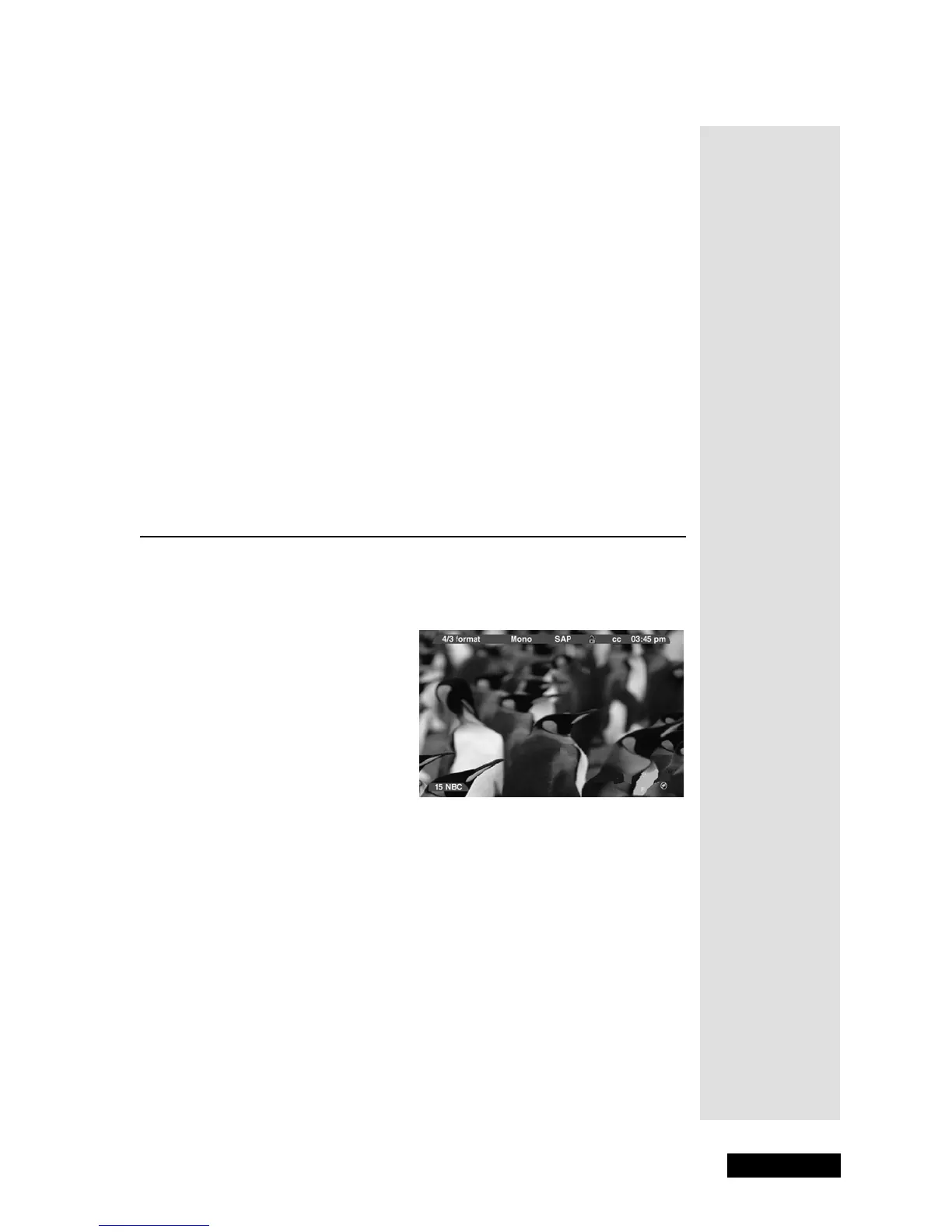
Input Banner
There are several indicators that might appear when you press the INFO
button on the remote. This display is called the
Input Banner. The
following list describes the items on the
Input Banner screen.
• Displays the current input channel and label assigned to the
channel.
• Displays the current time.
•
Lock - Displayed when the Parental Controls are locked.
•
Mute - Displayed when you mute the sound.
•
4/3 Format - Displays the current screen format.
•
Mono (or Stereo) - Mono displayed when the current channel is
broadcasting in mono. Stereo displayed when the current channel is
broadcasting in stereo.
•
SAP - Displayed when the current channel is broadcasting SAP
(Second Audio Program) information.
•
CC - Displayed when Closed Captioning is available on the current
channel.
Tip: Remember
to keep the
remote control in
TV mode to use
these buttons.



 To Next Page