25
Chapter 1 Before Operation
Copyright © 2019 Duplo Corporation All Rights Reserved
No. Name Function
[9]
(Save)key
Savestheinputvalueanddisplaysthe[Save]screen.
Whenthecombinationofinputvaluesisinthefollowingconditions,the
data becomes invalid and cannot be saved.
-ThevalueoffoldingAissetto[0].
-FoldingAislargerthanL(thepaperlength).
-FoldingBislargerthanbothfoldingAand"L-foldingA".
[10]
(Return)key
Savestheinputvalueandreturnstothe[Ready]screen.
The input value is not saved.
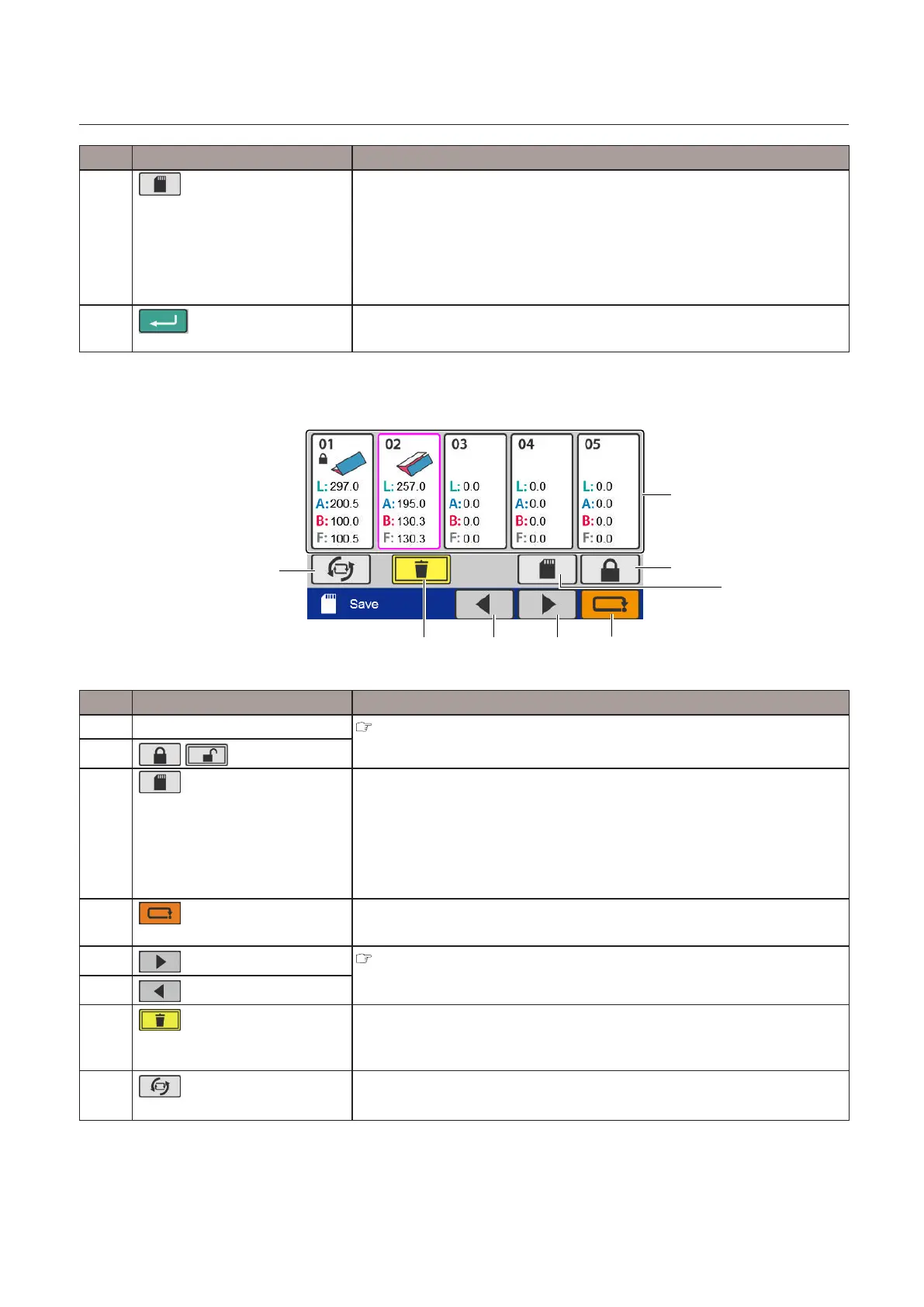
[Save] screen
[2]
[1]
[3]
[4]
[5][6][7]
[8]
No. Name Function
[1] Custom fold saved data
“6-9. [Custom Fold] screen” (p.23)
[2]
/ (Lock/Unlock)key
[3]
(Save)key
Saves the setting content.
Whencreatingnewdata,customfolddataissavedinthefreespace.When
there is no free space, the key is grayed out and cannot be operated.
Whensaveddataisedited,dataisoverwrittenandsaved.
Whenyouenterthisscreenfromthe[Ready]/[BasicSettings]screen,the
displayreturnstothe[Ready]screen.
[4]
(Cancel)key
Returns to the custom fold edit screen.
Pressandholdtoreturntothe[Ready]screen.
[5]
(Pagebackward)key
“6-9. [Custom Fold] screen” (p.23)
[6]
(Pageforward)key
[7]
(Delete)key
Press and hold to delete the selected saved data.
Whilenon-saveddataorlockeddataisselected,thekeyisgrayedoutand
cannot be operated.
[8]
(Switchtothesaveddata
selectionscreen)key
Displays the saved data selection screen.


 To Next Page
 Loading...