•
•
•
•
•
Button No. Function
1 Create new entry (e.g. a new run time or week timer).
2 Open the entry screen or symbol for editing. Parameters are displayed or can be edited, configured or changed and entries
can be added or deleted. Among other things, this symbol is also visible in lists to obtain detailed information.
3 Open remote control of components, see chapter Remote control of E*LDS components (terminal mode).
4 Save and close entry screens and dialogues.
5 Entries are applied and saved; however the entry screen remains open.
6 Close entry screen without saving; entries already made are discarded.
7 Deletion of an entry from a list (e.g. deletion of a digital input).
8 Symbol "List is currently being updated automatically" (e.g. in the alarm list).
9 Refresh button, e.g. to search for new M-bus meters.
10
Field with status messages in the node list, see Menu 2-2 or
Button for tripping events (e.g. for tripping a test alarm, see chapter Menu 4-1-7 - Alarm Signalling).
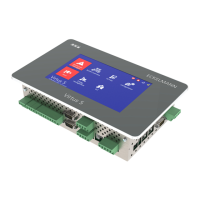
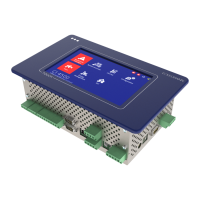
The Info field in the main menu contains
thedesignationoftheexpansionstageofthesystemcentre(e.g.CI4000,CI4100…;fordetails,see
chapter Expansion stages of the CI 4000 series).
The designation of the store (e.g. "Wiesbaden store") is also shown underneath in small font, see Menu 4-9.
The date, current system time as well as the date and version of the system centre firmware version are
shown next to it.
1 On-screen keyboards for entry of parameters
There are different keyboards in the system centre depending on the entry screen. An entry is saved by tapping
thetickorcancelledwithX.
The following keyboards are available:
1. Universal keyboard for the entry of text, special characters and numbers:
Detailed descriptions for the individual menus and entry screens and their parameters are shown in
chapter Menus and entry screens of the system centre.


 To Next Page