1.
2.
3.
4.
5.
6.
7.
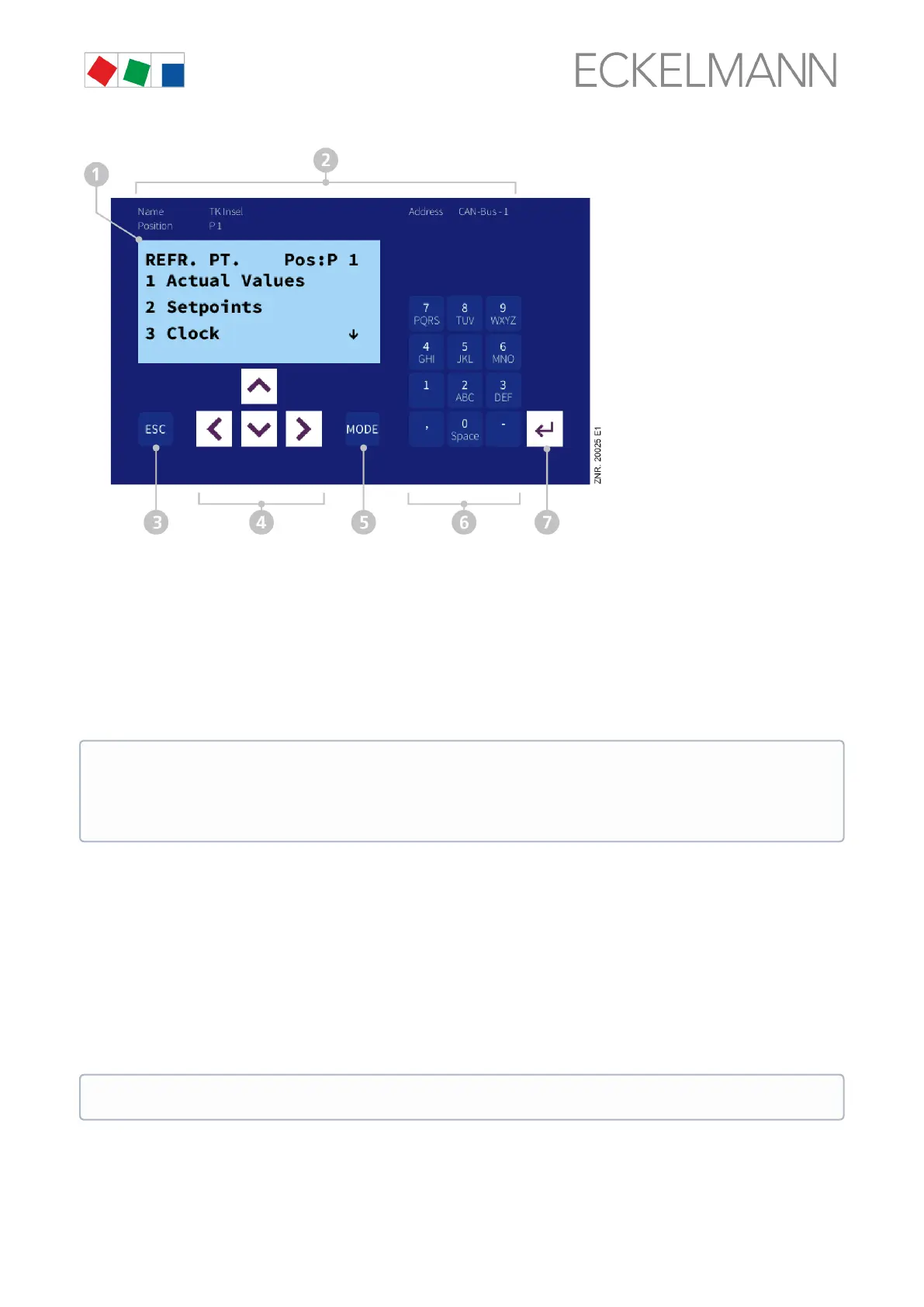
The remote control (terminal mode) screen looks like the following:
"Terminal Display" (4 lines of 20 characters) for display of the menu of the E*LDS component
(the arrow buttons must be used for paging; "swiping" cannot be done in this screen!).
A menu item, e.g. "Setpoints", is called up by pressing the "2" button on the "keyboard"
Name, position designation and CAN bus address of the E*LDS component
ESCbuttontogobackonemenulevelintheE*LDScomponentortoexitentrieswithoutsaving
Cursor buttons for navigation within the "Terminal Display" for left, right, up and down
MODEbutton,e.g.fortogglingupper/lowercaseduringtextinput(buttonisgreenifithasbeenpressed)
Alphanumerickeyboardforcallingmenus(e.."2"callsup"Setpoints")orforinputofsetpointsetc.
ENTER button for confirmation of entries in the "Terminal Display"
9.1.3.1 Operation in terminal mode
Menus
A menu contains a selection list with maximum ten menu items. Other submenus or operating screens can be
provided after the selection of a menu item.
Selection of the menu items
Each line of this selection list in the display has a digit between 1 and 9 as well as 0 (for menu item 10) with the
associated name of the corresponding menu item. The various menu items can be selected directly by tapping
the numeric buttons 1 to 9 and 0. If a menu provides more than 3 submenus, the cursor buttons can be used
for paging in the menu to display the remaining menu items.
Operating screens
An operating screen contains values for output and/or values for input. More values for output and/or input can
Changes in terminal mode are effective immediately on the E*LDS component! Detailed descriptions
for the respective E*LDS component, its parameters and functions can be found in its operating
instructions.SeechapterOperation in terminal mode for a detailed description for operation in terminal
mode. Remote control can be exited again using the "Back" button.
A menu item does not have to be displayed to select it using a numeric button.


 To Next Page