Page 29 of 51
EFW5L_IFU REV NEW
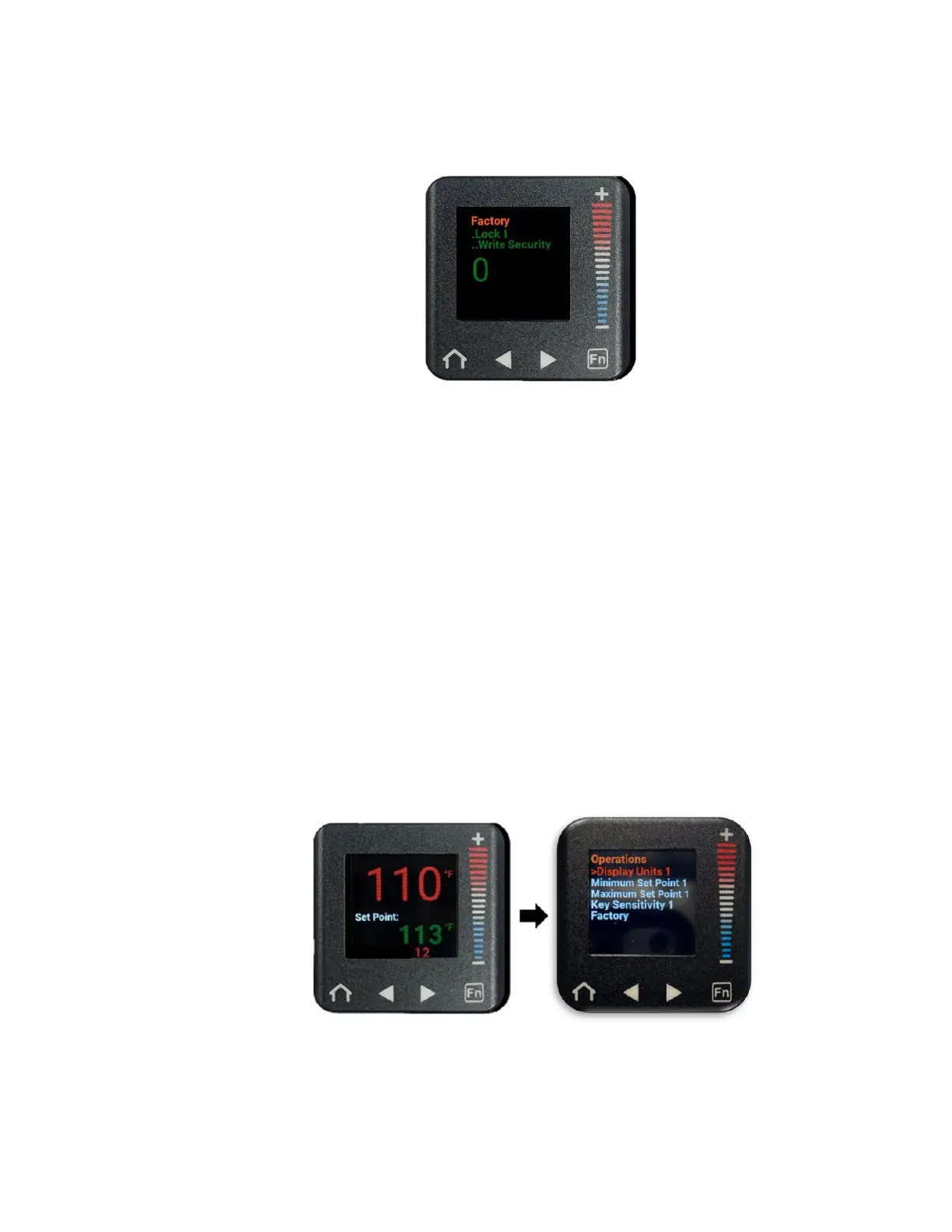
l. Ensure that the number displayed is set to “0.” If it is not, press the “+” or “–”
buttons to increase or decrease the number displayed until it is set to “0.”
(Note: If the screen flashes, you may have scrolled too far and the number will not save.
If so, press the home button to return to the home screen and repeat steps a-l.)
(Note: When the set point temperature is locked (write security is set to 0), the
temperature scale, password enable, and set point temperature range features are also
locked and cannot be adjusted.)
m. Press the home button to return to the home screen. The Set Point temperature is
now locked.
n. To confirm that the Set Point temperature is successfully locked, press the “+” or “–
” buttons to attempt to increase or decrease the Set Point temperature. The Set
Point temperature should not change. If you are able to adjust the Set Point
temperature, repeat the steps in Section 6.6.4.
6.6.5 Unlocking the Set Point Temperature
a. From the home screen, press the right arrow button to navigate to the Operations
menu (“Display Units 1” will be selected in a red font).
b. Press the “–” button to scroll down to “Factory” (“Factory” will be selected in a red
font).


 To Next Page