5 Operating the console
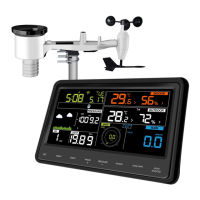
The display console has seven modes. Normal, or display, mode shows you
various weather quantities and will be your “normal” use mode. Use the
MENU key to enter the various setup modes. Press the MENU key
repeatedly to reach the various setup pages and, eventually, return back to
normal mode. You may hold down the MENU key at any time to force a
return to normal mode, or if you do not press any key for 30 seconds, the
console will also return to normal mode.
The following sections will discuss each of the modes and the items and
options available in each. When not in “normal” mode the console buttons
are used for various functions. The current function of each button is
depicted graphically with a symbol directly above the hardware button.
Typical functions are “NEXT” indicated with a right arrow, “PREVIOUS”
indicated with a left arrow, and “+” and “-”.
5.1 Normal mode
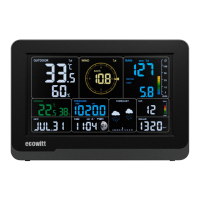
Normal mode is the most often used mode. It is used to display most current
sensor information for quick inspection. Information is displayed in several
rectangular shaped areas. Some of these areas can be configured to display
different content:
5.1.1 Outdoor or “Feels Like”
In the normal mode press the TEMP/- button to alternate the display
between:
Outdoor temperature and outdoor humidity, or
“Feels Like” temperature (depending on the weather this will either
indicate wind-chill temperature, or heat-index), and dew point
temperature.
Wind chill and heat index are perceptual values (that’s why they are
described as “Feels Like”) that indicate the air temperature as experienced


 To Next Page