2.3 Adding Sensors
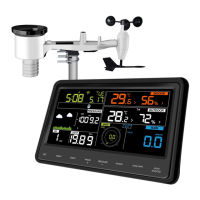
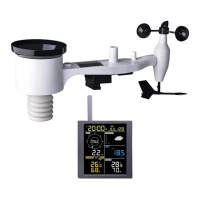
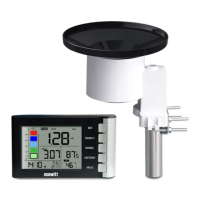
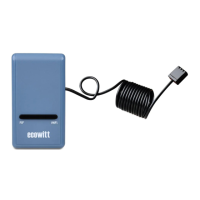
To pair the optional sensors (refer to Section 4 for more optional sensors)
with the WS3900/WS3910 display console, please do as follows:
1. Place the optional sensor next to the console.
2. Install batteries on the sensor and wait for 1-2 minutes.
3. Check whether the console will pick up the sensor data automatically
and display it on the screen or App.
4. If data is not received from a registered sensor, the RF icon will
decrease the signal by one frame; if data is received, the RF icon will
increase the signal by one frame.
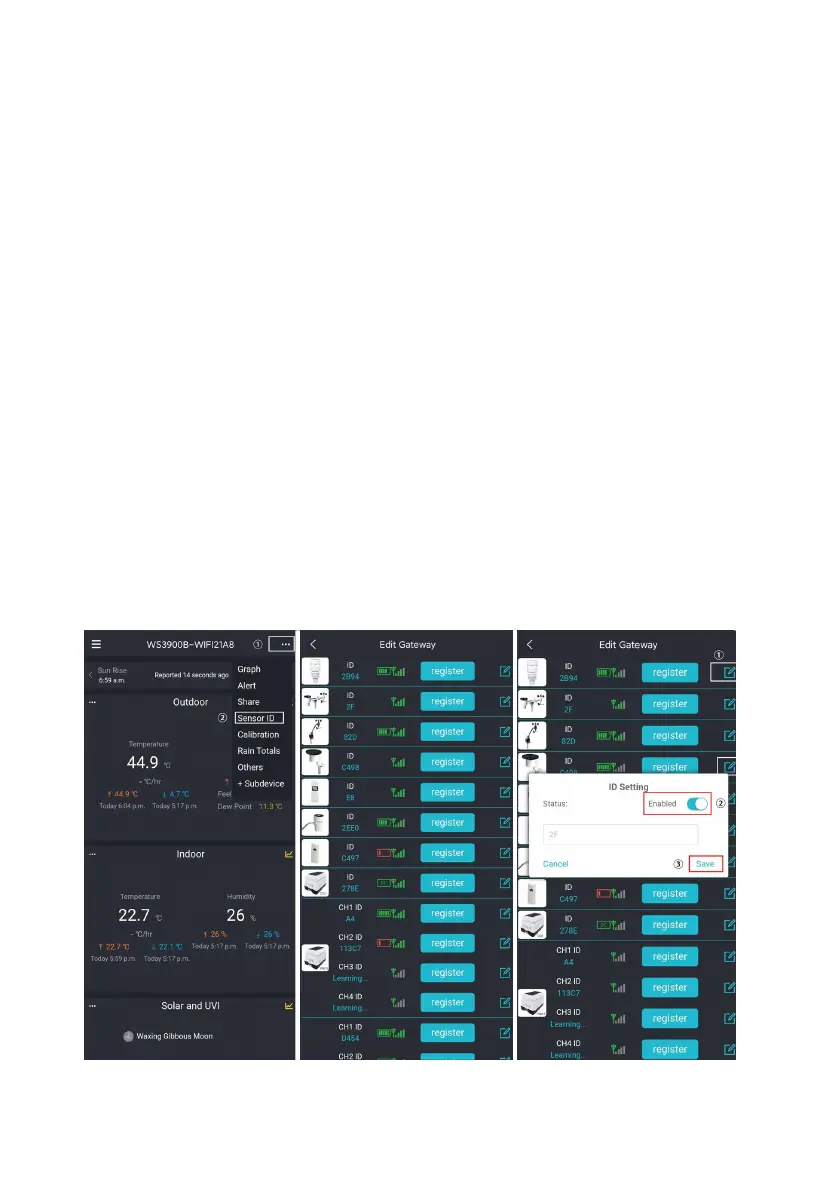
5. If data is not received, try the following: after making sure the phone
and WS3900/WS3910 are connected to the same Wi-Fi network, open
the Ecowitt App, find Sensors ID, and enter the Edit Gateway page.
6. In the Edit Gateway page, find the sensor you want to pair - select the
ID number box and register it.
7. Once successful, you may return to the main interface to check the data.
8. If you know exactly the sensor ID, and want the console to pair that
sensor only, you may enter the sensor ID, and save the change to make
it effective.
Figure 16: Sensor ID page


 To Next Page