CONNECTING PMU TO PC
CAN – USB interface
To properly connect PMU to PC using USB 2.0 a special interface must be used. PMU Client
supports three interfaces:
• ECUMASTER USBtoCAN interface (can be bought directly from www.ecumaster.com)
• PEAK Systems PCAN-USB
• Kvaser USBcan
Each interface must have its drivers installed.
Interface must be bought separately.
ECUMASTER USBtoCAN interface
To use ECUMASTER USBtoCAN interface, user must be equipped in following items:
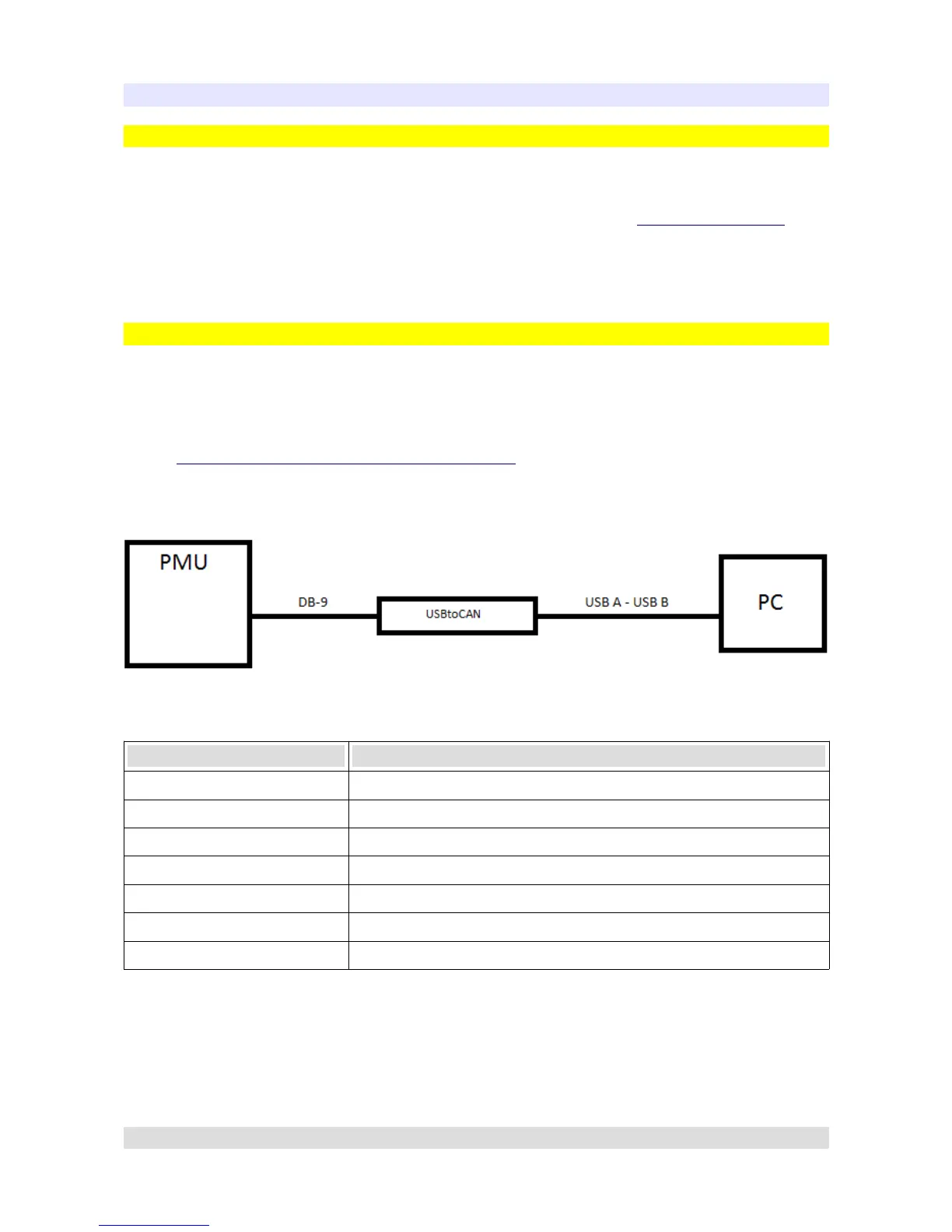
• USB A to USB B adapter to connect the interface to PC
• DB-9 Cable to connect interface to PMU
• ECUMASTER USBtoCAN interface drivers, available at:
http://www.ecumaster.com/products/usb-to-can/
To install drivers run EUSBtoCAN_Driver_v1.0.exe and follow installation instructions.
Basic cable connection should look like this.
ECUMASTER USBtoCAN also has LED signaling ability:
Color Description
Green Continuous Device turned on
Green Flashing Device turned on and connected to PC
Green and Orange Flashing Data transfer in progress
Orange Continuous Device turned on, currently in bootloader
Orange Flashing Device turned on, firmware update in progress
Red Continuous Temporary CAN communication error
Red Flashing Permanent CAN communication error
Page 11


 To Next Page