Chapter 2: Basic operating instructions
20 P/N 3102309-EN • REV 001 • ISS 18JUL19
To display an event list:
1. Tap an event list button. For example, Alarm.
A list of queued events appears on the information screen.
Viewing event details
An event or device details report provides the type of event, address of the device that generated the event and, if
programmed, the location (Figure 6 below).
Device details: If a device activation causes an event, the Details screen shows the active device’s logical
address and the off-normal state.
Logic group details: If a group activation causes an event, the Details screen shows the state of the device,
device address, and device message, which is usually the device location.
Instruction text details: If the system administrator has programmed detailed instructions for certain events to
show, when specific devices go into alarm the system generates a related monitor event. If you select the monitor
event, and then press the details button the instruction text is displayed.
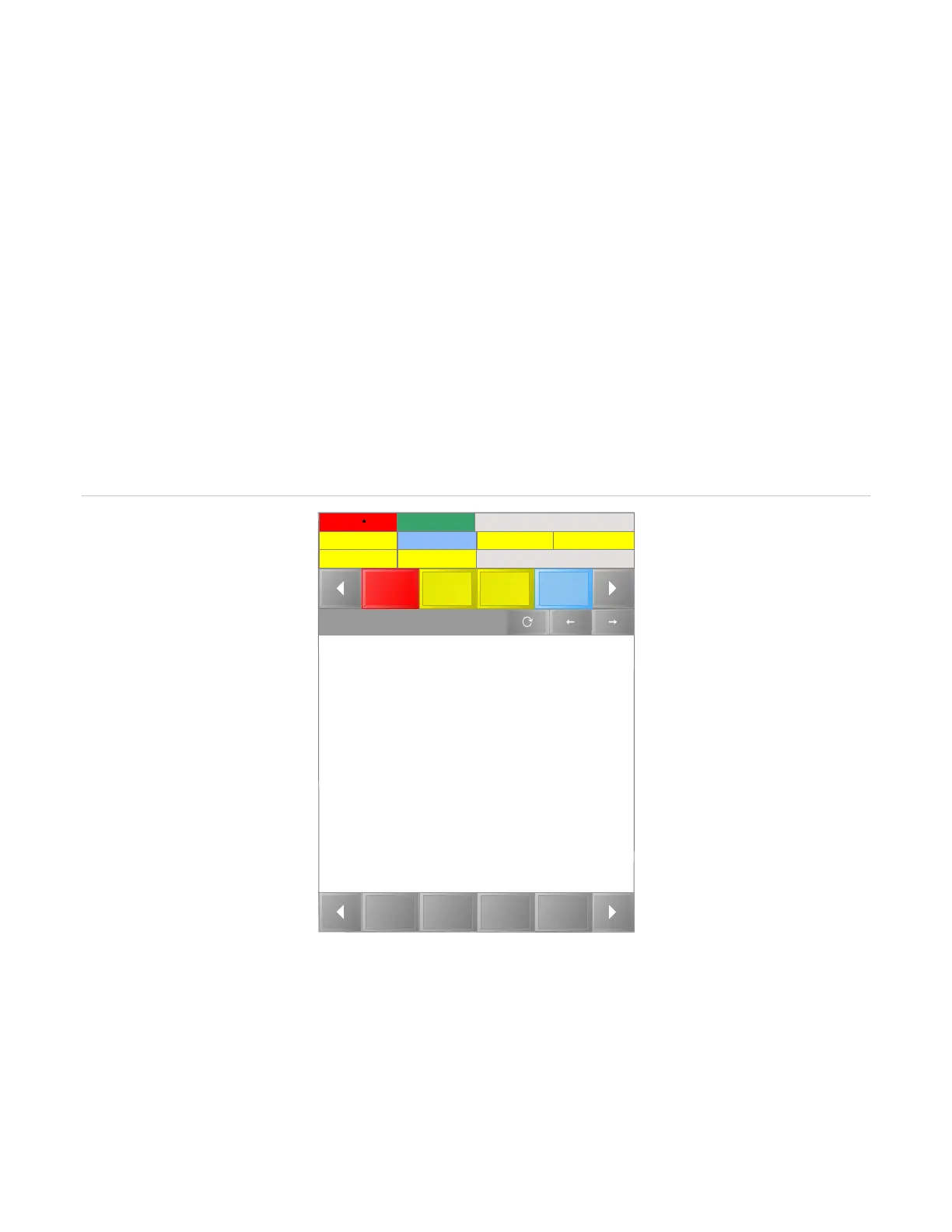
Figure 6: Event details report
Event details can be accessed from the event list or project tree.
Holidays
System
Info
Project
Tree
Sign
In
Report
Device details
08/21/2017 12:07:01
$AnnunciatorSupervision
[Root\Building 1\FACU 1\Hardware Layer]MODCOM]
User interface
Prepared by: [Root\Building 1\FACU 1\Hardware Layer]4CPU
Report end
Alarm 3
Alarm
Trouble
Superv-
isory
Supervisory 4
Requests 3
Building 1
Trouble 1
Ground 2
Other 3
Control
Requests
08/21/2018 12:07:33
Disable 2


 To Next Page