Chapter 2: Basic operating instructions
P/N 3102309-EN • REV 001 • ISS 18JUL19 21
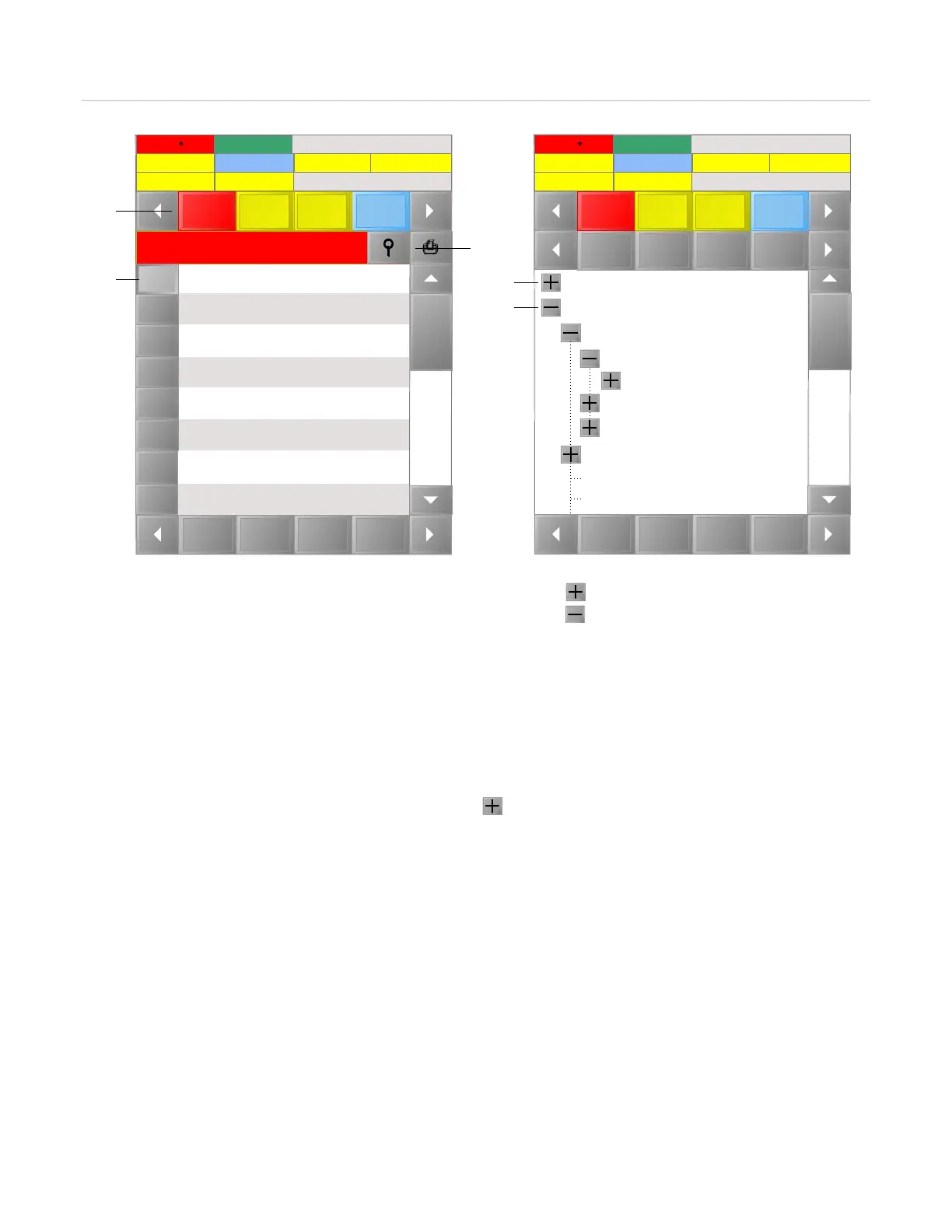
Figure 7: Accessing event details
2) Event List buttons
) Event number button
(6) Expand button
(7) Collapse button
To view device details from an event list:
1. Tap an event List button. For example, Alarm.
2. In the list, tap the event number, and then tap the details button
⚲. The Device Details Report displays.
To view device details from the project tree:
1. On the Action bar, tap Project Tree.
2. Expand the project tree by tapping the expand button , and then locate the target device or pseudo point.
3. Tap on the device/pseudo point. The Device Details Report displays.
Changing the LCD screen to an alternate language
For control units programed for an alternate language, a language button displays on the Action bar. The button
name shows the alternate language configured for the control unit. For example, Española or English.
When the alternate language button is tapped, the names on LCD screen buttons, lists, and indicators and the
text in primary event messages switches to the alternate language.
Notes
• For the alternate language button to appear on the Action bar, the Alternate Language property must have
been programmed.
Holidays
System
Info
Project
Tree
Sign
In
Recent locations
Root
Node 0
South Campus
N C A 1
RGD 1
Communication Services
Operator Layer
Hardware Layer
LRM
Disable Enable Activate Restore
Control
Requests
08/21/2018 12:07:33
Disable 2
Alarm 3
Alarm
Trouble
Superv-
isory
Supervisory 4
Requests 3 Building 1
Trouble 1
Ground 2
Other 3
Holidays
System
Info
Project
Tree
Sign
In
Alarm Event List
Alarm: Activate
SouthCampus, Building1, Zone2
Alarm: Activate
SouthCampus, Building1, Zone2
Alarm: Activate
SouthCampus, Building1, Zone2
15:11
11:13
11:13
Control
Requests
08/21/2018 12:07:33
Disable 2
Alarm 3
Alarm
Trouble
Superv-
isory
Supervisory 4
Requests 3 Building 1
Trouble 1
Ground 2
Other 3
1
2
3
(1) (5)
(2)
(3)
(4)
(6)
(7)


 To Next Page