20
The visibility levels are:
Value 0 = Parameter or folder not visible.
Value 1 = installer level; These parameters can only be viewed by entering the Password 1 value (all parameters
specified as always visible and parameters that are visible at the installation level will be visible).
Value 2 = manufacturer level; These parameters can only be viewed by entering the Password 2 value (all
parameters specified as always visible, parameters that are visible at the installation level, and manufacturer
level parameters will be visible).
Value 3 = parameter or folder always visible.
Accessing and using the menus
Resources are organised into menus and viewed by briefly tapping the “set” key (“Machine state” menu) or by
keeping the “set” key pressed for more than 5 seconds (“Programming” menu). Press the "set" key once to view the
contents of any folder highlighted by the corresponding label. At this point it is possible to scroll through the
contents of any folder, editing it or using the functions envisaged for it. Either do not press any keys for 15 seconds
(time-out) or press the “fnc” key once, to cancel the parameter modifications and return to the previous screen.
WARNING:Not all of the parameters are visible if the 1 or 2 level password has not been previously entered.
Machine state menu
From the states menu you can view values for each resource.
Some of the resources have “dynamic” visibility, e.g. if there are no alarms present then the AL folder will not be
displayed.
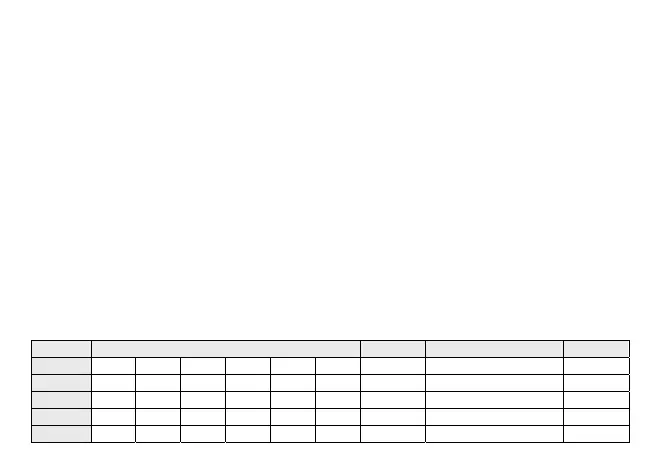
Folder Resources Visibility Description Edit
Ai AI01 AI02 AI03 AI04 Dynamic Analogue inputs //
di di01 di02 di03 di04 di05 // Dynamic Digital Input //
AO tC1 AO1 AO2 AO3 // // Dynamic Analogue outputs //
dO dO01 dO02 dO03 dO04 dO05 dO06 Dynamic Digital outputs //
CL HOUr dAtE YEAr Clock YES



 To Next Page