Accessing a Networked Projector Using a Web Browser
128
Once you have connected your projector to your network, you can select
projector settings and control projection using a compatible Web browser.
This lets you access the projector remotely.
a
Make sure the projector is turned on.
b
Make sure your computer or device is connected to the same network
as the projector.
c
Start your Web browser on the computer or device.
d
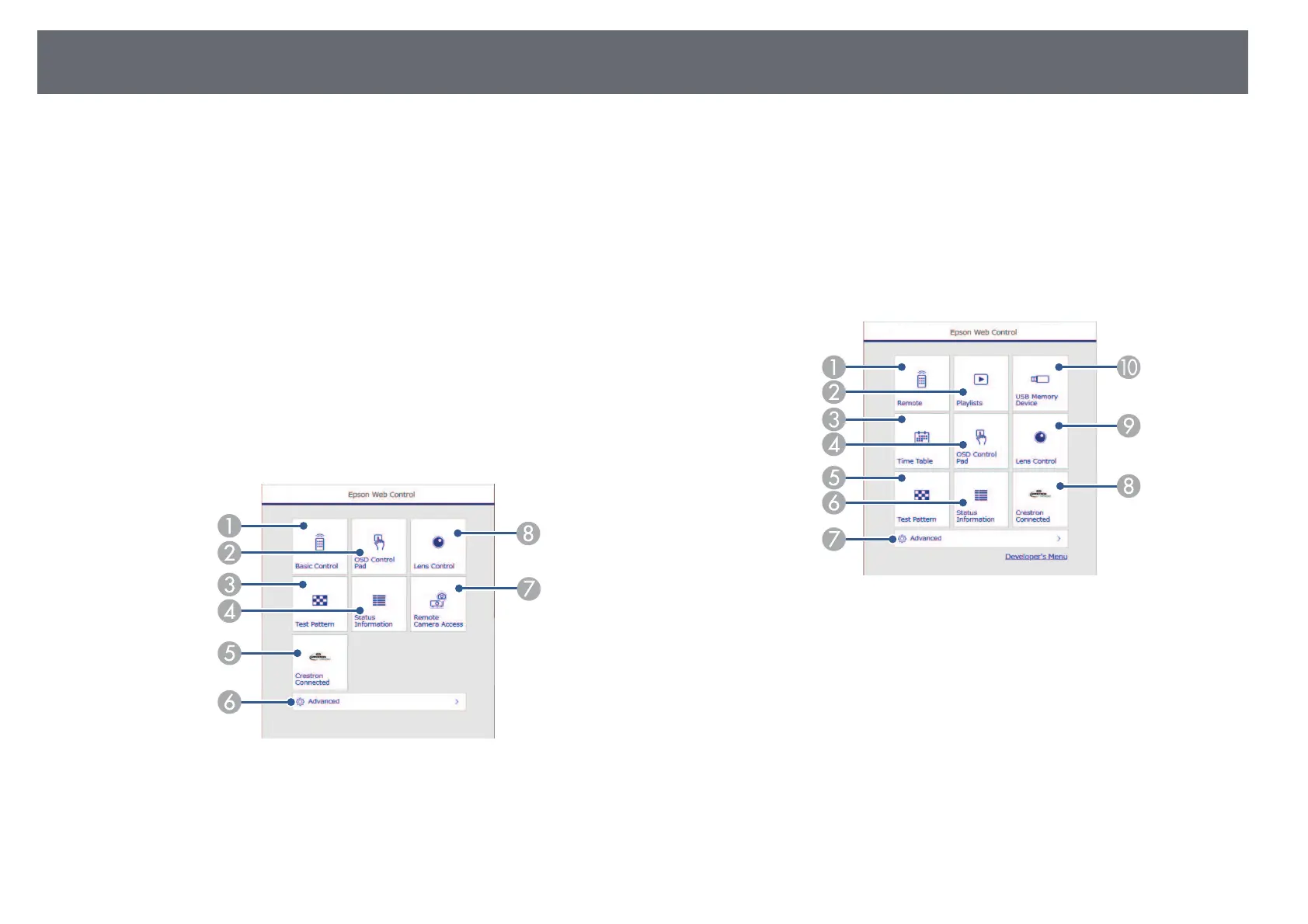
Go to the Epson Web Control screen by entering the projector's IP
address into the browser's address box. When entering an IPv6 address,
wrap the address with [ and ].
You see the Epson Web Control screen.
• In normal mode
A
Controls the projector remotely.
B
Operates the projector's menu settings with your finger or mouse.
C
Displays a test pattern.
D
Displays the projector's status.
E
Opens the Crestron Connected operation window. Available only when
you set the Crestron Connected system.
F
Opens detailed projector settings.
G
Takes an image capture of the displayed image from a remote location.
H
Operates the projector's lens.
• In Content Playback mode
A
Controls the projector remotely.
B
Selects the playlist you want to play, and allows you to create or edit
playlists.
C
Opens the Time Table screen.
D
Operates the projector's menu settings with your finger or mouse.
E
Displays a test pattern.
F
Displays the projector's status.
G
Opens detailed projector settings.
H
Opens the Crestron Connected operation window. Available only when
you set the Crestron Connected system.
I
Operates the projector's lens.



 To Next Page