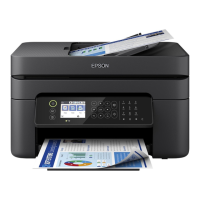
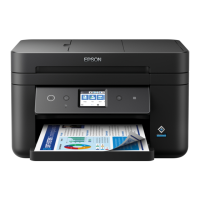
A
Turns the printer on or o.
Unplug the power cord after checking that the power light is o.
B
Displays menus and messages. Use buttons on the control panel to select a menu or to make settings.
C
Selects the number of pages to print.
D
Stops the current operation.
E
Enters numbers, characters, and symbols.
F
Clears number settings such as the number of copies.
G
Starts an operation such as printing or copying.
H
Applies to a variety of functions depending on the situation.
I
Use the
u
d
l
r
buttons to select a menu, and then press the OK button to enter the selected menu.
J
Returns to the previous screen.
K
Turns on when received documents that have not yet been printed or saved are stored in the printer's memory.
L
Displays the solutions when you are in trouble.
M
Displays the home screen.
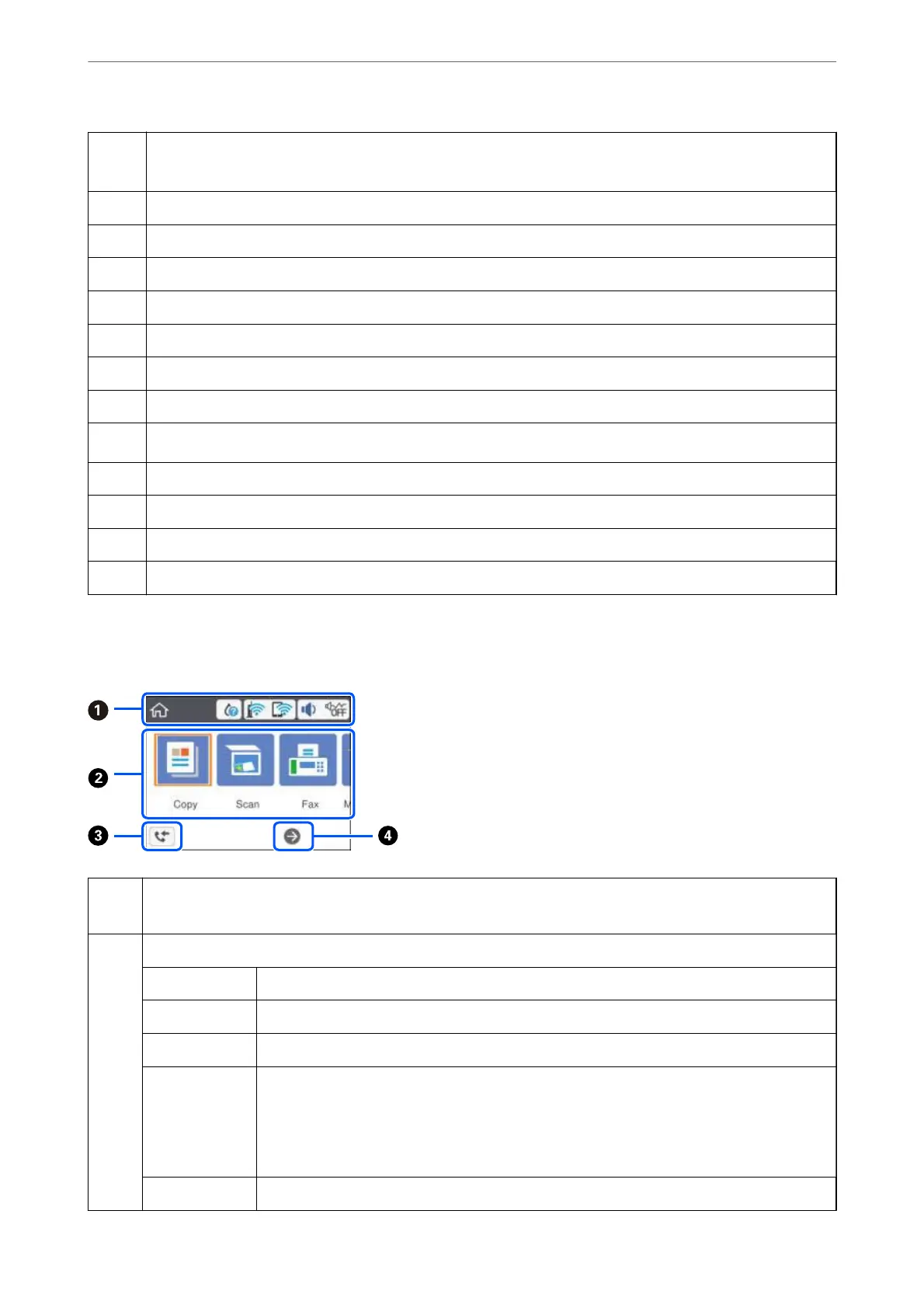
Guide to the Home Screen
A
Indicates items that have been setup for the printer as icons. Select the icon by pressing the
u
d
l
r
buttons, and
then press the OK button to check the current settings or access each setting menu.
B
Displays each menu.
Copy Allows you to copy a document.
Scan Allows you to scan a document or a photo.
Fax Allows you to send faxes.
Maintenance Displays the menus recommended to improve the quality of your printouts such as unclogging
nozzles by printing a nozzle check pattern and performing head cleaning, and improving
blurring or banding in your printouts by aligning the print head. This is a shortcut to the
following menu.
Settings > Maintenance
Settings Allows you to make settings related to maintenance, printer setup, and network settings.
Printer Basics
>
Guide to the Control Panel
>
Guide to the Home Screen
16


 To Next Page
 Loading...