14 Wireless TimeClock Configuration Guide
• None, Every day, Weekdays, Weekends, or a day of the week.
Select None if the event is going to be used in a compound event.
If not None, define the setting for When and Time or Offset.
5. Select a reference time of day for When.
• Time of Day, or an astronomical setting (Before/After
Sunrise/Sunset).
6. Set a Time or an Offset, depending on the When option you selected.
• If Time of Day was selected, specify the Time in hours and
minutes 00h:00m (am or pm).
• If an astronomical setting was selected, specify the Offset hours
and minutes from the astronomical setting. For example, if
Before Sunset is selected, choose how long before sunset you
want the event to execute. The Next Time is calculated and
displayed in parentheses (##:## am).
7. Select disable or enable Sweep to reapply event settings, removing
any manual settings.
• Enable or Disable. If enabled, specify the Sweep Duration
0h00m, maximum 24h59m. See Sweep Interval on page19 to set
the interval.
8. Select Next Event and enter an Event Number from 1–50, if you want
to create a compound event.
Define a Mask Action
Note: To Mask multiple transmitters, create a separate event for
each Mask Type.
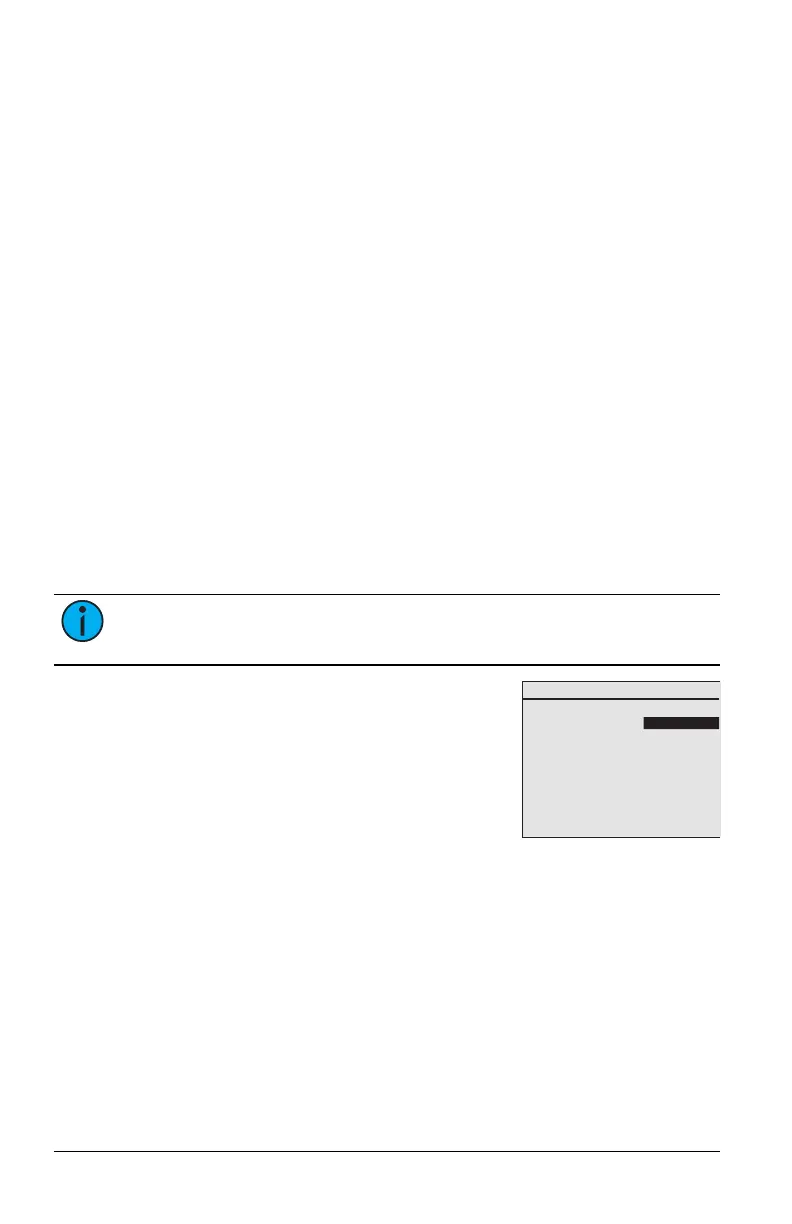
Schedule Event
Event Number: 4
Action: Mask
Group Number: 24
Mask Type: Switch
Mask Duration: 0h00m
Recurrence Tuesday
When: Time of Day
Time: 12:00am
Next Event: 9
1. Press [Enter] to select Mask as the event
Action.
2. Select a Group Number from 1 to 24, and
press [Enter] to select.
3. Select a Mask Type for the controller to
lockout and press [Enter].
• Switch, Photo, or Occupancy.
4. Enter the hours and minutes for the Mask Duration to be in effect,
maximum 17 hours 59 minutes.
5. Select a type of day for Recurrence.
• None, Every Day, Weekdays, Weekends, or a day of the week.
Select None if the event is going to be used in a compound event.
If not None, define the setting for When and Time or Offset.
6. Select a reference for When.
• Time of Day, or an astronomical setting (Before/After
Sunrise/Sunset).


 To Next Page