Wireless TimeClock Configuration Guide 17
9. Set a Time or an Offset, depending on the When option you selected.
• If Time of Day was selected, specify the Time in hours and
minutes 00h:00m (am or pm).
• If an astronomical setting was selected, specify the Offset hours
and minutes from the astronomical setting. For example, if
Before Sunset is selected, choose how long before sunset you
want the event to execute. The Next Time is calculated and
displayed in parentheses (##:## am).
10. Select Next Event and enter an Event Number from 1–50, if you want
to create a compound event.
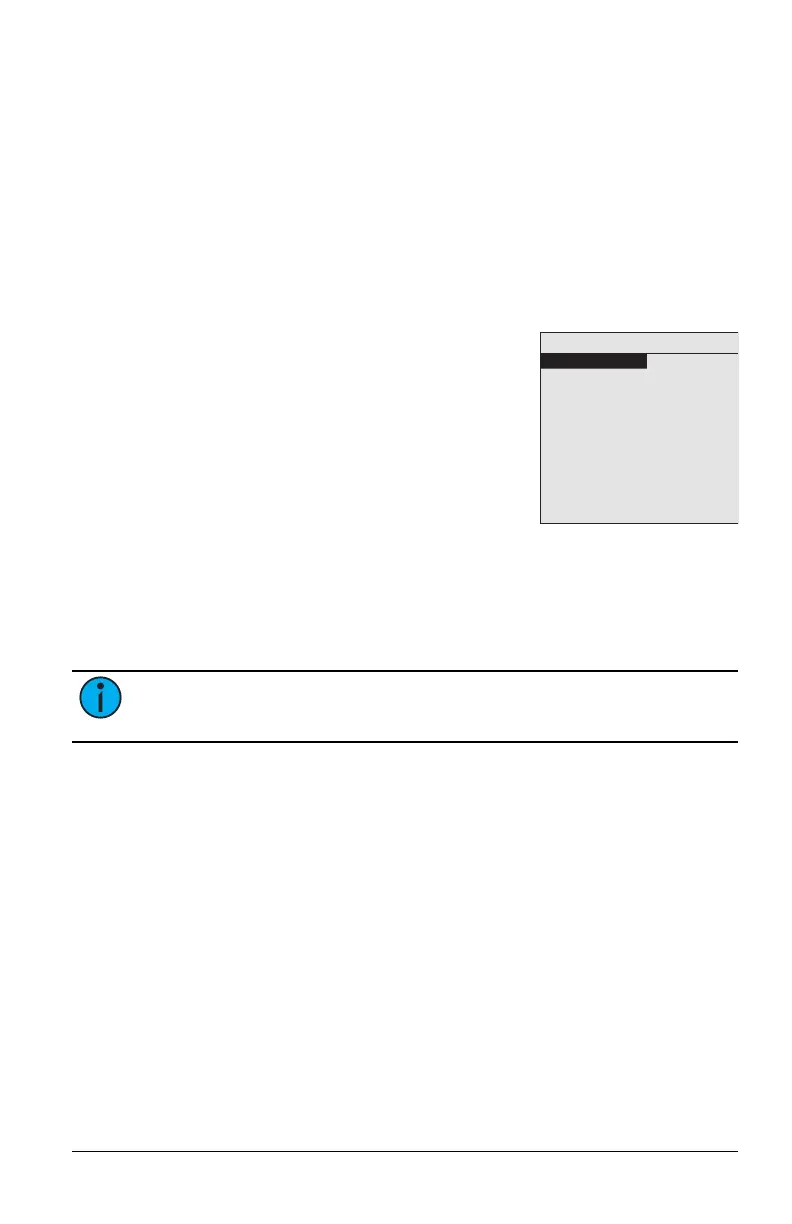
TimeClock Settings
TimeClock Settings
Time: 4:20pm
Time Style: 12 Hour
Date: Aug/ 5/ 2024
Time Zone: GMT -6
Latitude: 43 8 N
Longitude: 89 20 W
DST: US
Manual DST Dates
Sweep Interval: 10 min
Timed Hold: 120 min
Flick Warn: Yes
The TimeClock Settings menu provides access to
display preferences such as current Time and Style
(12 Hour or 24 Hour clock), Date, Time Zone, Day-
light Saving Time (DST) location details, Sweep,
Hold duration, and Flick Warn. This menu also
provides the option to restore the factory or pre-
commissioned defaults.
Current Time
1. Select TimeClock Settings from the Main Menu and press [Enter] to
modify the Time.
2. Press [Up] or [Down] to scroll the hour, and press [Enter] to select.
3. Press [Up] or [Down] to scroll the minutes, and press [Enter] to select.
If the Time Style is 12 Hour, am or pm can be set.
Note: To control the display of seconds in the time, see Show
Seconds on page 22.
Time Style
Set the time style display to either a 12-hour or 24-hour clock.
1. Select Time Style from the TimeClock Settings menu, and press [Enter]
to modify.
2. Press [Up] or [Down] to scroll 12 Hour or 24 Hour, and press [Enter] to
select.
Current Date
1. Select Date from the TimeClock Settings menu, and press [Enter] to
modify.
2. Press [Up] or [Down] to scroll the month, and press [Enter] to select.
3. Press [Up] or [Down] to scroll the day, and press [Enter] to select.
4. Press [Up] or [Down] to scroll the year, and press [Enter] to select.


 To Next Page