22 Wireless TimeClock Configuration Guide
1. Select Restore Defaults from the System menu, and press [Enter].
2. Press [Up] or [Down] to scroll Pre-commissioned or Factory, and press
[Enter] to select.
3. Press [Up] or [Down] to scroll Yes or No to confirm, and press [Enter]
to select.
Reboot
1. Select Reboot from the System menu, and press [Enter].
2. Press [Up] or [Down] to scroll Yes or No, and press [Enter] to select.
Show Seconds
Set the time display to include seconds.
1. Select Show Seconds from the menu, and press [Enter] to modify.
2. Press [Up] or [Down] to scroll Yes or No, and press [Enter] to select.
Note: If you restore the pre-commissioned or factory defaults, it
does not change your Show Seconds preference.
About
To display the firmware and build number, select About from the System
menu, and press [Enter] to display the firmware and build number.
Hold Options
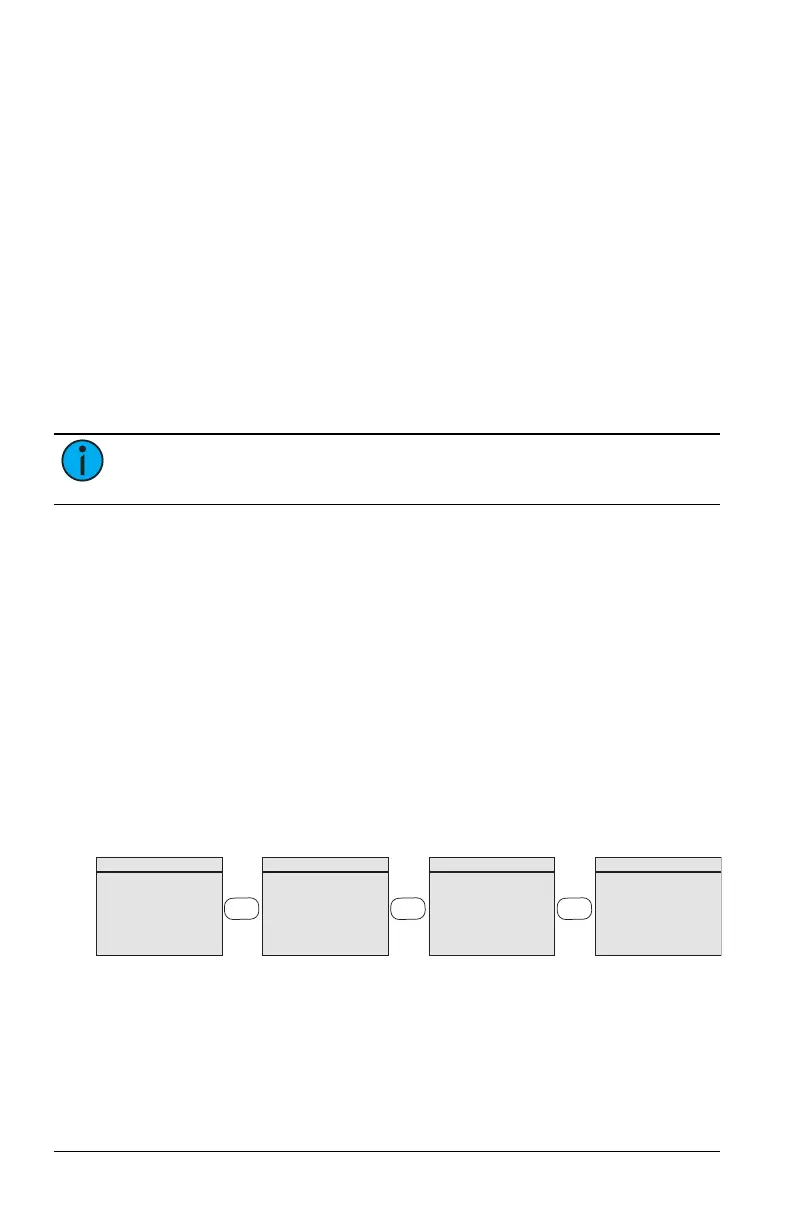
The Hold feature suspends all scheduled events and allows manual lighting
control to persist. Press the [Hold] button to cycle through the two Hold
types: Timed Hold and Indefinite Hold described below. Hold applies to all
groups.
The Holiday Shut-Off feature is an additional type of Hold that is configured
from the main menu. Groups can be included or excluded from Holiday
Shut-Off. For more information, see Holiday Shut-Off on page20.
press
HOLD
No Holds are
active
Timed Hold
is active
Indefinite
Hold is active
No Holds are
active
Timed Hold
All Events for all
Groups on Hold for
x hrs xx mins
Press Hold twice to
cancel and
reinstate schedule.
Indefinite Hold
All Events for all
Groups on Hold
Press Hold to
cancel and
reinstate schedule.
Lighting TimeClock
Mon, Aug 5, 2024
4:20pm
v2.1.0
Lighting TimeClock
Mon, Aug 5, 2024
4:20pm
v2.1.0
press
HOLD
press
HOLD


 To Next Page