20 Wireless TimeClock Configuration Guide
Flick Warn
Flick Warn is a feature that provides visual warning to occupants in a space
when the next scheduled event is set to turn the lights OFF. See Define an
OFF Action on page13. When enabled, the lights flick OFF and ON once
when the OFF action is pending, and stay ON for the duration of the con-
troller’s configured Flick Warn timer (default 60 seconds). Flick Warn allows
an occupant sufficient time to use a manual lighting control to turn the
lights ON and override a pending OFF action.
1. Select Flick Warn from the TimeClock Settings menu, and press
[Enter] to modify.
2. Press [Up] or [Down] to scroll Yes or No, and press [Enter] to select.
Holiday Shut-Off
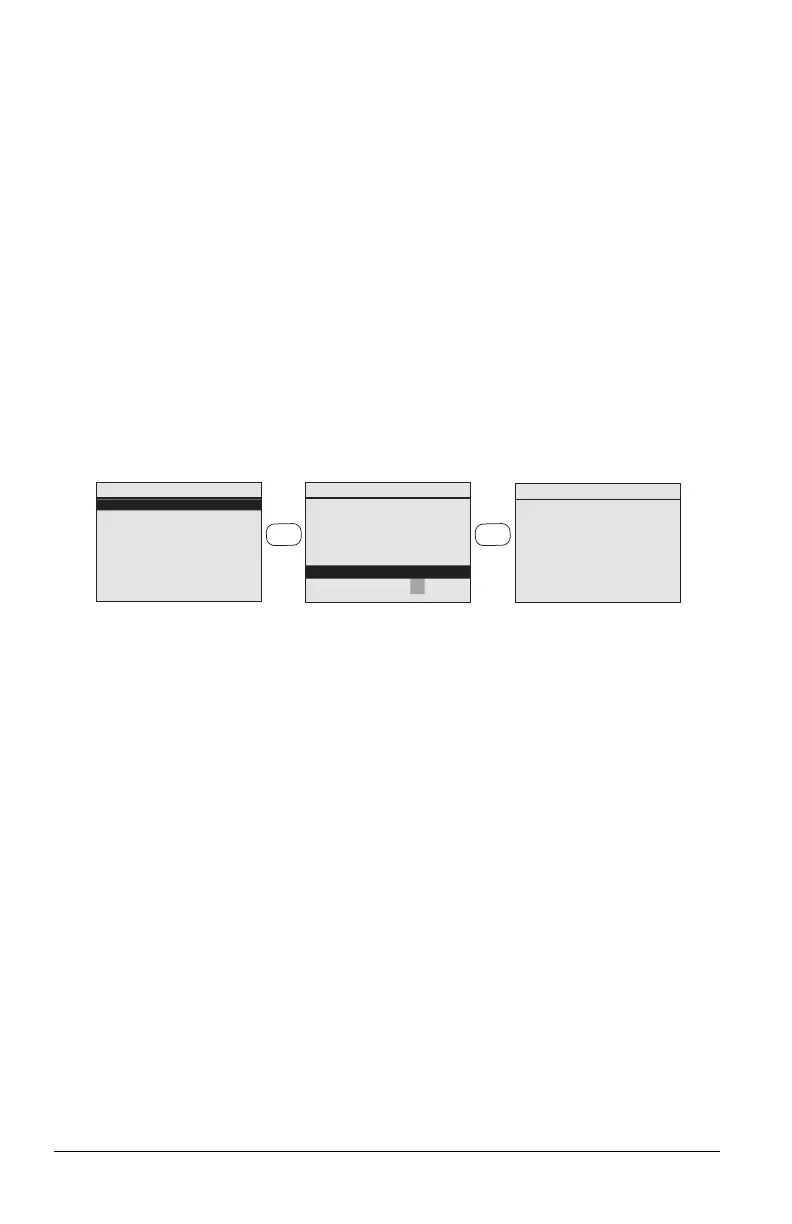
The Holiday Shut-Off feature provides a way to turn lights OFF and suspend
scheduled events (per group) for a specified period of time (1–7 days). The
default duration is one day.
Holiday Shut-Off
Holid ay Shut- O ff
S h u t o f f l i g h t i n g a n d
ig n or e s c h e d u le d
E v e n ts i n t h e
c o n f i g u r e d G r o u p s.
St a r t S h u t- O ff
S h u t- O ff for:2 d a y s
Holid ay Shut- off
B e gi n s i n 4:59
L i g h ts s h u t of f
a n d s c h e d u le d
E v e n ts o n H old
for 2 d a y s.
[E nt e r] to S t a r t n o w.
[B ac k] t o C a n c e l.
Start Holiday Shut-Off
Config Holiday Groups
press
ENTER
press
ENTER
When Start Shut-Off is selected, a five-minute countdown begins. At any
time during this countdown, the Holiday Shut-Off can be canceled by press-
ing [Back].
After five minutes have lapsed, the Shut-Off executes an OFF command for
the specified groups and the Home Screen shows the time remaining before
the Holiday Shut-Off expires. To reinstate the normal event schedule, press
[Hold].
Configure Holiday Groups
Each group can be individually configured to be excluded from the Holiday
Shut-Off schedule. By default, every group is shut OFF by the Holiday Shut-
Off schedule. To exclude a group, set the group to Unaffected so the
group’s scheduled events execute normally.
1. Select Holiday Shut-Off from the Main Menu and press [Enter].
2. Scroll to Config Holiday Groups and press [Enter]. The group numbers
are listed with their current Shut-Off setting.
3. Press [Up] or [Down] to locate a Group to modify, and press [Enter] to
select.
4. Press [Up] or [Down] to scroll the options, Unaffected or Shut-Off,
and press [Enter] to select.
5. Repeat for all the groups you want to configure.


 To Next Page