EMC-DCP
EMC DESKTOP CONTROL PANEL
Revision 1.1 Page 15
Next, the user will configure the EMC-DCP to use Ethernet. The procedure for adding the EMC-DCP is
similar to any other QMC-2 control panel. Under the EMC-DCP configuration, the user must set the Q-
Link address (matches the one set on the EMC-DCP in section 3.6) and then select the “Ethernet
instead of Qlink” option. The user can now enter the IP address (set in section 3.6) into the IP Address
field.
Next, the user must set the EMC IP address. Connect a serial cable from a PC to the EMC front serial
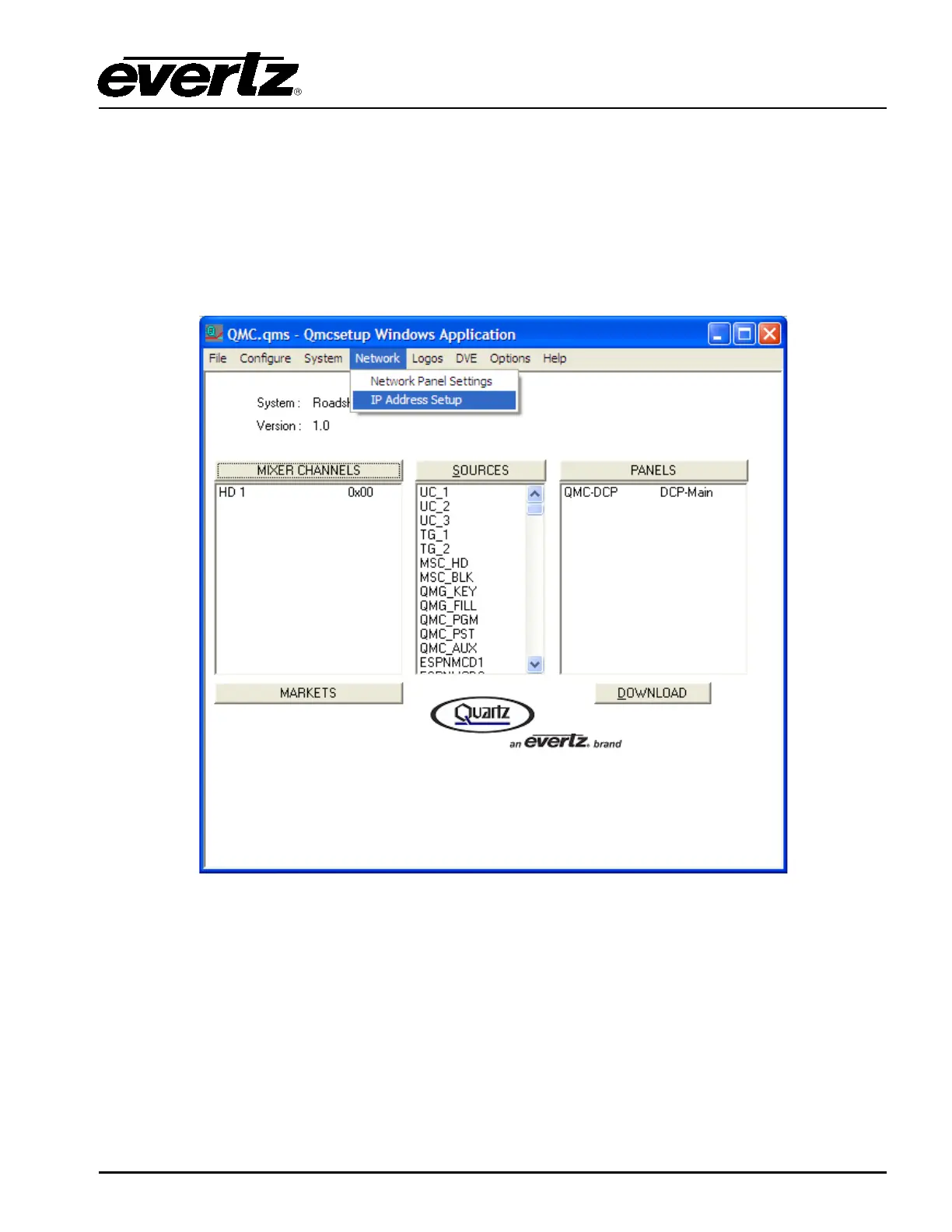
connector. Open the EMCSetup software tool and navigate to the Network menu in the top toolbar.
Select the IP Address Setup item from the Network drop down menu as shown in Figure 3-13.
Figure 3-13: QMCSetup/EMCSetup Windows Application
Once the EMC IP Address window appears, as shown in Figure 3-14, select the Query Current button.
The Query Current command will return the IP address of the system. Enter the IP address, subnet
mask and gateway to reflect the current network settings. Ensure that the EMC and the EMC-DCP are
on the same network. Once the appropriate settings are entered, select the Update button.



 To Next Page