EMC-DCP
EMC DESKTOP CONTROL PANEL
Revision 1.1 Page 23
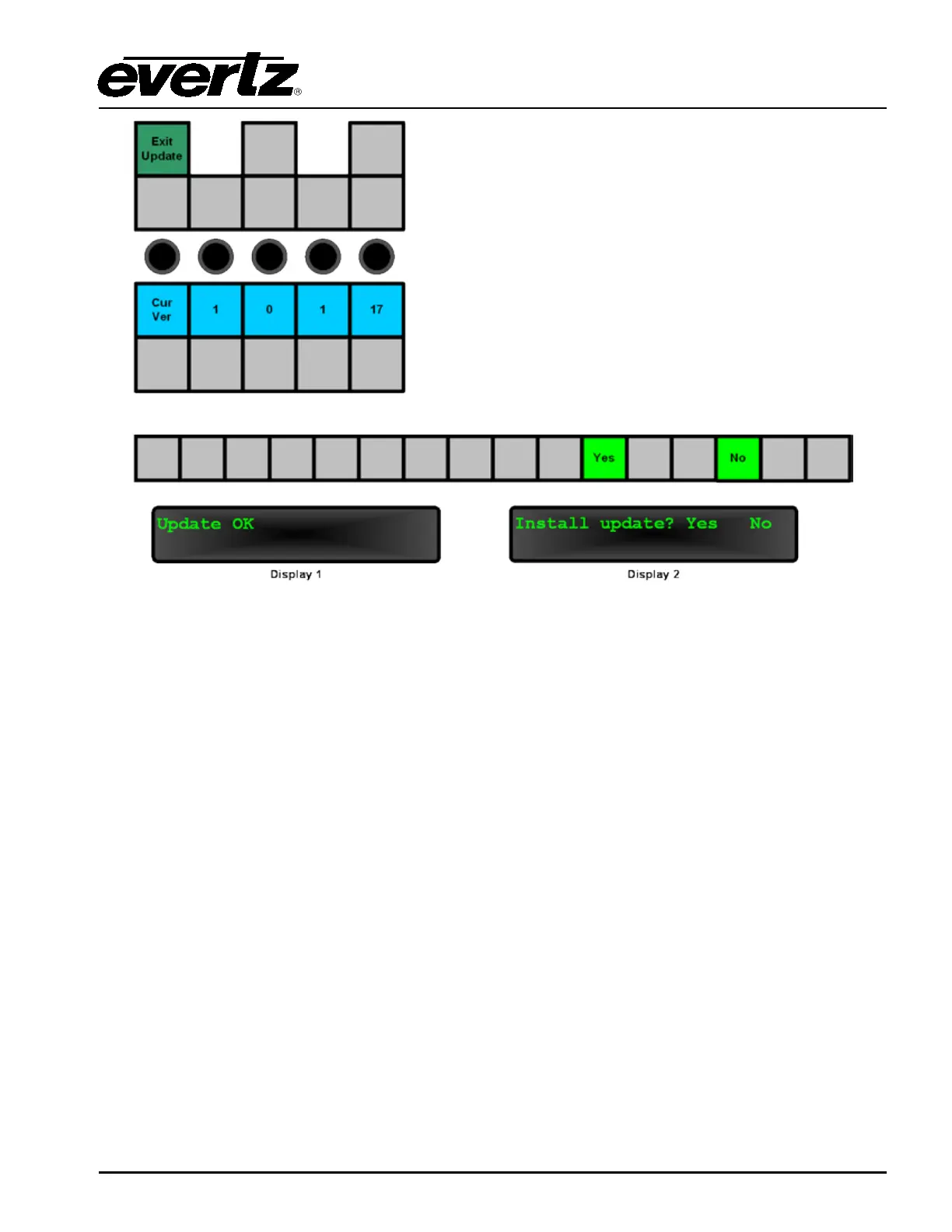
Figure 3-19: Confirmation of the Upgrade
In the confirmation mode, the VFD Display 1 will indicate whether the firmware selected by the user is
valid. If the message displayed is not “Update OK”, then the selected firmware on the USB memory
stick was found to be corrupt. The user should exit the Update Mode, download the firmware again,
and repeat the instructions outlined in this section. If the message is “Update OK”, the user will need to
select “Yes” to begin the upgrade of the firmware. If the user does not want to install the firmware,
select “No”, and they will be returned to Update Mode (see Figure 3-18).
If the user selected “Yes”, the EMC-DCP will proceed to install the new update. This will include a
panel reset. The process should take about 5 minutes to complete.



 To Next Page