EMC-DCP
EMC DESKTOP CONTROL PANEL
Page 22 Revision 1.1
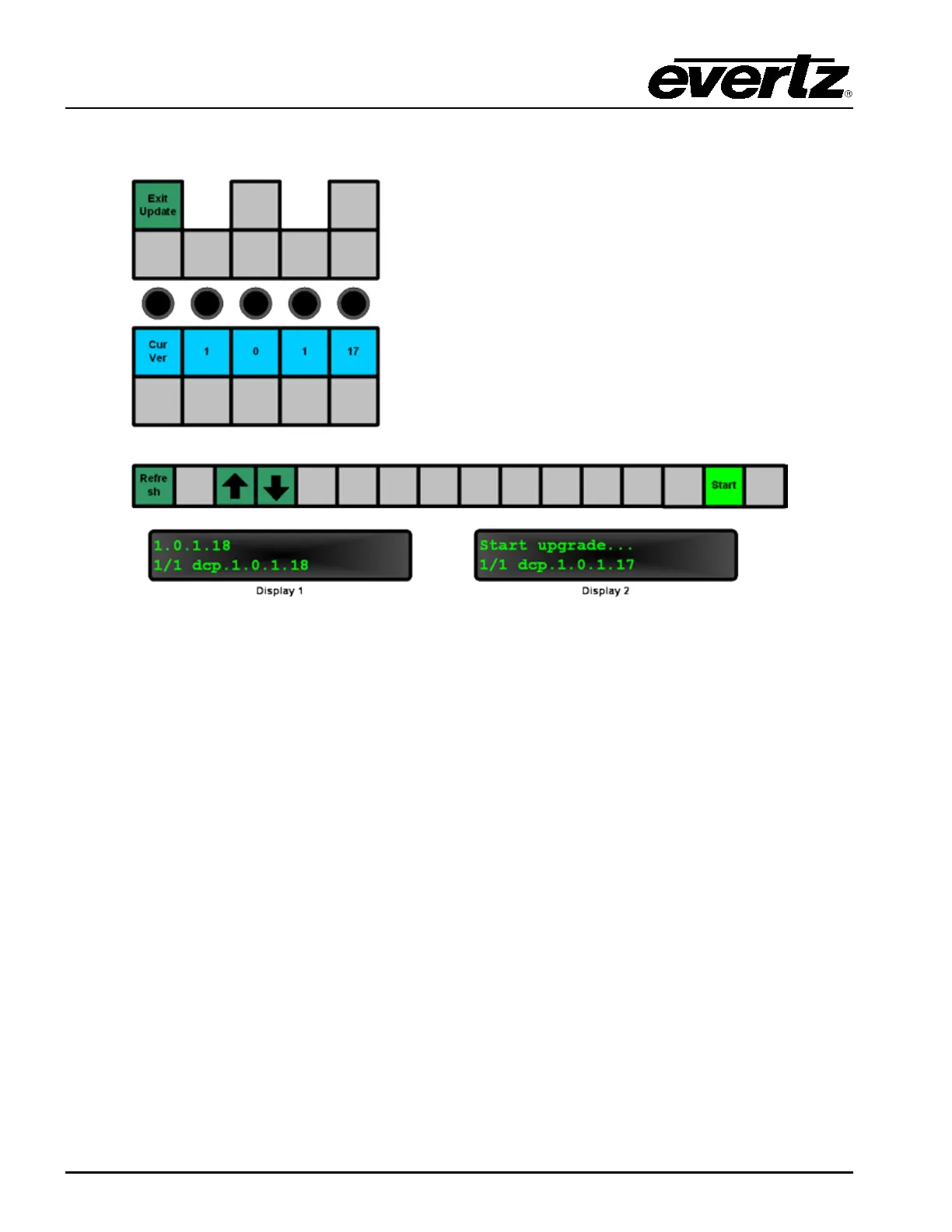
Once in Update Mode, the panel will appear as shown in Figure 3-18. To exit Update Mode, press the
“Exit Update” button. This will take the user back to the normal panel operations.
Figure 3-18: Update Mode of the EMC-DCP
The user will see the current firmware in the third row of LCD buttons. The VFD Display 1 will show the
firmware versions found on the USB 2.0 Memory stick that is plugged into the EMC-DCP. The user will
use the “Refresh” button to update the list. Use the UP or DOWN arrows to scroll the list of available
firmware and scroll to the desired firmware release. VFD Display 2 will show the selected firmware. To
start the update, press the “Start” button.
Once the “Start” button is selected, the panel will switch to a confirmation state, as shown in Figure
3-19.



 To Next Page