EMC-DCP
EMC DESKTOP CONTROL PANEL
Revision 1.1 Page 21
This button selects the KEY LEVELS (i.e. DSK, LOGO, etc.) to be included in
the transition. KEY changes the foreground portion of the video signal.
This button starts the transition. The Transition button switches what is
stored at the PREVIEW button to the PROGRAM button, and what is currently
being output at the PROGRAM button to the PREVIEW button.
This button selects a Black Generator
to AIR. When Fade BLK is selected
the EMC-DCP provides a controlled fade to black.
Table 3-3: EMC-DCP – Button Definitions for Mini Master
3.11. UPGRADING THE EMC-DCP FIRMWARE USING A USB
In order to upgrade the firmware on the EMC-DCP, the user will need to download the latest EMC-DCP
firmware from the Evertz website (www.evertz.com
). The firmware should be transfer onto a USB 2.0
memory stick (onto the top level/root directory). The USB 2.0 memory stick is then plugged into any of
the USB ports on the EMC-DCP (see Figure 3-5).
The user will be required to enter the Update Mode of the EMC-DCP, which can be accessed directly
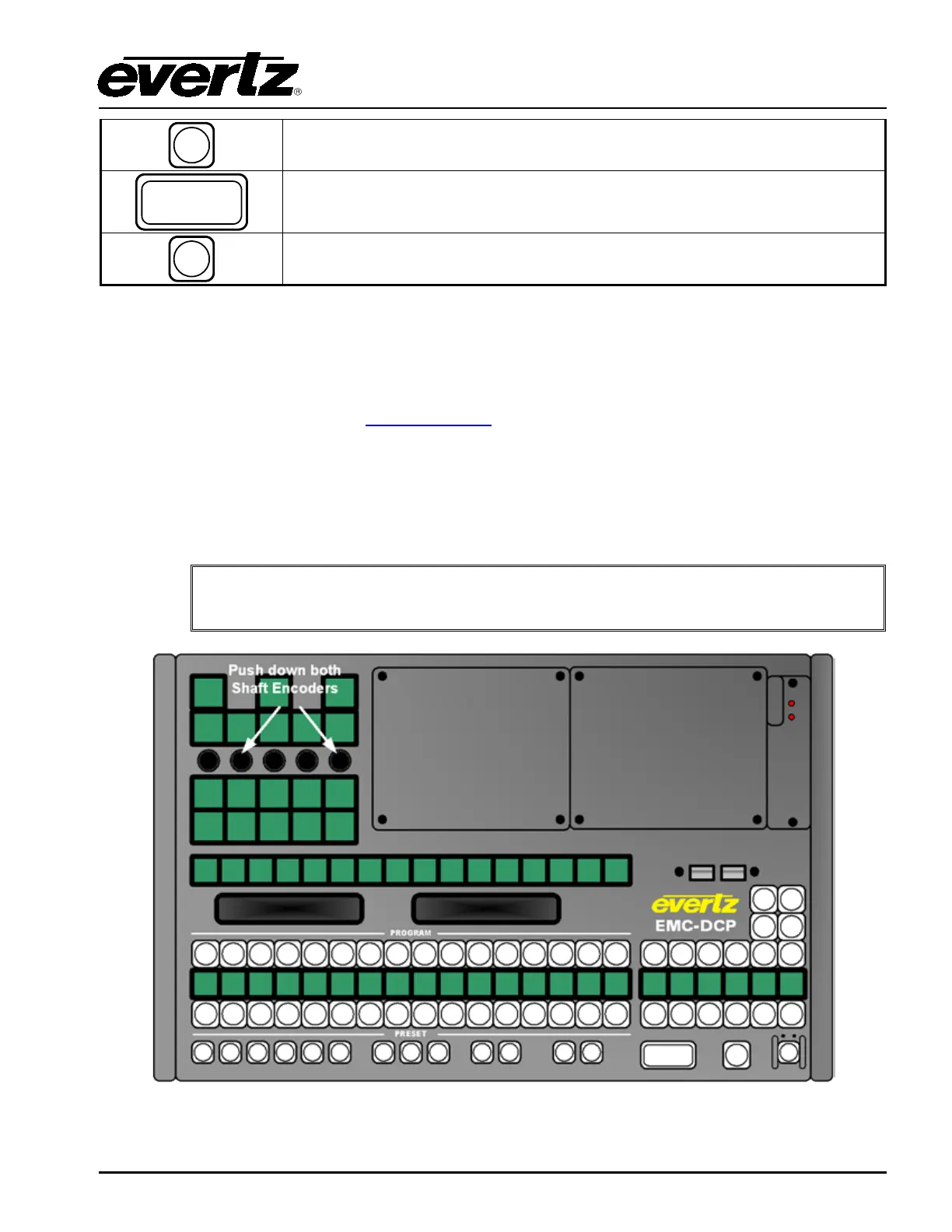
on the panel. Figure 3-17 shows which shaft encoders (2 and 5) the user MUST push AND
simultaneously hold down for 10 seconds, in order to enter Update Mode.
The shaft encoders used to enter Update Mode are DIFFERENT than the ones
used to enter Setup Mode in section 3.7.
Figure 3-17: Getting into Update Mode on the EMC-DCP



 To Next Page