Raptor User Manual
2017 EverySight Ltd. Proprietary Page 19 of 46 Rev 1.0
4. You can also adjust the brightness level of the display at
any time by using voice control. To activate the Voice
Commands, simply say: “Go Everysight’’.
Once active, either say "Brightness up" or "Brightness
down" in order to adjust brightness.
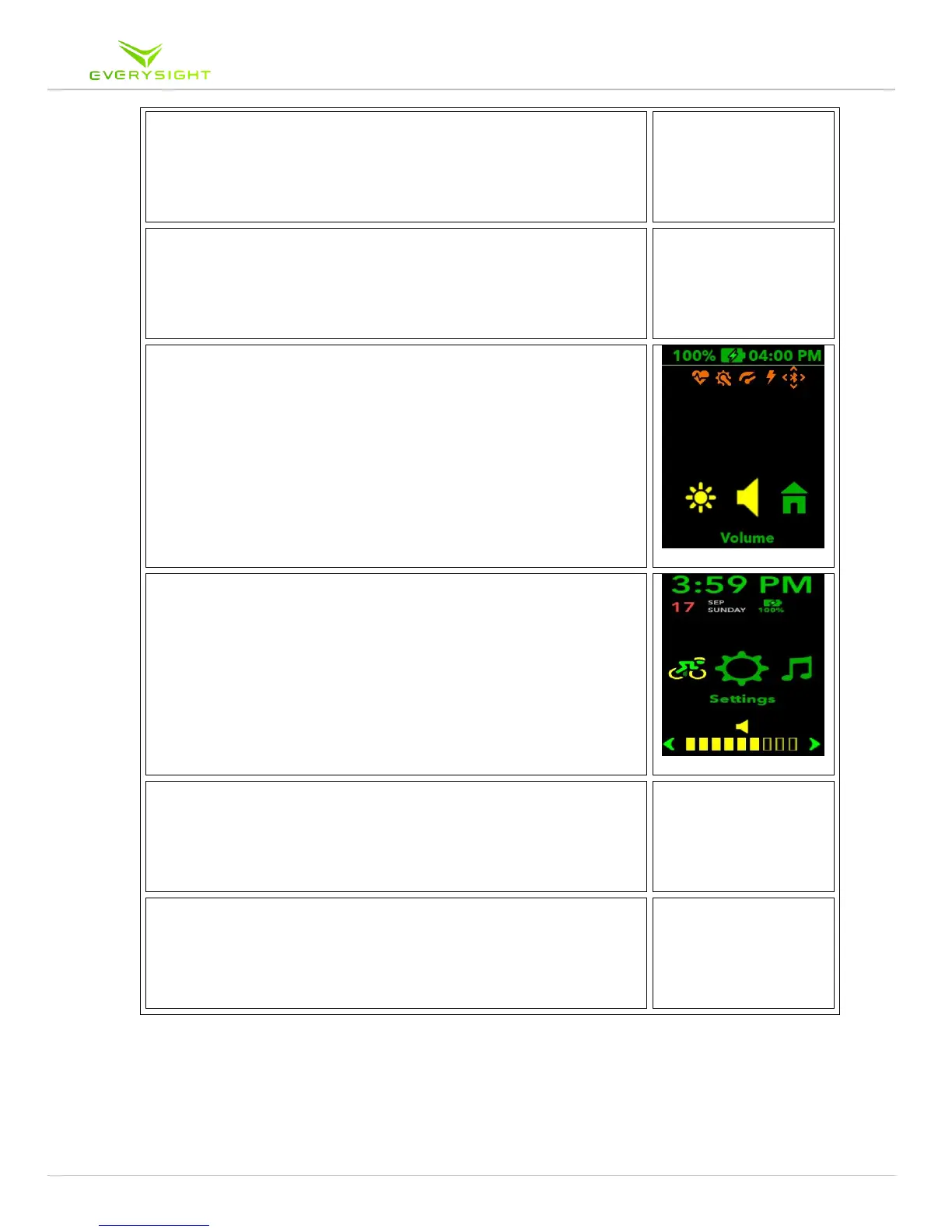
5. The same can be done for Volume: Tap and Hold on the
touchpad on the side of your Raptor until the menu
appears
6. Swipe to the Volume icon and Tap to Select
7. To increase the speaker volume Swipe Forwards, To
decrease the speaker volume Swipe Backwards.
8. To Exit the selected feature (i.e. Volume) Swipe Down
a. This will bring you back to the screen you were on
when you initiated step 1.
9. You can also adjust the volume level at any time by using
voice control. To activate the Voice Commands, simply
say: “Go Everysight’’.
Once active, either say "Volume up" or " Volume down"
in order to adjust volume.



 To Next Page