Raptor User Manual
2017 EverySight Ltd. Proprietary Page 14 of 46 Rev 1.0
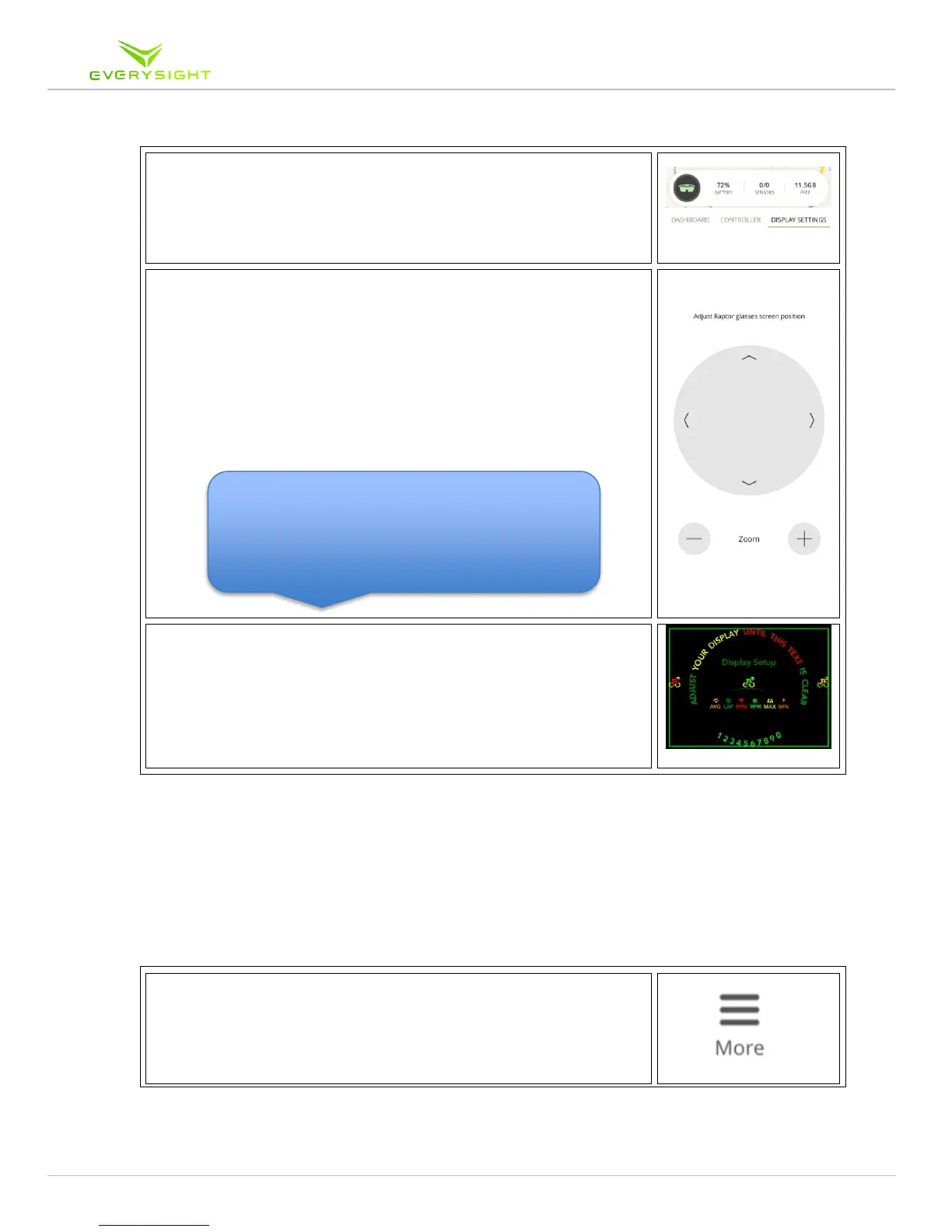
1. Open the Everysight app on your phone. Tap on the
information bar, and then tap Display Settings.
2. Use the directional arrows in the app to move the Raptor's
display up, down, left or right. Position the display so that
you can see it comfortably and within the center of your
field of vision.
If you can't fit the complete display into your field of
vision, zoom in and out by using the Minus and Plus
symbols. The optimal zoom is between 90-100%.
Everysight App Settings
The Everysight App allows you to adjust any of the settings relating to connectivity between
your phone and Raptor Smartglasses at any time. This gives you complete control over the
data and permissions being shared between the devices.
1. On the iPhone or Android, to access settings:
a. Tap the three bars at the bottom left hand side of the app
that say More
b. Then tap Settings
Tip: If the display won't move further in a
certain direction, try zooming out further and
then continuing to adjust the placement of the



 To Next Page