Raptor User Manual
2017 EverySight Ltd. Proprietary Page 20 of 46 Rev 1.0
Adding/Removing Bluetooth Devices and Sensors (Optional)
You can pair Everysight Raptor with the Raptor Controller and additional Bluetooth sensors
like: a Heart Rate Monitor, a power meter, speed, and cadence giving you deeper insight to
your rides.
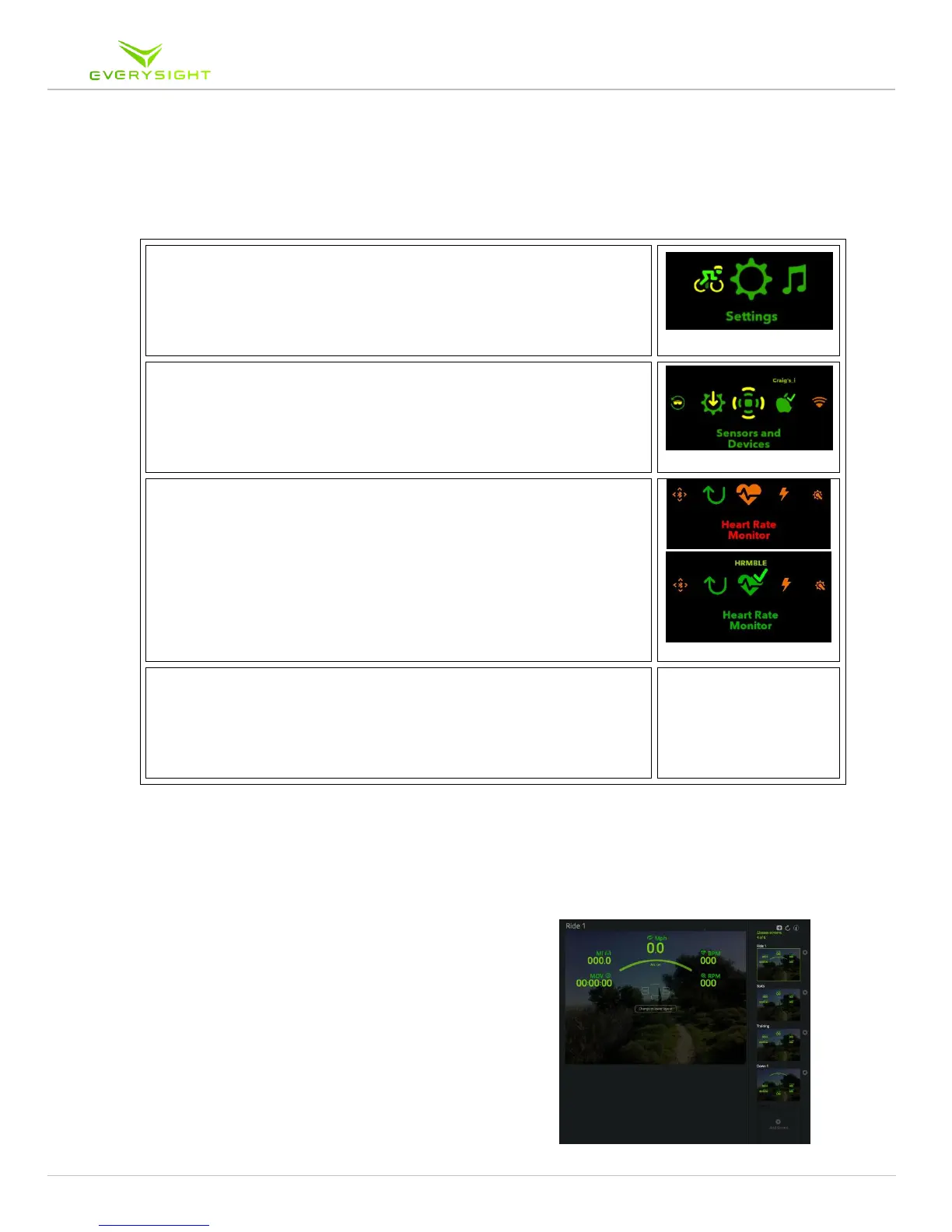
10. On your Raptor glasses main menu, navigate by swiping
the touchpad to Settings. Tap to select.
11. Once in the Settings menu, navigate to Sensors and
Devices. Tap to select.
12. Once in the Sensors and Devices menu, navigate to the
device or sensor you want to connect to. Tap on the device
or sensor type to begin a Bluetooth scan, now swipe until
you see your device name and tap on it to pair it with your
Raptor.
13. Once connected, you will be returned to the sensors and
devices menu and the device or sensor you are connected
to, will be highlighted in green.
14. To Remove a Sensor or Device, simply rotate the carousel
until the desired sensor is centered and includes it’s label
and Swipe Up to disconnect from this device.
Configure Your Raptor’s Screen Layout
Your Raptor can display up to six customized screens of information and statistics while you
are riding. Once setup, you can swipe forward to
change between them as you ride.
Each display contains one primary and 4 secondary
display fields that can measure up to 7 different
metrics, depending on the sensors connected to Raptor
(Speed, cadence, heart rate, power, distance, elevation
and time).



 To Next Page