Raptor User Manual
2017 EverySight Ltd. Proprietary Page 16 of 46 Rev 1.0
Becoming Familiar With the Raptor Navigation Gestures
One of the main ways of operating the Raptor is via the
Touchpad that is embedded into the right Temple arm.
The Touchpad responds to swiping and tapping gestures in
the same way a Touchpad on a laptop does. Using these
gestures, you can navigate around the Raptor interface, and perform actions like taking a
picture or recording a video.
Tip: Using concise gesture movements will help you to easily learn to control and operate
Raptor.
f. Bluetooth Settings can be accessed easily by
clicking on Bluetooth Settings
g. The Ride Notifications toggle is for your phone to
send you a notification once your ride has been
ended and this can be Enabled or Disabled
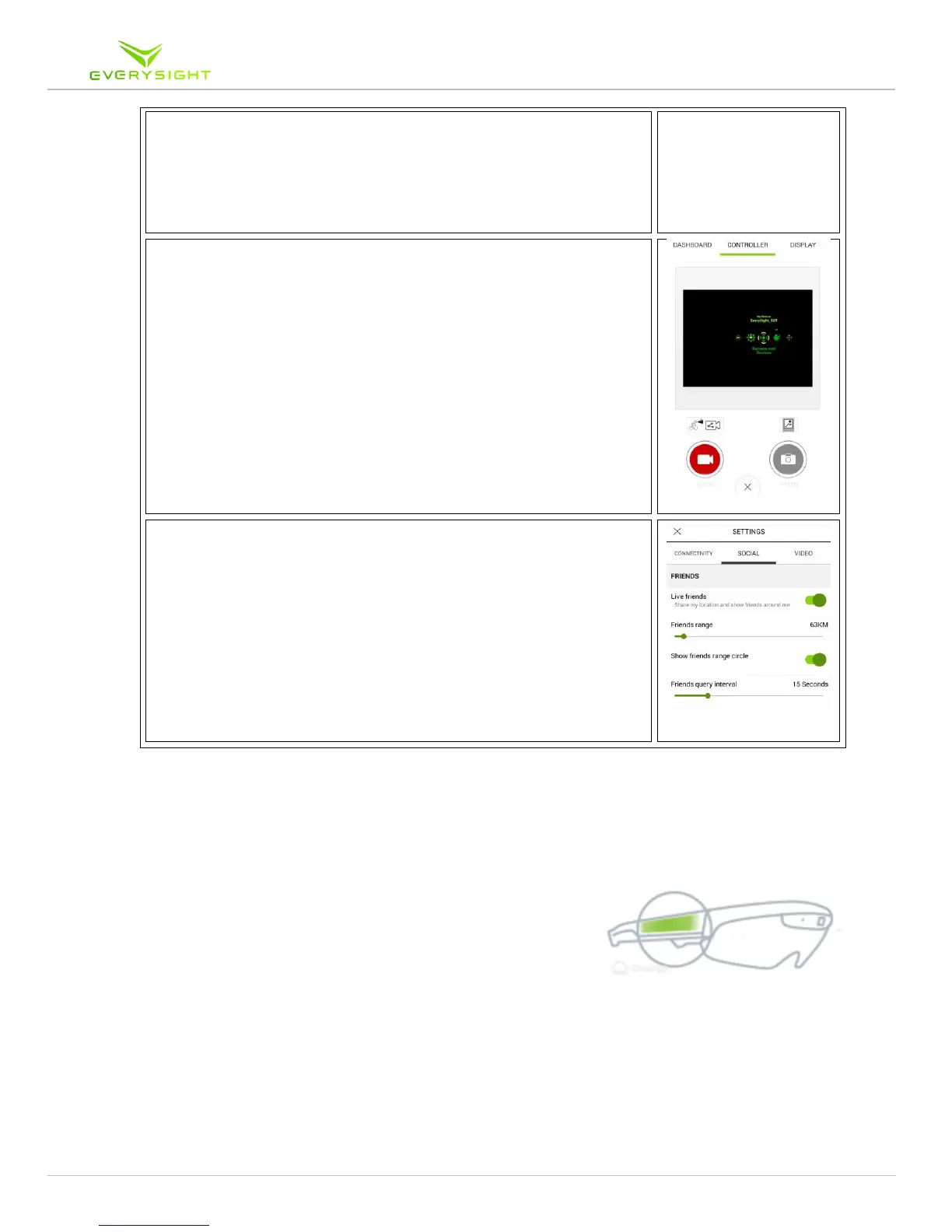
h. Screen Broadcasting Toggled on or off
i. Screen Broadcasting allows you to see and
control what is being displayed by the
BEAM
tm
technology on your visor but
through your app
ii. When toggled on, go back to the main
screen
iii. Tap on the Information Bar
iv. Tap on the Controller Tab
v. Have complete view and control of your
glasses from your App
4. For Android Users under the Social Tab
a. You can show your location and see friends around
you by toggling on or off the ‘Live Friends’ feature
i. You can see within what range your friends
are located with the Friends Range slider
ii. The ‘Friend Request Interval’ slider
indicates how often (in seconds) your app
searches for other people using this app
iii. The phone can search as frequently as
every 2 seconds, or as infrequently as
every 60 seconds



 To Next Page