Raptor User Manual
2017 EverySight Ltd. Proprietary Page 7 of 46 Rev 1.0
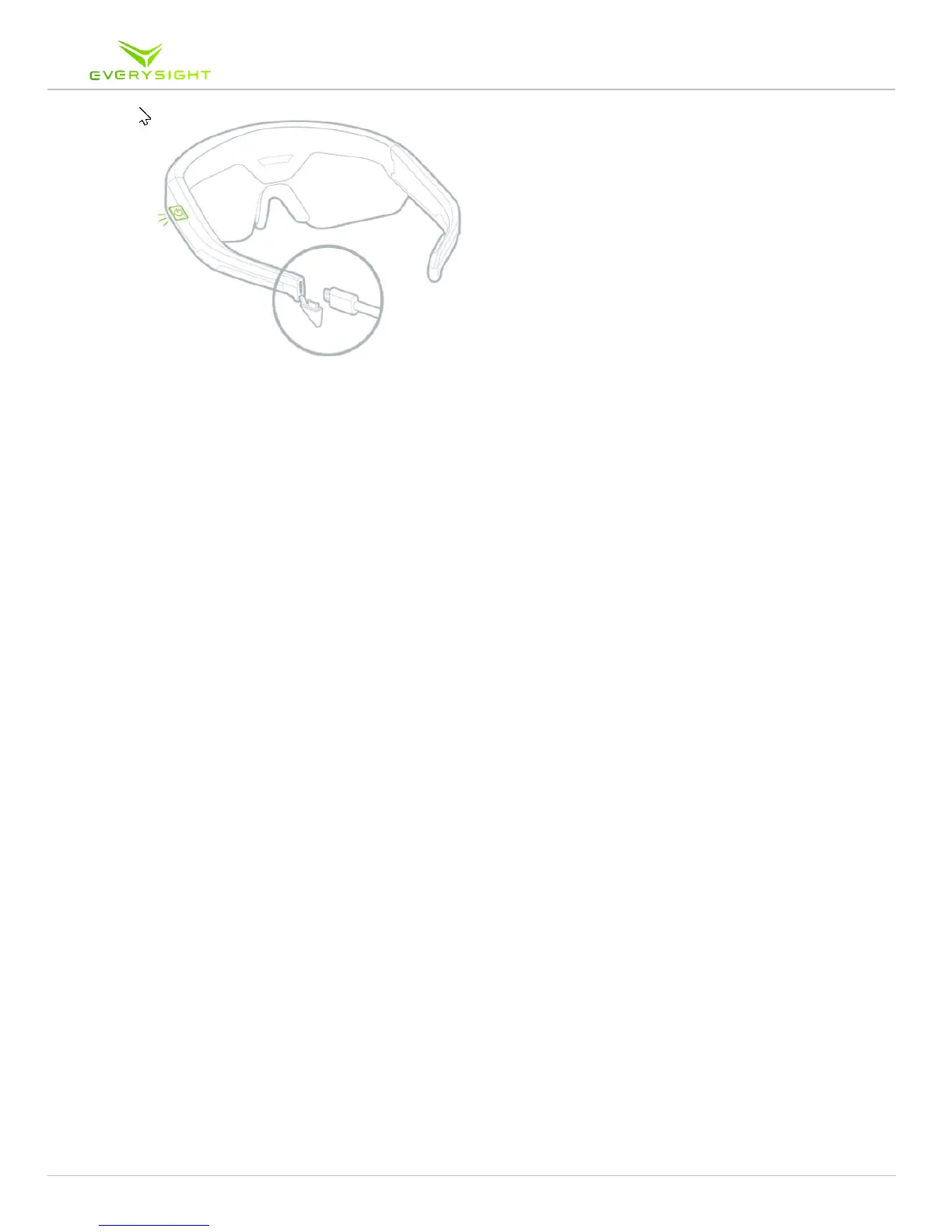
When your Raptor is charging, the indicator light located on the underside of the left temple
arm hinge (next to the power button) should be active and red.
You’ll know when it is fully charged, when the indicator light changes from red to green.
You can see the battery indicator in the BEAM
tm
display of your Raptor (When powered on)
and in Everysight's APP on your smartphone when connected to your Raptor.
For further safety instruction refer to ……………. (safety/legal usage terms)
Installing the Everysight App on Your Smartphone
• Download and Install the App from the App store or the Google Play app store
• When the App is installed, sign into the App by using your Gmail account, Facebook
account, or by using your email and clicking "create new account".
Turning Your Raptor Smartglasses On
• Press and hold the power button on the underside of the left Temple arm hinge for
two seconds, or until the display turns on.
• When Raptor is powered up, it makes a notification sound. If you can't hear the
notification sound, please check the volume level of your Raptor.
• Prior to initial setup or if setup is completed but the Raptor shifts from its
original position (i.e. you are using a different helmet, shifting of the
nosepiece etc.), Raptor display may be distorted or out of focus. Refer to the
"Personal fit" section in this manual to learn how to adjust the display.



 To Next Page