Raptor User Manual
2017 EverySight Ltd. Proprietary Page 8 of 46 Rev 1.0
Pairing Your Raptor With Your Smartphone
Before continuing with this guide, it is important to pair your Raptor smartglasses with
your smartphone (iPhone or Android). Once it is paired using Bluetooth, you will be able
to adjust the display on the Raptor smartglasses, load and unload routes, and generally
manage your smartglasses.
Pairing Your Raptor With Your iPhone
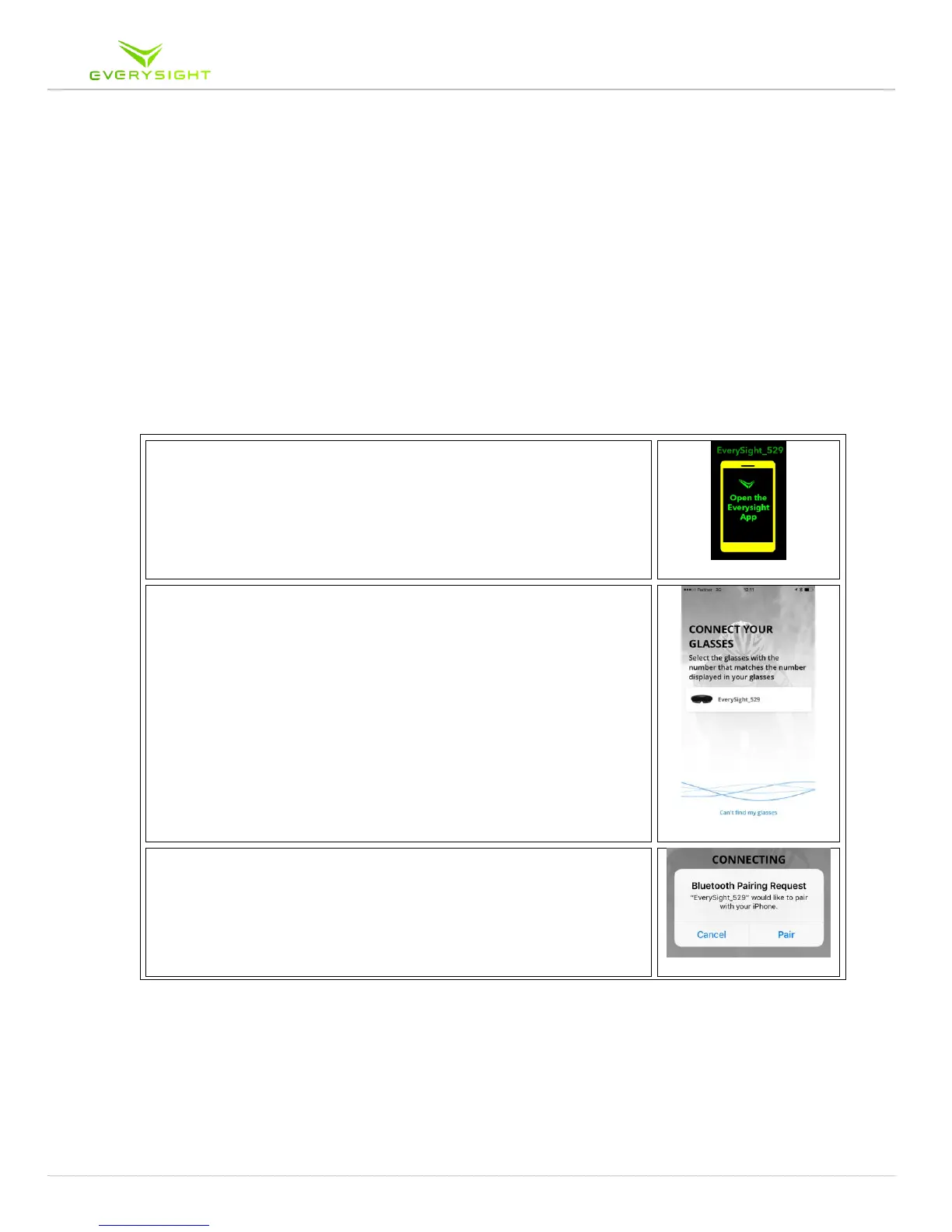
Follow these steps to pair your Raptor with your iPhone using Bluetooth. Please note
that your Raptor actually pairs over Bluetooth twice. The first pairing is to connect to
Everysight's app and the second pairing is to allow phone connectivity (phone calls and
messages).
1. Your Raptor smartglasses will be displaying an image
indicating to you that you need to open the Everysight app on
your iPhone.Your Raptor's identification number will be
shown in the BEAM
tm
display (Everysight_XXX)
2. On your iPhone go to Settings > Bluetooth. Look for a device
called Everysight_XX. In this example we see Everysight_529.
3. If there is more than one Raptor device present, make sure to
choose the device with the identification number that is
displayed in your Raptor device's BEAM
tm
display.
4. Tap on your device to start the pairing process.
5. When prompted, tap Pair to connect your Raptor device to the
App, and complete the first Bluetooth pairing step.



 To Next Page