Raptor User Manual
2017 EverySight Ltd. Proprietary Page 10 of 46 Rev 1.0
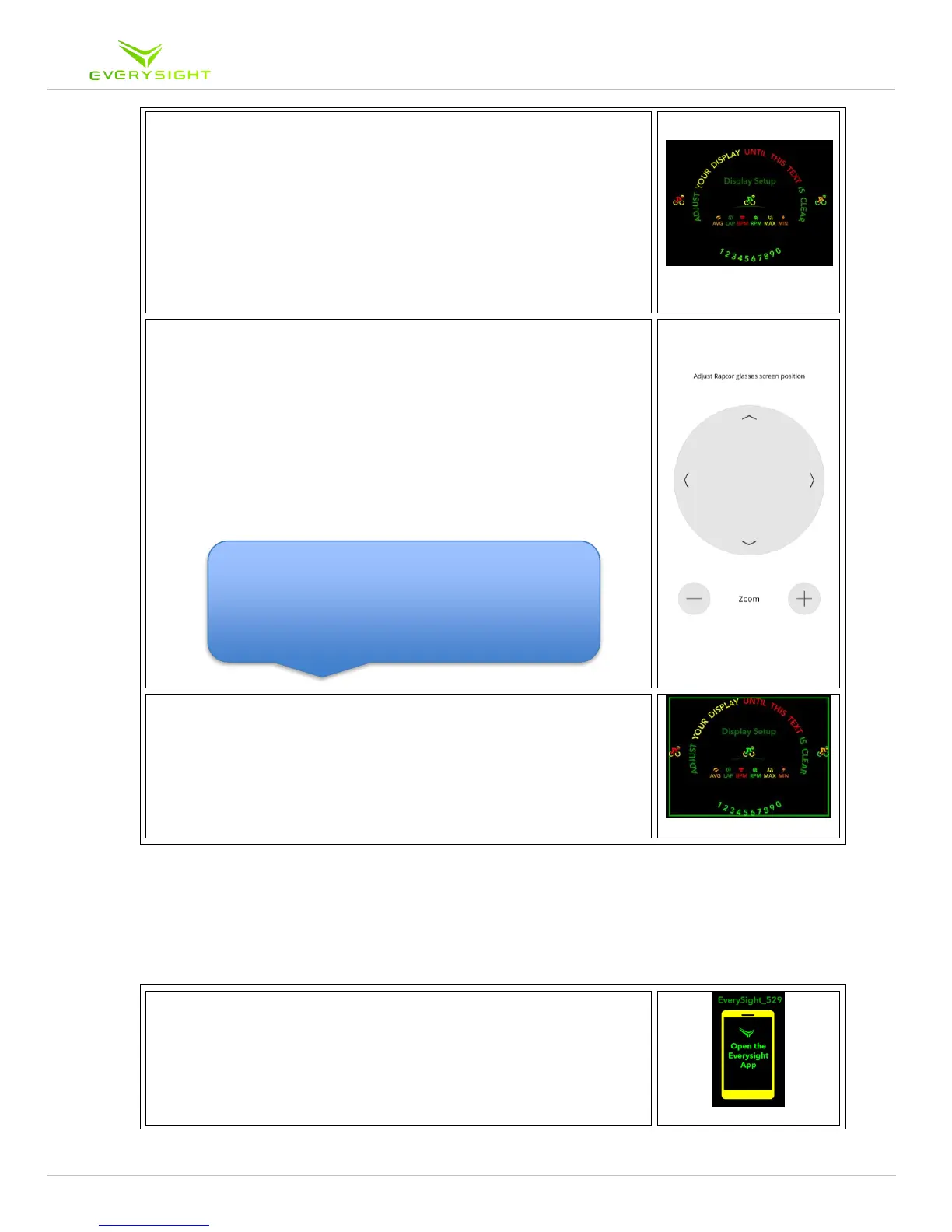
7.2. Adjusting the display using the App
The goal of this step is to achieve a clear and complete
view of the Raptor's display within the center of your field
of vision.
To ensure best view of the display, be in a bright place
and look at least 18 ft. into the distance.
The display position may not seem centered if you
attempt to adjust the display while looking at a
nearby object.
Use the directional arrows in the app to move the
Raptor's display up, down, left or right. Position the
display so that you can see it comfortably and within the
center of your field of vision.
If you can't fit the complete display into your field of
vision, zoom in and out by using the Minus and Plus
symbols. The optimal zoom is between 90-100%.
7.3. If after adjusting the display using the app you still feel
you are having trouble seeing a clear and complete
display, try to repeat steps #7.1 and #7.2 until you reach
comfort, security and clear display.
Pairing Your Raptor With Your Android Phone
Follow these steps to pair your Raptor with your Android phone using Bluetooth. You
may want your riding helmet nearby to ensure the best possible fit.
1. Your Raptor smartglasses will be displaying an image
indicating to you that you need to open the Everysight app
on your iPhone.Your Raptor's identification number will
be shown in the BEAM
tm
display (Everysight_XXX)
Tip: If the display won't move further in a
certain direction, try zooming out further and
then continuing to adjust the placement of the



 To Next Page