Raptor User Manual
2017 EverySight Ltd. Proprietary Page 34 of 46 Rev 1.0
After Your Ride
After your ride, you can download the media (photos and video) from your Raptor and save
or share it, or simply power down your Raptor.
Downloading Media
During your ride you may have taken some photos, or recorded some video. Before you
power down your Raptor, you can download that media to the Everysight app on your
phone.
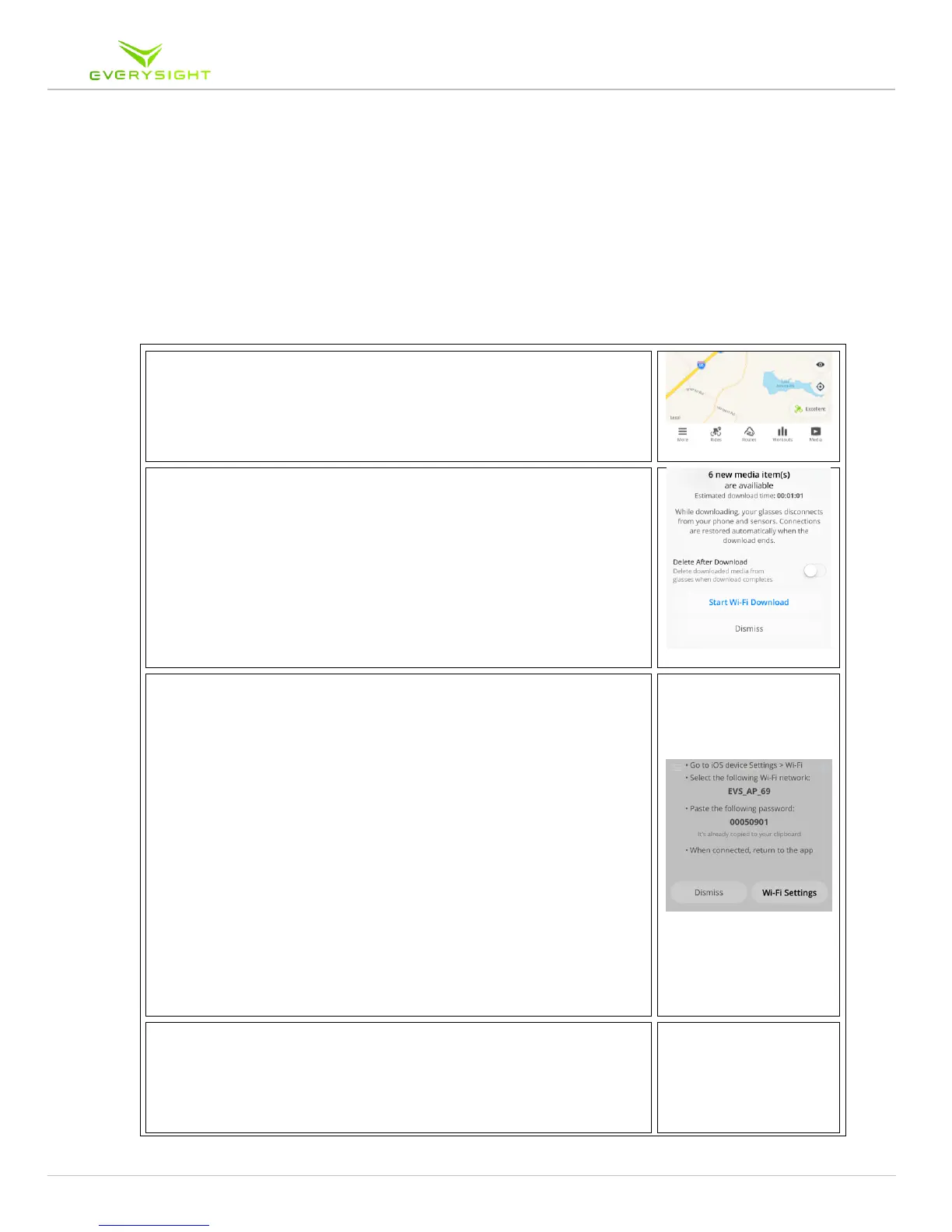
1. In the Everysight app on your phone, tap Media.
2. The Media screen will show you how many media item(s)
there are on your Raptor. You can cjoose to either import the
photos/videos from Raptor or to import and delete
photos/videos from Raptor at the same time which would free
up more memory.
2.1. If you only import the pictures and choose not to delete
them at this point, you can always connect your glasses
via USB cable to move, copy or delete files at a later time.
3. Your Raptor now creates a Wi-Fi HotSpot on itself.
3.1. For iPhone users:
3.1.1. You will be instructed to connect your phone to your
Raptor as a Wi-Fi HotSpot.
3.1.2. The Everysight App places the Wi-Fi password in the
clipboard so that you can paste it in the Wi-Fi screen.
3.1.3. Tap Wi-Fi Settings to see your phone’s Wi-Fi Settings
screen.
3.1.4. Connect to the device that begins with EVS and paste
the password when requested.
3.1.5. Once your phone successfully connects to the
HotSpot, return to the Everysight App to complete
the download
3.2. For Android users:
3.2.1. You will be connected automatically to the HotSpot
created by your Raptor Smartglasses and the
download will simply begin
4. Once the media file(s) are saved to the Everysight app, you can
save them to your phone’s storage, and share them easily with
apps or social media sites by simply selecting the pictures or
videos you wish to share and selecting Share.



 To Next Page