Raptor User Manual
2017 EverySight Ltd. Proprietary Page 33 of 46 Rev 1.0
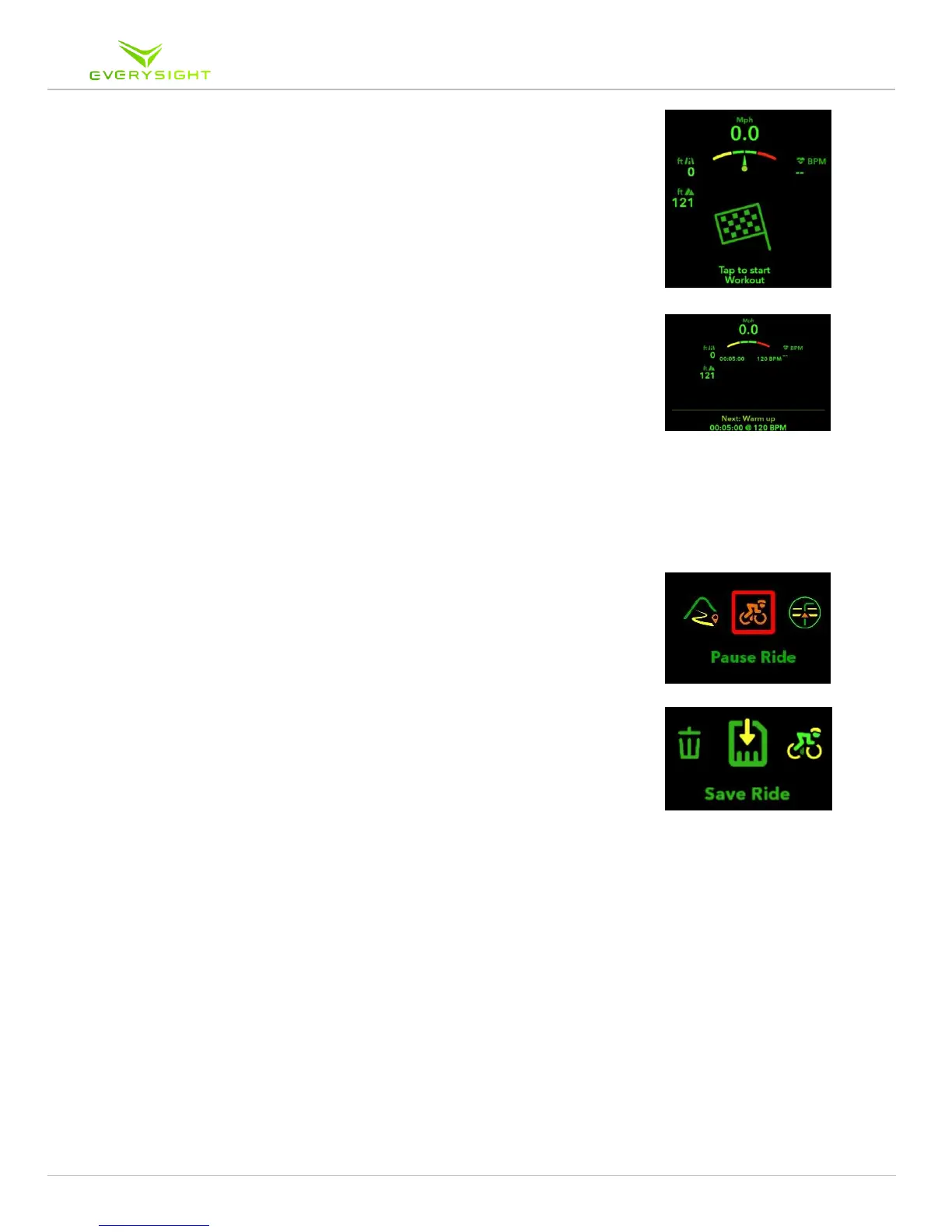
4. Tap the Touchpad to start your ride. As you ride, your Raptor
will display your planned screens' information for you, as well
as record that information so you can later save it.
5. Swipe forward to change your ride screens (up to 6 screens as
you defined them).
6.
7. According to the training settings on your go.everysight.com
account, the display will show the current workout step (for
example Warm Up), the smart arc shows, your training range
and current position relative to your pre-determined range, a
timer indicating your remaining time until your next step, text
and/or audio notifications for remaining time and next step on
the workout plan.
8. While training, you can increase or decrease the intensity of
the metric you are currently targeting by swiping down….
19. To pause or end a ride:
19.1. Swipe down to open Ride Menu.
19.2. Swipe to the pause ride icon.
19.3. Tap to select.
9.
6. Swipe left or right to choose whether you want to discard the
ride (lose all ride data), save the ride, or resume your ride. Tap
to select the option you want to use.
20. Once you saved a ride a popup message will appear on your
smartphone, click it to open the ride page and upload it to your
profile.
7. Next a feedback page will appear. We appreciate it if you can
take a few seconds to give us a feedback about your Everysight
experience during this ride.



 To Next Page