Raptor User Manual
2017 EverySight Ltd. Proprietary Page 23 of 46 Rev 1.0
Navigation Ride
Navigation with Raptor is a wonderful experience, allowing you to find your way in an
unknown territory without ever slowing down or getting lost again.
Please note: Before going on a ride, make sure that your Raptor is fully charged. It should
take about 2 hours to fully charge when the battery is depleted. To learn more about
charging Raptor, please refer to chapter …. in this manual.
Download the Map(s)
Before you go on a ride, you should first download the map of the state or country where
you will be riding. Depending on where in the world you are riding, this may be an entire
country map, or a smaller area like a Province or State map. Your Raptor supports multiple
map files and changes automatically between files as you ride across states or regions.
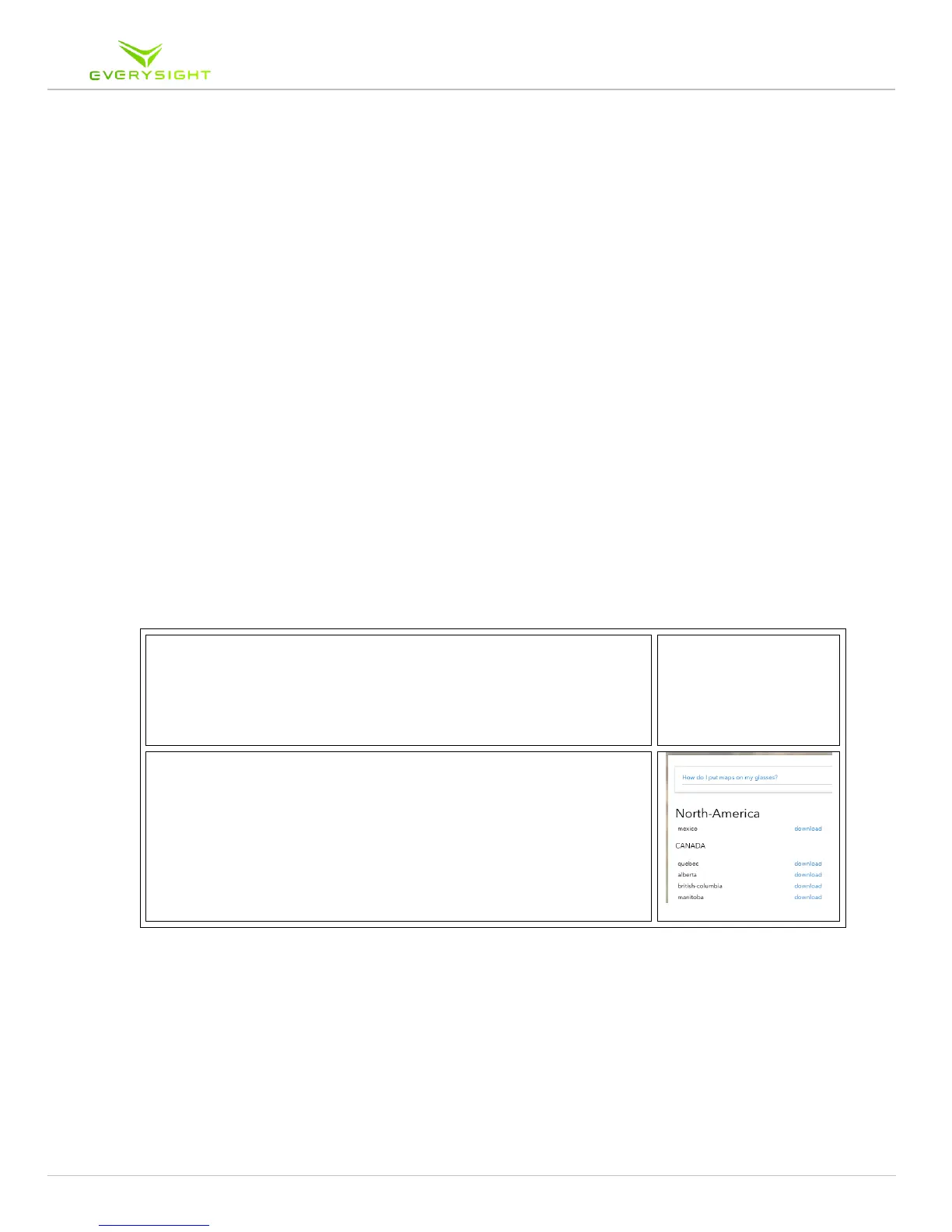
1. Sign in to Go.everysight.com using the same credentials
used to sign in Everysight app on your smartphone. Select
downloads on the main menu.
2. Find the map, or maps that you think you will need for the
foreseeable future, and click each map to download it. The
map files are normally saved in your web browser’s
Downloads folder.
Copy the Map(s) to Your Raptor
Once you have downloaded one or more map(s) to your computer, you need to copy them
over to your Raptor.
Copying Map(s) from Your Apple Mac
Before you attempt to copy the map files from your Mac to your Raptor, you must first
install a Free app called Android File Transfer.



 To Next Page