Raptor User Manual
2017 EverySight Ltd. Proprietary Page 18 of 46 Rev 1.0
Adjusting Brightness and Volume
Display brightness can be adjusted at any time to fit to different visors, weather and lighting
conditions. Raptor's default brightness level is 7 out of 9 (A greater value means a brighter
display). Finding the right level of brightness is per individual preference. Indoor or dark
environments will require a lower brightness level while a bright environment will require
a higher level of brightness.
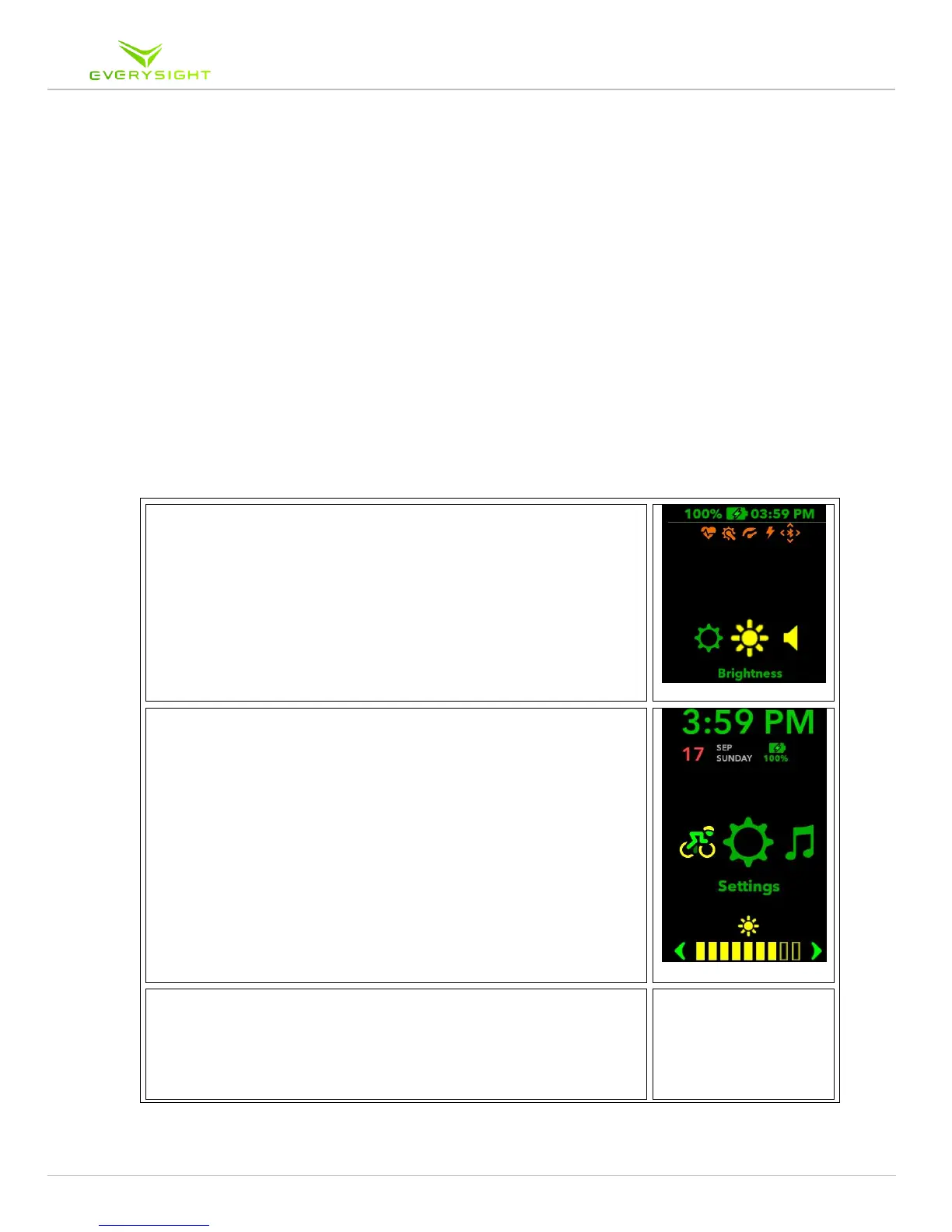
1. To access the Brightness or Volume settings, simply Tap
and Hold on the touchpad on the side of your Raptor until
the running apps menu appears
2. Swipe to Either Brightness or Volume and Tap to Select
a. In this example, we see that Brightness has been
selected as shown by the strength bar indicated at
the bottom
b. To adjust the level of brightness, Swipe Forwards
for the screen to be brighter, Swipe Backwards
for the screen to be less bright.
3. To Exit the selected feature (i.e. Brightness) Swipe Down
a. This will bring you back to the screen you were on
when you initiated step 1.



 To Next Page