Raptor User Manual
2017 EverySight Ltd. Proprietary Page 26 of 46 Rev 1.0
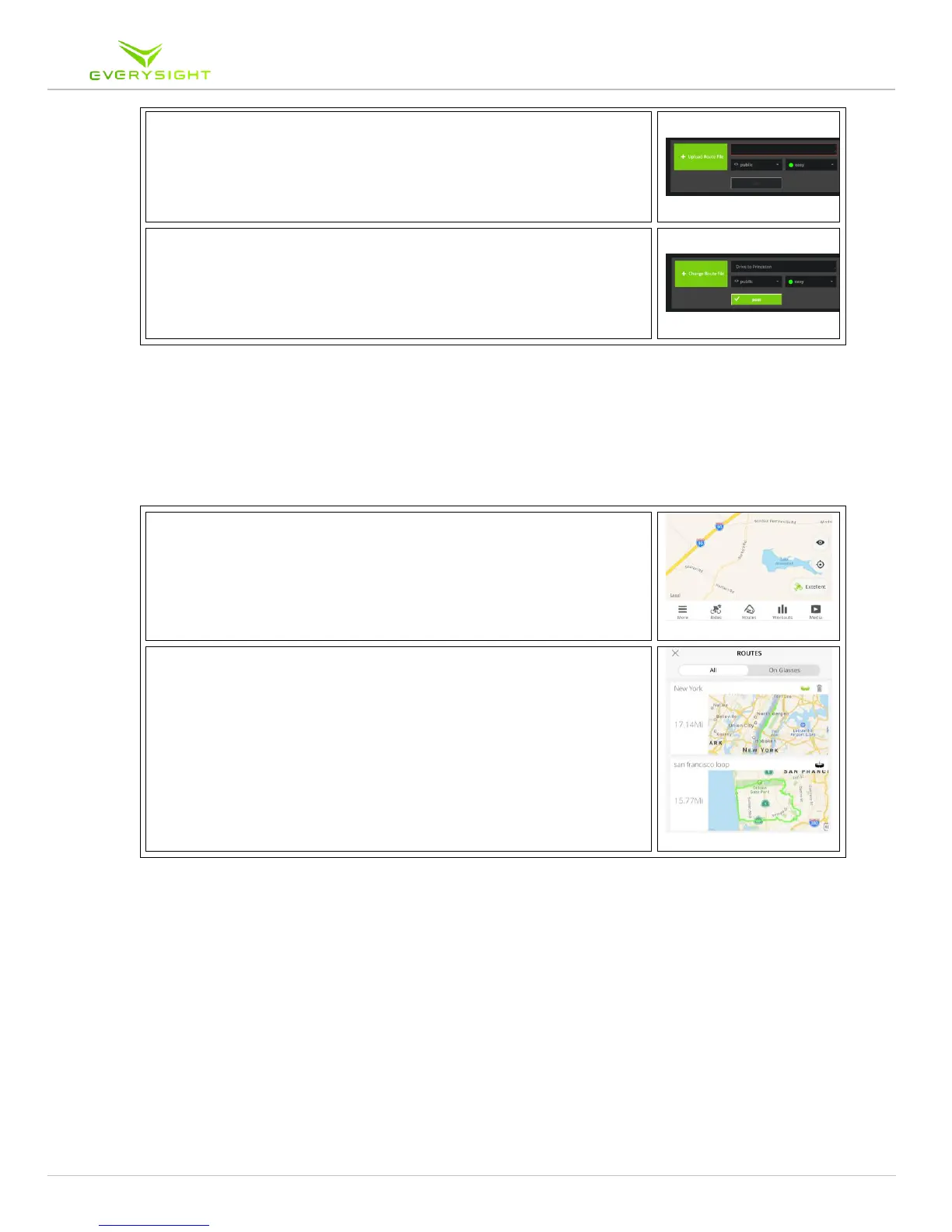
5. Choose the GPX file you exported in step 3.
6. Click Post to add your new route to the list of routes.
Copying the Route to Your Raptor
These steps show you how to copy new or existing routes to your Raptor before you start a
navigation ride.
1. Open the Everysight app. Tap Routes.
2. Find the route you wish to upload to Raptor.
3. Tap the menu icon of the route.
4. Tap "Upload to Raptor" to copy the route to your Raptor.
Once the copy is successful, the Raptor icon will turn
green.
You can load raptor with multiple routes simoultenously.
Going for a navigation ride
Now that you have copied over the map files and copied over a route, you are ready to go for
a navigation ride.
Please note: Before going on a ride, make sure that your Raptor is fully charged. It should
take about 2 hours to fully charge when the battery is depleted. To learn more about
charging Raptor, please refer to chapter …. in this manual.



 To Next Page