DXP HD 4K PLUS Series • Internal Web Page 93
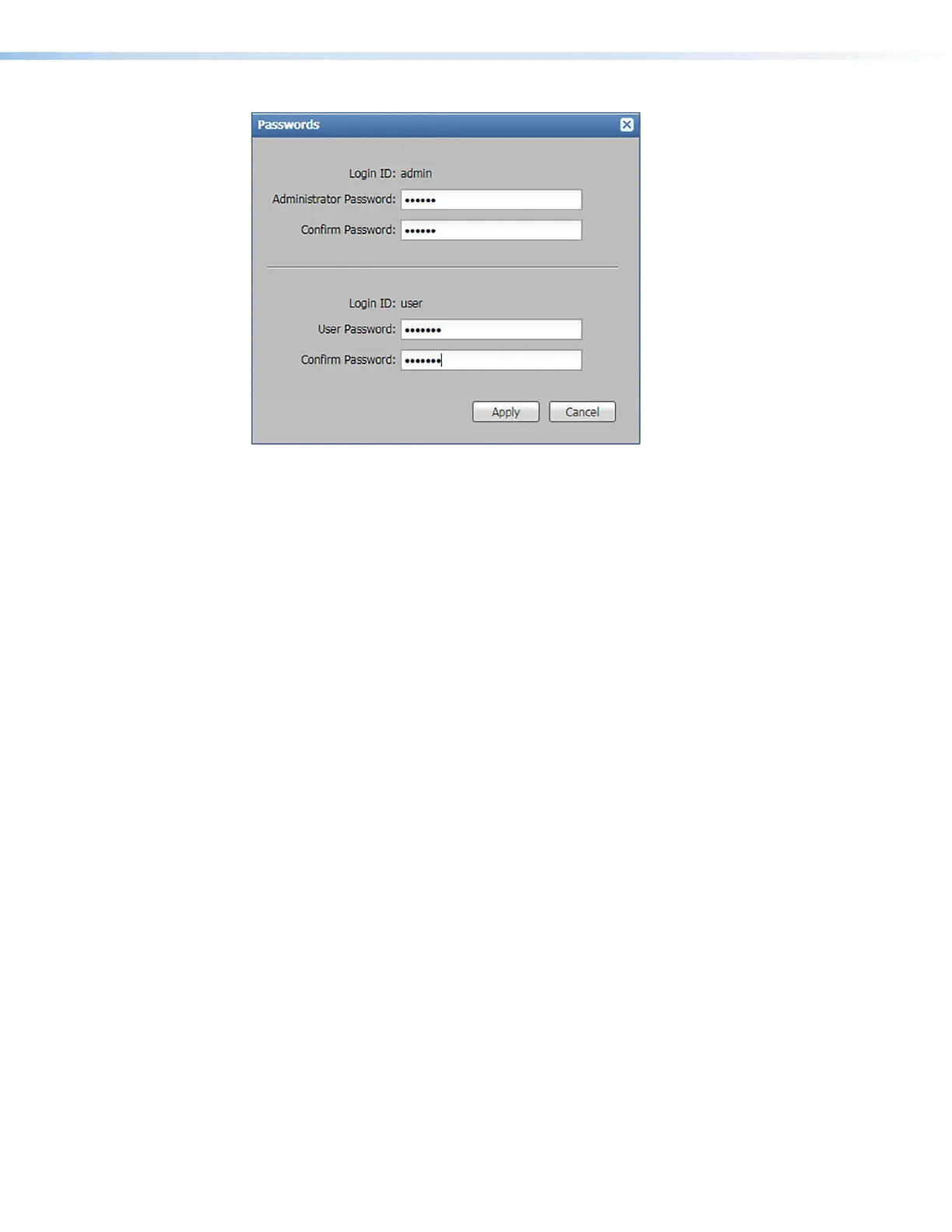
Figure 53. Passwords Dialog Box
To assign an administrator password:
1. In the Administrator Password field, enter the new password.
2. In the Confirm Password field directly under the Administrator Password field, enter
the same password from the field above.
3. Click the Apply button. The dialog box closes.
To assign a user password:
1. Ensure an administrator password is assigned.
2. In the User Password field, enter the new password.
3. In the Confirm Password field directly under the User Password field, enter the same
password from the field above.
4. Click the Apply button. The dialog box closes.
To remove a password:
1. In either the Administrator Password or User Password field, delete any existing
password, leaving the field blank.
2. In the corresponding Confirm Password field, press the <Space> key on the keyboard.
3. Click the Apply button. The dialog box closes.
To cancel pending changes:
Click the Cancel button. The dialog box closes.
Configure This Device Panel
This panel (see figure48,
7
, on page 87) contains a link to the Download page on
the Extron website. From this page you can download and install the PCS configuration
program. This software enables you to configure the input and output, set audio
connections, manage EDID files, and so on.
53













 To Next Page