DXP HD 4K PLUS Series • Internal Web Page 90
To obtain an IP address automatically:
1. Select the Use DHCP checkbox.
2. Click the Apply button. The dialog box closes.
To set a static IP address:
1. Ensure the Use DHCP checkbox is not selected.
2. In the IP Address field, enter an IP address.
3. In the Subnet Mask field, enter the subnet mask if required.
4. In the Default Gateway field, enter the default gateway if required.
5. Click the Apply button. The dialog box closes.
To reset all communication settings to the default values:
Click the Reset to Default button. The following settings are reset:
• DHCP is disabled.
• The IP address is set to 192.168.254.254.
• The subnet mask is set to 255.255.0.0.
• The default gateway is set to 0.0.0.0.
NOTE: If the password is still set to the factory configured device serial number, the
password is reset to no password.
To cancel pending changes:
Click the Cancel button. The dialog box closes.
Device Info Panel
The Device Info panel (see figure48,
4
, on page 87) displays information about the
device with options to edit the device name and update firmware.
Setting the device name
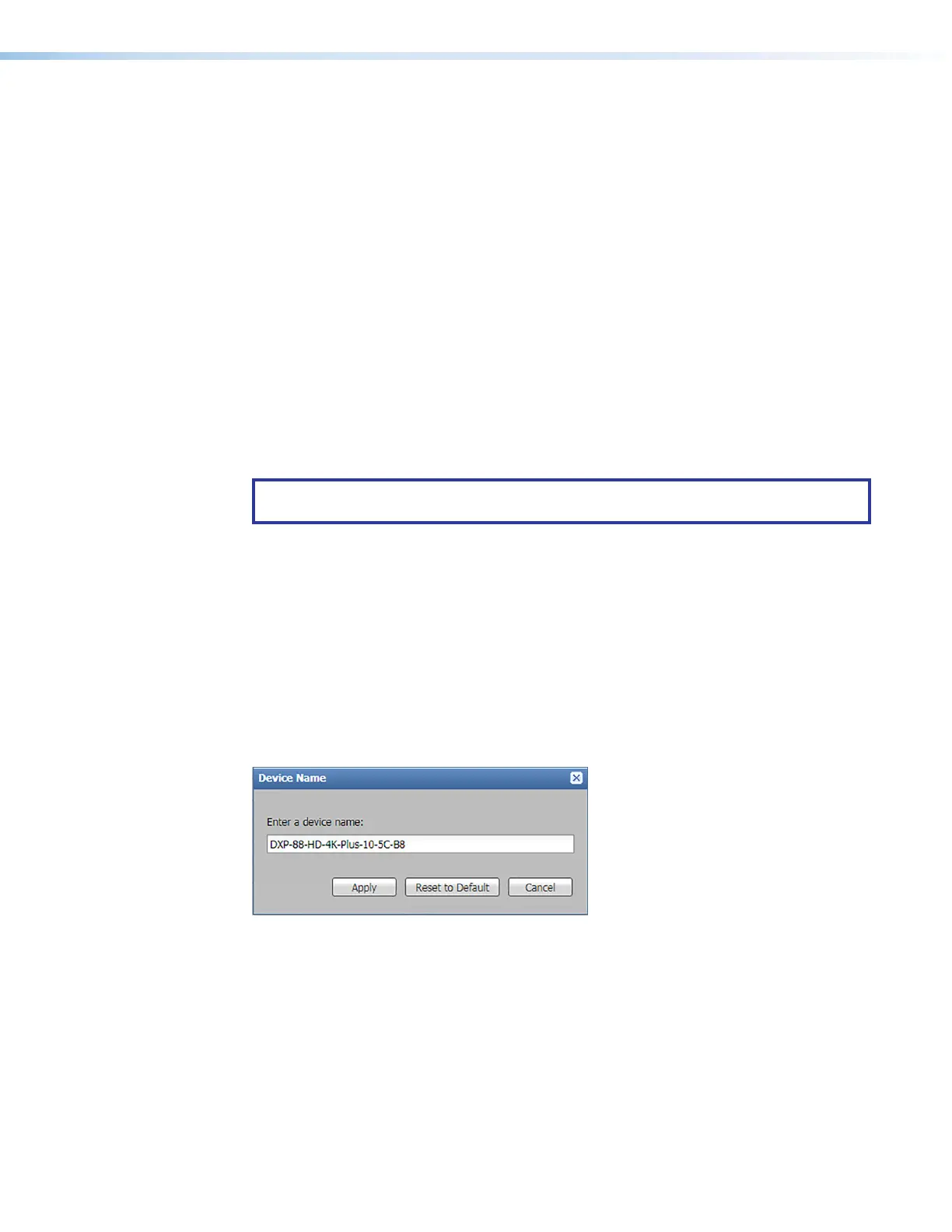
To edit the device name or hostname, click the Edit button in the Device Info panel. The
Device Name dialog box opens.
Figure 50. Device Name Dialog Box
To change the name:
1. In the Enter a Device Name field, enter a name for the DXP.
2. Click the Apply button. The dialog box closes.
To reset the name to the default value:
1. Click the Reset to Default button.
2. Click the Apply button. The dialog box closes.
To cancel pending changes:
Click the Cancel button. The dialog box closes.
50













 To Next Page