DXP HD 4K PLUS Series • Operation 32
Viewing Ties — DXP 42
• To view ties to an input: Press the desired input button. The button LEDs light for all
outputs that are tied to that input.
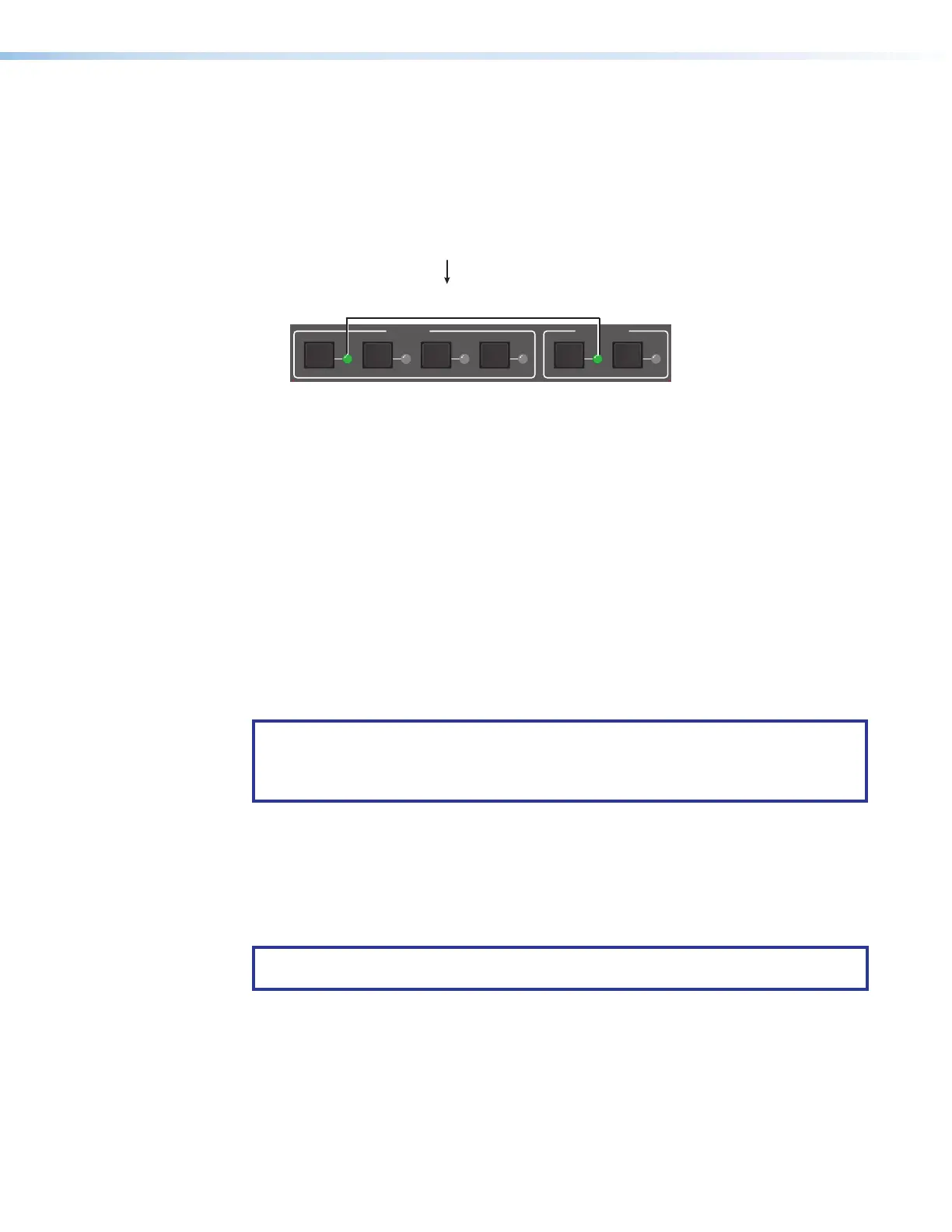
Figure 31 shows a tie between input 1 and output 1. Pressing the input 1 button causes
its LED to light. The output 1 button LED also lights, indicating that a tie exists between
input 1 and output 1.
INPUTS
OUTPUTS
1 2 1 23 4
The output button LED lights.
The tied input button LED lights.
Figure 31. Viewing Ties to an Input
• To view ties to an output: Press the desired output button. The LED for the selected
output button lights. In addition, the button LEDs for the tied input and for all outputs
tied to that input light.
Resetting
There are several methods by which you can reset the DXP, and some of these methods
allow for four levels of resetting. The following reset methods are available on the DXP:
• Front panel buttons — DXP 44, 84, and 88 only (see “Resetting the System Using
the Front Panel Buttons.”
• Front panel (DXP 42) or rear panel (DXP 44, 84, 88) recessed Reset button (see
Resetting Using the Front or Rear Panel Reset Button on page33)
• SIS commands (see the Reset Commands on page57)
• PCS (see the DXP HD 4K PLUS Series Help File)
NOTE: Entering the
E
ZQQQ
}
SIS command or performing a mode 5 reset via the
rear panel Reset button (see the Reset Modes Summary on page34) removes
the current passwords (whether user-set or the factory-set serial number), leaving the
unit with no password.
Resetting Using the Front Panel Buttons — DXP 44, 84, and 88 only
A system reset (also known as a “hard reset”) does the following:
• Clears all ties and presets.
• Clears all video and audio setup and mutes.
NOTE: The system reset does not reset the internet protocol (IP) settings, replace
user-installed firmware, or reset the unit name to the factory default.
The front panel button reset is identical to the
E
ZXXX
}
SIS command (see the Reset
Commands).
31













 To Next Page