DXP HD 4K PLUS Series • Internal Web Page 100
Network Settings Panel
In the Network Settings panel (see figure54,
7
, on page 93), you can set the IP
address, subnet mask, and gateway address for your DXP, and turn DHCP on and off. You
can also view the MAC address of the unit. To set the IP addresses:
1. Click Edit in the lower-left corner of the Network Settings panel. The EDIT Network
Settings screen opens.
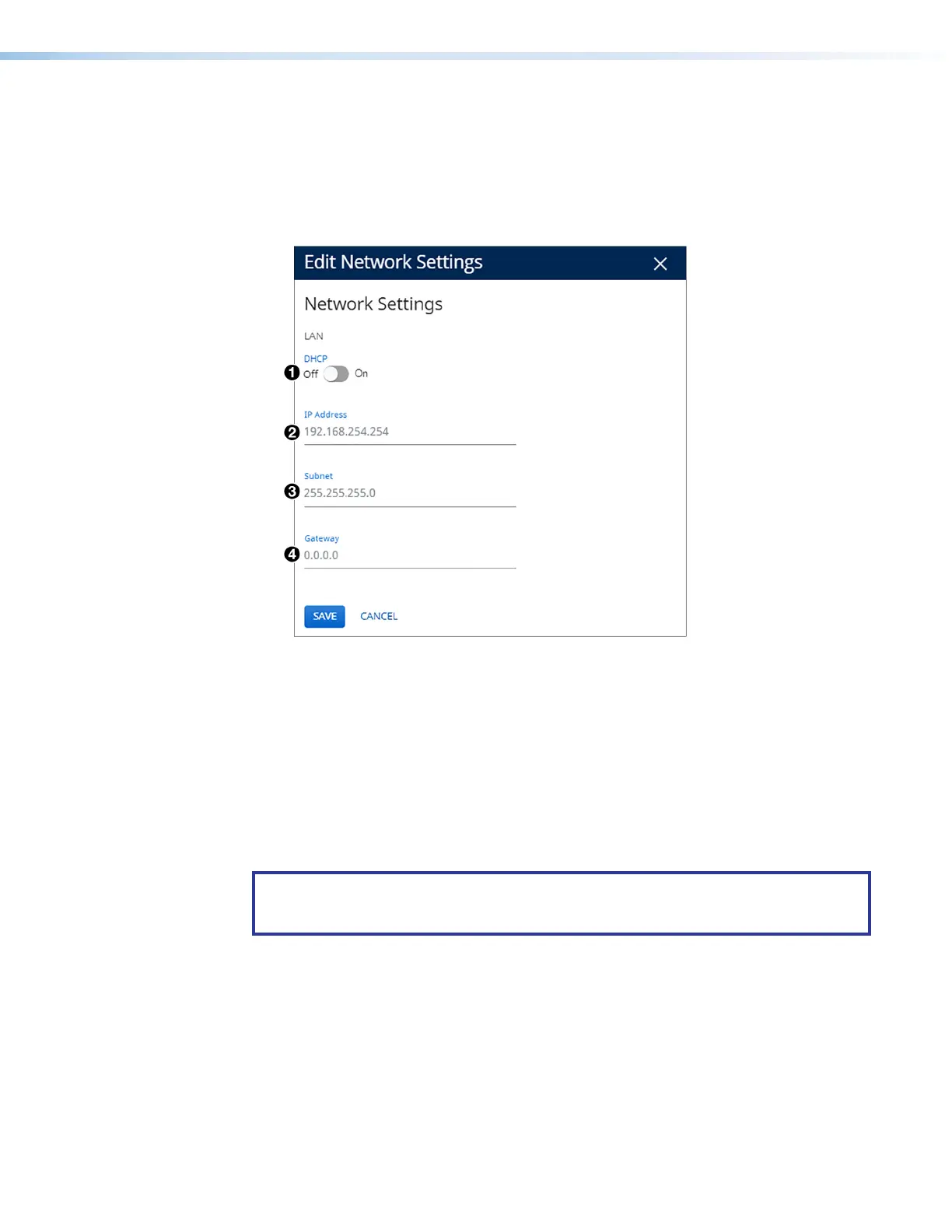
Figure 61. Edit Network Settings Screen
2. Edit the network settings as desired:
• DHCP — Click the DHCP button (see figure 61,
1
) to toggle DHCP on and off.
When DHCP is enabled (On), the unit configures its IP address and other network
settings from the DHCP server. The default is Off.
• IP Address, (
2
), Subnet mask (
3
), and Gateway address (
4
) — To set any
of these addresses, click in the desired field and enter the address.
3. When finished editing, click Save to confirm your changes or Cancel to close the
window without making changes. You can also close the window by clicking the X in the
upper-right corner of the screen.
NOTE: If DHCP is being enabled, the web page attempts to redirect and connect to the
unit via the unit name (TCP/IP hostname). If a static IP address is being set, the web
page attempts to connect to the new IP address.
61













 To Next Page