DXP HD 4K PLUS Series • Operation 26
To save and recall a preset:
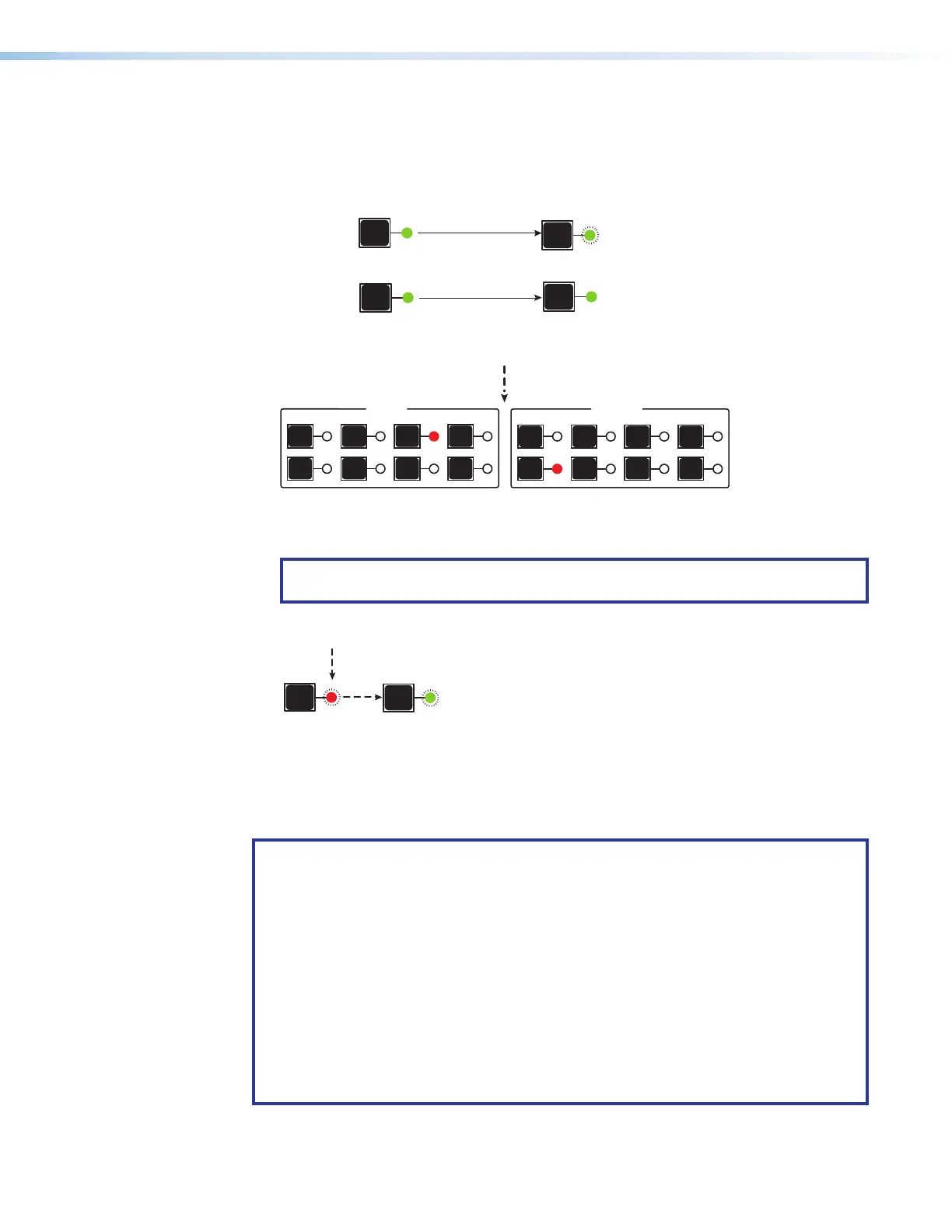
1. Press the Esc button to clear any previous selections. The Esc LED blinks green once.
2. To save a preset, press and hold the Preset button until the Preset LED starts blinking.
To recall a preset, press and release the Preset button.
PRESET
Preset LED blinks.
Press and hold.
2 seconds
Save a
preset
Recall a
preset
Preset LED lights.
Press and release.
• All Input and Output button LEDs with assigned presets light red.
• The current preset is overwritten if you select a previously saved
preset.
PRESET
INPUTS
1
5
2
6
3
7
4
8
1
5
2
6
3
7
4
8
OUTPUTS
Figure 23. Saving or Recalling a Preset (DXP 44, 84, and 88)
3. Press the input or output button for the desired preset number.
NOTE: All input and output buttons can be used for presets, even if they do not
represent actual inputs or outputs on the DXP.
The LED blinks red to indicate that this
preset is selected to save or recall.
The Enter LED blinks green
to indicate the need to
activate the save or recall.
1
ENTER
Figure 24. Pressing an Input or Output Button to Select a Preset
4. Press the Enter button to confirm.
Muting and Unmuting Outputs from the Front Panel
NOTES:
• You can mute video and audio, video-only, or audio-only outputs. Pressing and
releasing the Video button and the Audio button toggles each selection on and off.
• When the DXP enters view-only mode, the output LEDs light for all outputs
without ties.
• When power is removed and restored, muted outputs are unmuted.
• Mutes are protected when front panel lock mode 2 is selected. You can view the status
of the output (muted or unmuted) in lock mode 2 but you cannot change it from the
front panel (see Locking and Unlocking the Front Panel (Executive Modes) on
page28).
• To enable changes to the mute settings, set the lock mode to 0 and ensure that the
unit is not in Power save mode 2 (see page 30).
23
24













 To Next Page