Quantum Series Videowall Processing Systems • QC 101 Controller 73
Control Syste
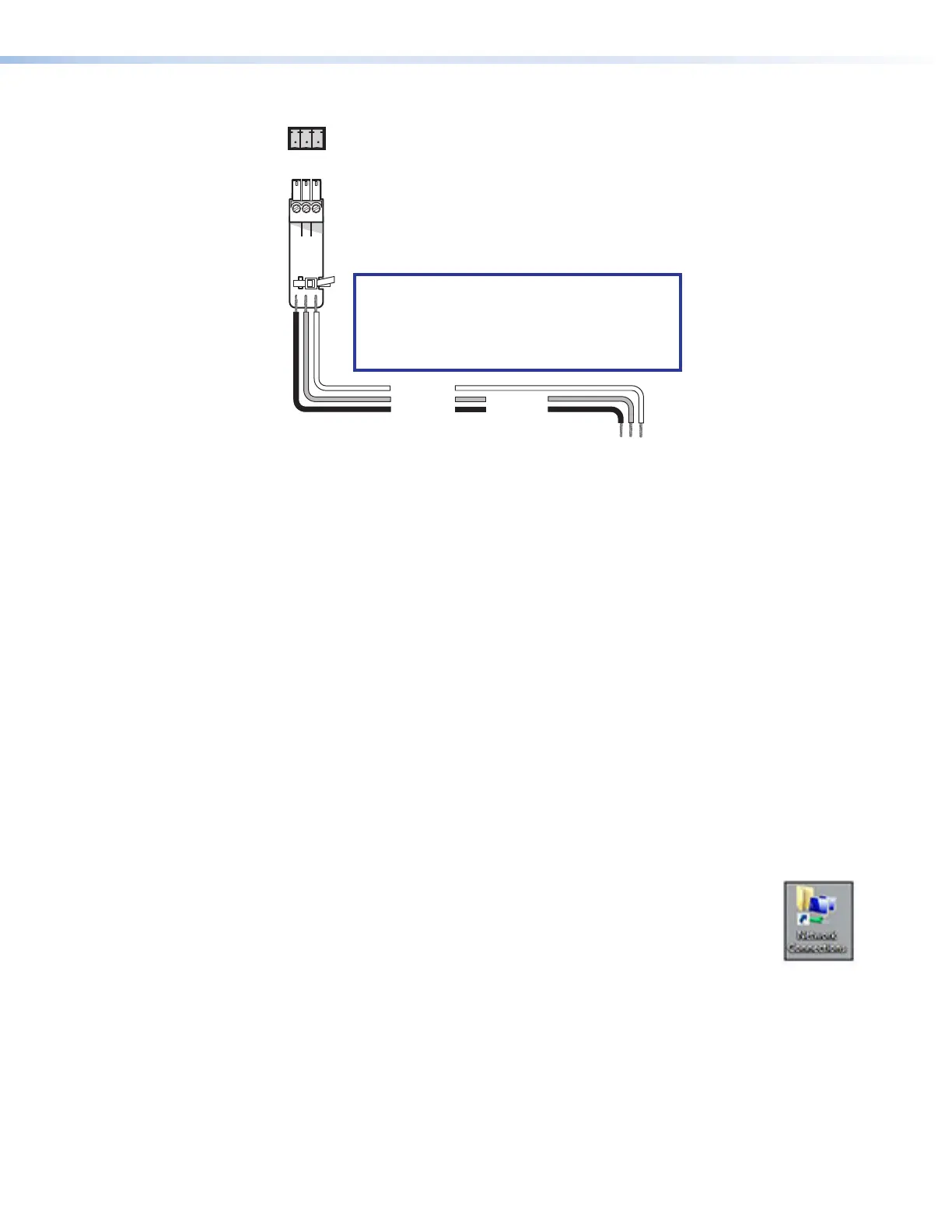
QC 101 Rear Panel
RS-232 Port
NOTES:
• If you use cable that has a drain wire, tie
the drain wire to ground at both ends.
• Connect a ground wire between the
QC 101 and the control system.
Tx Rx
1 2 3
G
Ground (G)
Transmit (Tx)
Receive (Rx)
Transmit (Tx)
Receive (Rx)
Figure 62. Connecting to the RS-232 Port
Configuring the QC 101
After you have made all necessary connections, you are ready to configure the QC 101 to
control the Quantum processor as follows:
1. Set the IP address (see Setting the QC 101 IP Address).
2. Start a Quantum project using the Quantum Control Software. See Accessing the
Quantum Control Software on page 67 to load the software. See the Quantum
Control Software User Guide, available at www.extron.com, to create a project.
3. Configure the RS-232 connection (see Configuring the RS-232 Connection on
page 76).
Setting the QC 101 IP Address
The QC 101 controller is a host device with an embedded operating system. To
communicate with the Quantum processor, the QC 101 must be on the same network
and subnet as all the Quantum processors in the system. To set the QC 101 IP address,
you need a keyboard and mouse connected to one or both of the USB ports and a
monitor connected to one of the output ports.
1. Do either of the following:
• On the QC 101 Start screen, click the Network Connections icon
(shown at right), or
• On the desktop screen, double-click the Network Connections
shortcut icon on the desktop.
The Network Connections window opens.


 To Next Page