Quantum Series Videowall Processing Systems • QC 101 Controller 76
Configuring the RS-232 Connection
To set up the RS-232 connection between the QC 101 and a control system:
1. Create a new project or upload an existing one.
• If creating a new project, see the Quantum Control Software User Guide for
detailed instructions. Save the project to the QC 101 D: drive.
NOTE: The C: drive on the QC 101 is write-protected. Therefore, content on
the C: drive that is created or changed is not saved when power is cycled
to the QC 101. Save any new or changed projects on the controller to the
D: drive or to a flash drive attached to one of the USB ports on the QC 101
rear panel.
• If uploading an existing project that was created on a PC, copy the project
file directly to the QC 101 D: drive and double-click its filename to open the
project.
2. Test presets and input switching within the Quantum Control Software to ensure that
the project is satisfactory.
3. Set up the RS-232 connection to the control system as follows:
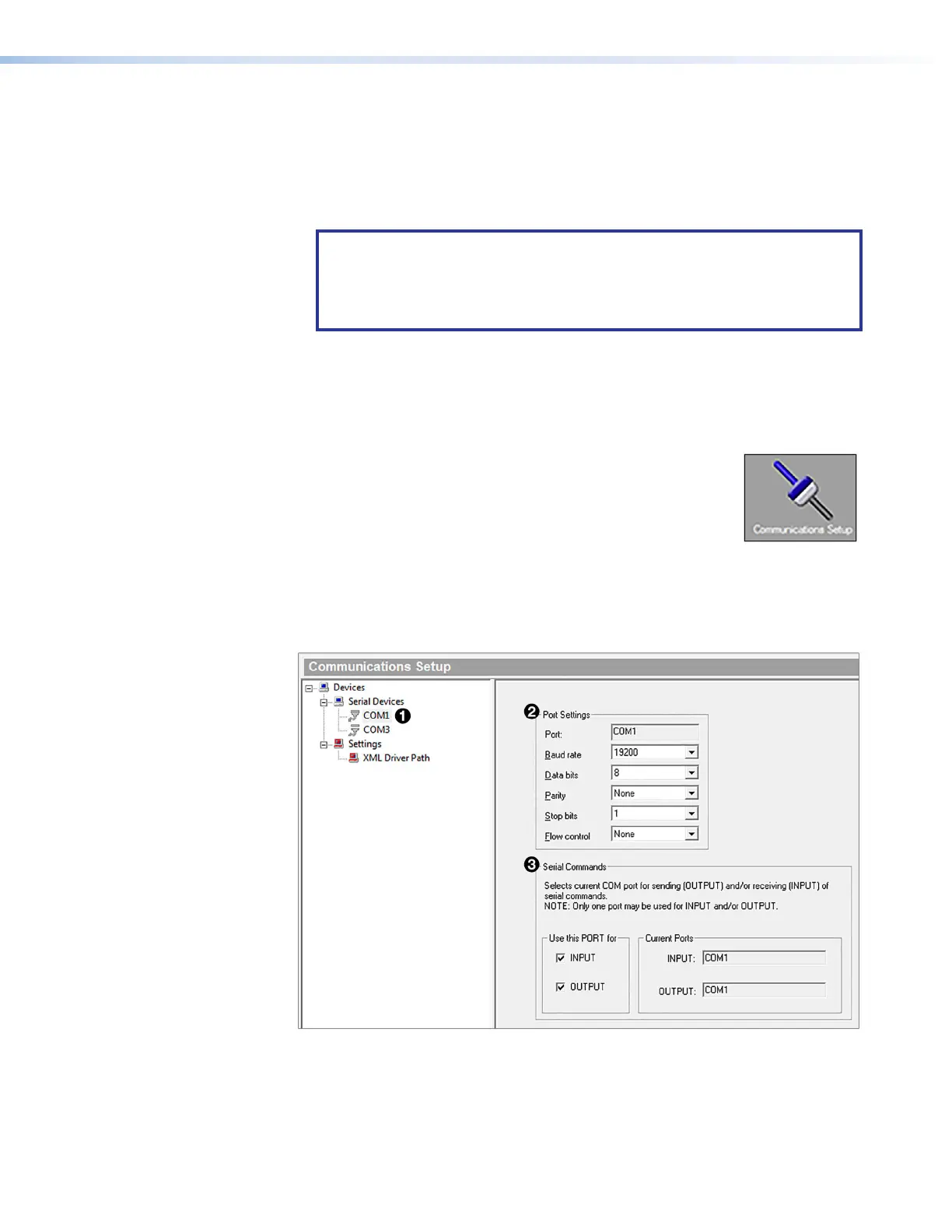
a. In the Quantum Control Software window, click
Communications Setup on the left Taskbar panel.
b. On the Communications Setup screen, select COM1 in the
Devices panel (see figure 66,
1
).
c. In the Port Settings panel (
2
), enter the settings required by the control
system being used.
d. In the Serial Commands panel (
3
), select the Input and Output checkboxes to
enable commands to be received from the control system via RS-232.
Figure 67. Configuring RS-232 Communication
4. Re-save the project file to the D: drive.
5. In the QC 101 Shell window, click Commit C Drive to reboot the QC 101, then
confirm that the project file has been loaded and connected to the Quantum
processors.


 To Next Page