26
EDITING/CLEARING BANK PRESETS
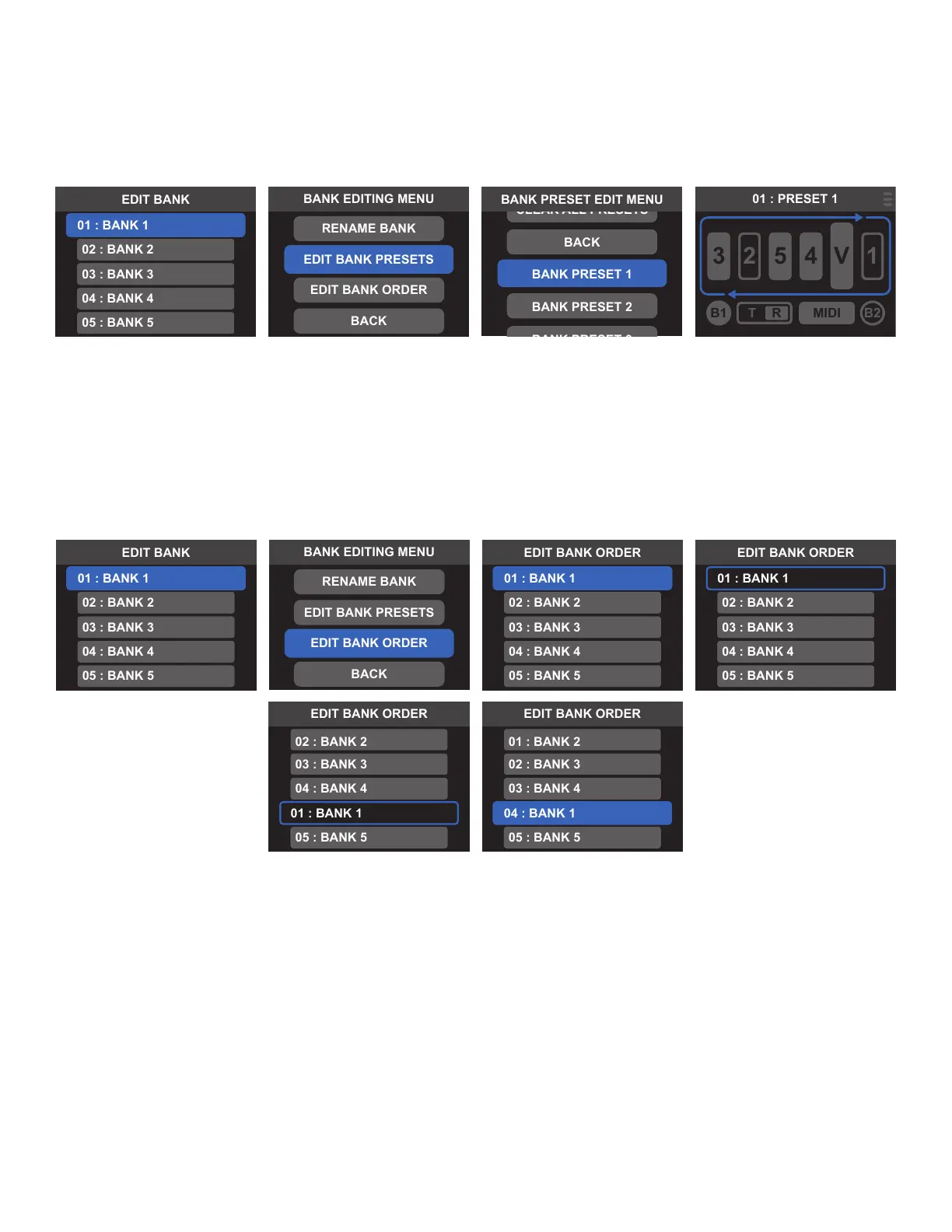
Bank presets can be edited using the EDIT BANK PRESETS option in the EDIT BANKS menu. In the EDIT BANK
PRESETS MENU, selecting any of the four preset slots will open the PRESET EDITOR for that preset. When exiting
the PRESET EDITOR, the user is returned to the EDIT BANK PRESETS MENU. Select CLEAR ALL PRESETS to delete
all four presets saved to a bank.
EDITING BANK ORDER
Banks can be reordered using the EDIT BANK ORDER option in the EDIT BANKS menu. To do so, select EDIT BANK
ORDER and use the encoder or footswitches to select the bank to be reordered. Use the encoder or footswitches
to move the selected bank to a new location; note that the selected bank will be highlighted in blue and will
contain its original bank number while it is being moved. To conrm the new location, press the encoder or
Footswitch 1 and select SAVE; the bank number will update to reect the new location.



 To Next Page