55
4.2 Printing Stored Data
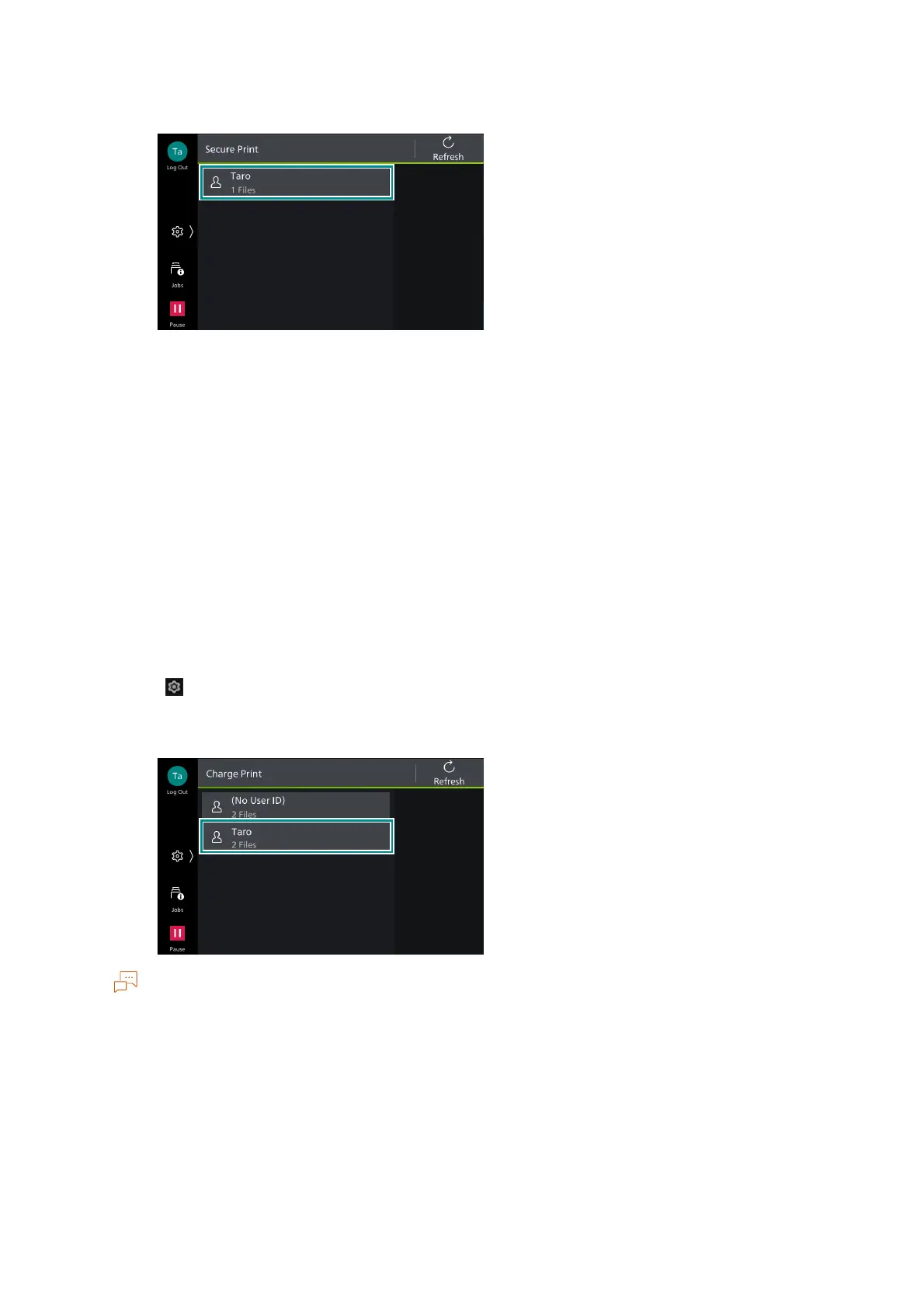
2. Tap on the target user.
3. Enter the password specified in the printer driver, and tap on [OK].
4. Tap on the file to be printed, to apply a check mark.
5. Change the print quantity as needed.
6. Tap on [Start].
Charge Print
Print Charge Print files. Charge Print files are saved for each user ID for storage set in the printer
driver. When you do not set the user ID for storage, the file is saved in [(No User ID)].
1. Log in to Authentication Mode.
2. Tap on > [Jobs] > [Stored Print Jobs] > [Charge Print].
3. Tap on the target user.
When the Secure Print Passcode is set in the printer driver, the screen to enter the Passcode displays.
Enter the Passcode, and tap on [OK].


 To Next Page
 Loading...